Published by Rich Christie, University of Washington, EE 500E/ME 523, October 11, 2012












Published by Rich Christie, University of Washington, EE 500E/ME 523, October 11, 2012

Application Note
WHERE EVERY MILLISECOND COUNTS!
The digital economy has redefined business operations and is setting new standards for electric power reliability and quality. Downtime – undesirable for any business – is catastrophic for Data Centers and other high reliability facilities where even the smallest power quality issue can cause equipment failure, data corruption, and data loss. Costs can range from thousands to millions of dollars per incident! Businesses that rely on 24/7 operation have responded to their power reliability and quality needs by installing redundant capabilities that typically include uninterruptible power supply (UPS) systems and backup generators. To ensure the proper operation of these systems and provide ongoing monitoring of power conditions, many companies employ comprehensive power monitoring systems.
THE LIMITS OF UPS SYSTEMS
UPS systems are critical components of a cohesive power reliability program. But just because a UPS is running does not mean that it is fully operational or that it can fully protect your system. UPS systems have technical limitations in resolving potential power quality issues. They are complex electro-mechanical devices that are themselves subject to failure. Although your UPS system may have alarming capabilities, such features are typically based upon course indicators without the ability to evaluate the quality of the electrical supply to your critical loads. The very system installed to protect your facility could actually be the source of problems without you even knowing about it. Simultaneous monitoring of both UPS input and output allows you to keep tabs on the utility supply, UPS response to input power problems, and your critical loads in order to verify that your investment is working optimally and mitigating supply side problems.
CRITICAL SYSTEMS MONITORING
Monitoring the utility supply, UPS, and other critical areas of your power system puts you in the driver’s seat, providing the necessary tools to be proactive and determine the overall health of the power systems and loads within your facility. Just because the system is functioning doesn’t mean it’s working optimally and that problems aren’t looming. Power monitoring systems have the unique ability to provide advance warning of potential failure by continually evaluating the quality of supply and sending you notifications if problems occur. In addition, should a worst case outage or critical failure occur, the data provided by the power monitoring system can be invaluable in troubleshooting the problem and getting back online as soon as possible, reducing the cost of downtime and providing needed information to permanently correct or mitigate the problem.
Encore Series Model 61000 Monitors Both UPS Input and Output in One Instrument

ENCORE SERIES IS A COST EFFECTIVE MONITORING SOLUTION
Available in both standard and switchgear mount enclosures, the 61000 family of DataNodes are perfect for high reliability monitoring. The 61000’s unique, modular design provides high resolution monitoring (512 samples per cycle) of voltage and current for two three-phase circuits in one instrument. This popular 61000 configuration has four modules: (2) voltage modules and (2) current modules. Each voltage and current module has four channels for complete monitoring of all three phases, plus Neutral. As shown in the diagram above, when configuring the system, voltage and current modules are paired together in instrument firmware to form Virtual Analyzers. One voltage and one current module are paired together to monitor the UPS input (Virtual Analyzer #1) and the others are paired together to monitor the UPS output (Virtual Analyzer #2). Each Virtual Analyzer functions like a complete and independent Power Quality, Demand, & Energy instrument. Encore Series Software, which is the systems’ web enabled software, sees each Virtual Analyzer as a separate, configurable instrument.
SAMPLE BILL OF MATERIALS
As indicated in the diagram above, the most economical Encore Series monitoring solutions take advantage of the modularity of the 61000 – Two virtual analyzers simultaneously monitoring the UPS input and output in one instrument. Below is just one common 61000 configuration:
Instrument:
Voltage measurements:
Current measurements:
Several other configurations are available, such as using the 61SG or 61SGD (with LCD display) switchgear panel mount 61000 instruments, along with various other module and POD combinations to meet other measuring and mounting requirements.
CASE STUDY: BANKING CENTER UPS FAILURE
Encore Series System is monitoring a Data Center for a major international bank located in New York City. This facility has three UPS modules, one rotary system, and two identical online static systems from the same major UPS manufacturer. The input and output of each UPS module is monitored.
Shortly after midnight on February 19th a 3.3 second upstream sag occurred that originated from the utility. The depth of the sag was about 75% of the nominal 480VAC. The sag resulted in damaged elevator controls in the high rise building, but there were no indications of critical systems being affected. However, further investigation proved otherwise…
A UPS Performance Verification Answer Module® is available in Encore Series Software which is a pass/fail reporting module. This answer module works on the simple principle that, although undesirable, PQ events may occur on the UPS input, which is typically the utility supply, but should never occur on the output. When events are detected on the UPS input, the answer Module searches the monitoring database for corresponding events on the UPS output. If present, a UPS failure is reported, since it didn’t properly mitigate the input side power anomaly.
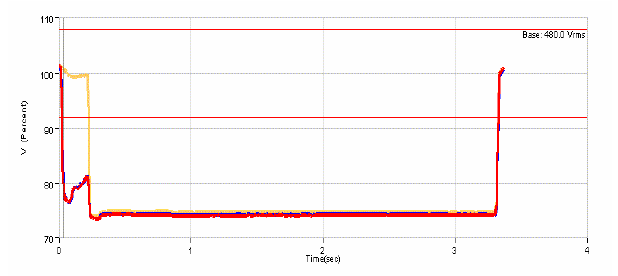
Utility Supply

UPS Output
In the case of this power event, neither the UPS or critical systems reported any alarms, but the Encore Series UPS Performance Verification Report indicated that one of two static UPS’s experienced a swell, or over voltage condition coincident with the return to normal of the utility sag. The peak voltage reached about 107% of nominal or almost 520V! Over voltage conditions are undesirable since they can stress and even damage computer and other power supplies and result in critical system failures.
By being proactive, this potentially serious problem was identified before any system failures or downtime occurred. The UPS service team was called and they identified a control board problem with the UPS, which was quickly corrected. If the problem was not proactively identified by the Encore Series System, the UPS system could have potentially experienced a catastrophic failure that resulted in downtime and significant financial loss to the bank.
TO CONTACT DRANETZ
Call 1-800-372-6832 (US and Canada) or 1-732-287-3680 for Technical or Sales support. Dranetz Technologies http://www.dranetz.com
Published by
Journal Article:
Recent Advances in Electrical & Electronic Engineering, 2019, 12, 210-222 (Volume 12, Issue 3 ,2019) , Published on 10 June 2019
Abstract: Background: Renewable energy generation using wind energy has emerged worldwide and has opened up significant new markets in electrical power generation. However, different factors that affect power quality performance of Wind Turbine (WT) applications such as wind speed fluctuation and use of power electronic based devices have been presented due to the rapid increase of WT installations.
Methods: Accordingly, it is worth to measure, assess and evaluate the quality of the generated power of these WTs in order to ensure their compliance with the grid-integration conditions. In this work, first, a general classification of WTs and their operating principle is reviewed. Because variable speed WTs are frequently used in today’s power systems, much attention was paid to this type of turbines. Second, the various power quality aspects caused due to the integration of the wind energy systems into the grid were presented and discussed. Flickers, harmonic distortion, response to voltage dip, active power, and reactive power requirements, fault-ride through and short-circuit current contribution were the addressed power quality problems.
Results: Further, the study pointed out the need for a unified evaluation process to assess the power quality performance of the grid-connected wind systems.
Conclusion: Also, it was concluded that success in integrating more wind energy systems hinges on accurate power quality performance assessment.
Keywords: Active power control, fault-ride through, flicker, harmonic distortion, reactive power control, renewable energy, power quality, wind turbines.
INTRODUCTION
Recently, the public debates carried out a lot of stress on the traditional energy generation technologies that rely on fossil fuel sources. In the conventional electrical power generation, CO2 is usually released, which has a detrimental effect on global warming. In addition, electrical energy demand is rapidly increasing worldwide, keeping in mind the limited fossil fuel resources. Consequently, the need for renewable and sustainable energy resources such as wind, solar, tidal, and wave has been noticeably increased in recent years [1-7]. Wind has been known as a source of energy long time ago. The ancient Egyptians utilized the wind power around 5000 BC [8]. Nowadays, wind power is considered as one of the most convenient green power sources because of its availability, efficiency, and environmental-friendly performance. Wind energy releases only 20% of the corresponding natural gas emissions of CO2E/kWh [9, 10].
In its early stages, wind turbines (WT) were coupled directly to the grid and operated in a very narrow speed range, so-called fixed speed turbines. Modern WTs have a wide operating speed range with the aid of power electronic interfaces, and these types are known as variable speed WTs.
The installation of wind power plants is rapidly increasing worldwide. In 2016, the total installed wind power capacity was about 456 GW [11, 12]. However, renewables, in general, suffer from unavailability sometimes as well as the intermittent because wind speeds and directions are continuously changing by nature. This intermittent nature of wind causes fluctuations in the output shaft power of the WT at the Point of Common Coupling (PCC) which may lead to various Power Quality (PQ) problems such as voltage flickers and others [13-16]. Similarly, the use of power electronic converters in modern WTs introduces extra PQ problems such as harmonic distortion, voltage imbalance, and voltage fluctuations [16-19]. Hence, it is essential to evaluate the PQ impacts of the grid-connected WTs to ensure safe and reliable operation of the electrical networks to allow much more potential of WT projects. In this regard, PQ measures of a WT are usually performed and evaluated at the PCC. Several guidelines were established to evaluate PQ performance of WTs such as IEC 61400-21 [17].
In this work, first, a general classification of WTs and their operating principle is reviewed. Because variable speed WTs are frequently used in today’s power systems [20], much attention was paid to this type of turbines. Second, the various PQ aspects caused due to the integration of the wind energy systems into the grid were presented and discussed.
Flickers, harmonic distortion, response to voltage dip, active power, and reactive power requirements, fault-ride through and short-circuit current contribution were the addressed PQ problems. The rest of the paper is organized as follows: Section 2 explores the various types of WTs. Design and construction of variable speed wind turbines are presented in Section 3. The various requirements and PQ issues of grid-connected WTs are investigated in Section 4 and finally, Section 5 presents the conclusions and findings of this study.
MATERIALS AND METHODS
Classification of Wind Turbines
Classification of WTs can be done on the basis of their structure such as turbines designed to use gearboxes or directly driven without gearboxes (gearless). Also, they can be classified by speed as fixed, partial-variable or variable speed turbines. Some can categorize the turbines by the power control used (stall, pitch control, or active stall). The orientation of the spin axis (vertical or horizontal or even bladeless) is another way of classification. In addition, WTs may be classified according to size (small, medium, or large) and installation location (onshore and offshore) [21-24].
In practice, todays’ WTs have four principal types (A, B, C and D) based on the speed range, in which Type A is a fixed speed WT that is equipped with an IG. Type B is a limited variable speed turbine with an IG and variable rotor resistors. Type C is a doubly-fed IG (DFIG) that is equipped with a partial-power converter. Lastly, Type D is a variable speed WT that is equipped with a PMSG and a full-scale power converter. To date, the wound rotor synchronous generator and the squirrel-cage IG are used with Type D turbines. Type A was the first WT generation, where the squirrel cage IG windings are coupled to the utility grid directly. The turbine’s rotor shaft is coupled via a gearbox to the turbine shaft. Stall control is usually adopted in this type to control the blades during high wind speeds. The configuration of this WT is illustrated in Fig. (1a). On one hand, the advantages of this type are its simplicity, rigidity, and low cost. On the other hand, its poor efficiency, the absence of controllability of power and its restricted speed, i.e. 2% of the rated speed, are the major drawbacks of this type. In addition, this type requires a capacitor bank to compensate for reactive power that is absorbed by the induction machine. Considering all these disadvantages, Type A is no longer a choice for today’s WTs installation [21, 22].
Likewise, turbines of Type B are comparable to those of Type A except that a wound-rotor induction machine is to be used instead of the squirrel-cage one, i.e. the rotor windings are shortened by variable speed resistances as shown in Fig. (1b). The advantage of Type B is the extended speed of operation (10% of the rated speed), whereas a greater capacitance size will be necessary as the losses will increase because of the resistances and reactive power support will be needed [25].
Type C is equipped with wound-rotor IG as shown in Fig. (1c), where the stator terminals are connected directly to the grid similarly to the previous types. However, the rotor windings are coupled by a fully-controlled converter to the grid, which enables a wide operating speed range ( ± 30 of rated speed) [26]. RSC stands for the rotor-side converter while the GSC is the grid-side one. A pitch angle scheme controls the blades. This type is the most widely used among all the WT types because of its wide range of speed, optimal power extraction from the wind, and low mechanical stress on the rotating parts (compared to Types A and B). However, the configuration of Type C demands further protection for the converter in case of faults [27].
Lastly, in Type D, a full-power converter is needed to transfer all the turbine power to the grid. Induction or synchronous generators can be used with this type, where both the wound rotor and permanent magnet can be useful in case of a synchronous generator, and currently, the PMSG outperforms the other machines because of its simple construction and elimination of DC excitation. The PMSG can be constructed with a large number of poles; however, this gives the advantage of operating directly without the need for gearboxes. Type D is equipped with a direct-driven PMSG as shown in Fig. (1d), where it can be noticed that the generator terminals are coupled to the converter and all the WT power will flow through the converter. This is why it is commonly realized that the converter size must be rated equal to (or slightly above) the nominal power of the WT.
Also, the blades are controlled by a pitch angle control, and the converter regulates the active and reactive power control of this scheme, and the turbine can then operate with a wider speed range. However, its main disadvantage is the high cost [28, 29].
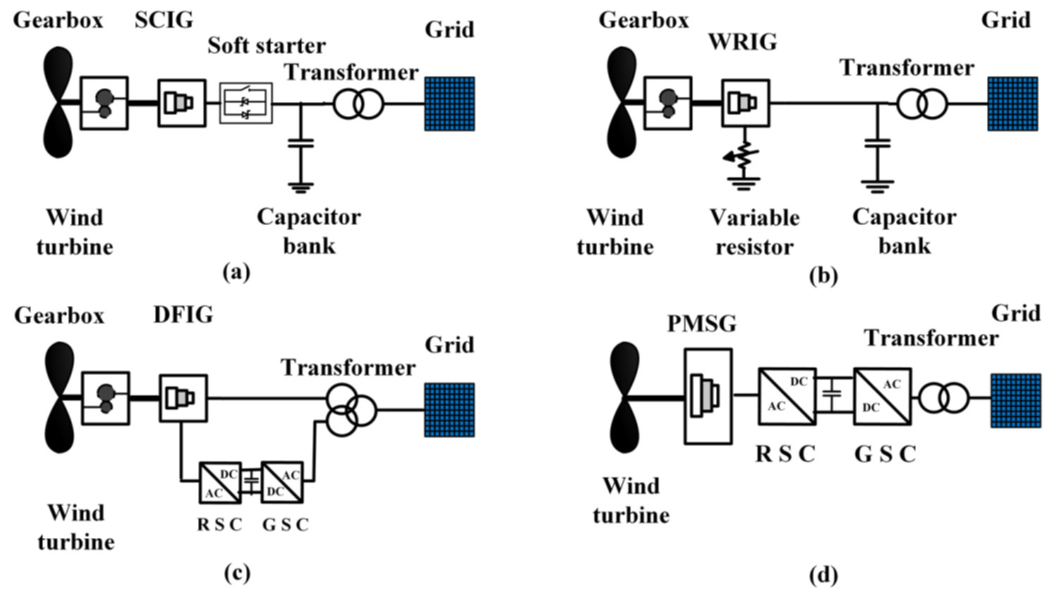
Fig. (1). Types of wind turbines.
MODERN VARIABLE SPEED WIND TURBINE
The kinetic energy stored in the moving air is converted to mechanical energy through the WT blades, and then this mechanical energy generated at the WT’s shaft is converted into electrical energy through the electrical generator of the WT. The variable speed wind turbines (VSWT) can produce electricity at a wider range of speeds, even at lower speeds below the synchronous speed. This wide operating range makes the VSWT outperform the conventional fixed speed WTs. Modern VSWTs contain complicated power electronic converters and advanced control systems such as pitch angle control which are employed to protect the blades from overspeed mechanical problems during high wind speed conditions [30-32].
Aerodynamic Power
The mechanical power generated by a multi-blade WT is defined by Betz law as expressed in Eq. (1): The output power (Pm) supplied from the wind turbine is given as follows [33, 34]:

where, “ρ is the air density, A is the rotor swept area, v is the wind speed, and Cp (λ, β) is the power coefficient as a function of the tip-speed ratio λ and the pitch angle β”. It should be mentioned that the Cp is the most important parameter in power regulation [35]. Look-up tables from turbine manufacturers are provided to indicate the Cp for operation turbine operations. Also, different models for Cp have been developed [36] as a function of λ and β. For example, for particular turbine types, Cp is given as follows:

In which, the parameter λi is defined in terms of λ and β as follows:

where β is the angle between the plane of rotation and the blade cross section chord and λ is the tip-speed ratio of the turbine. The relation between λ and Cp when β equals zero is given in Fig. (2). It is noticed that the optimum Cp is achieved when λ varies between 6.1 and 6.5 which ensures maintaining maximum power point tracking within this operational range.
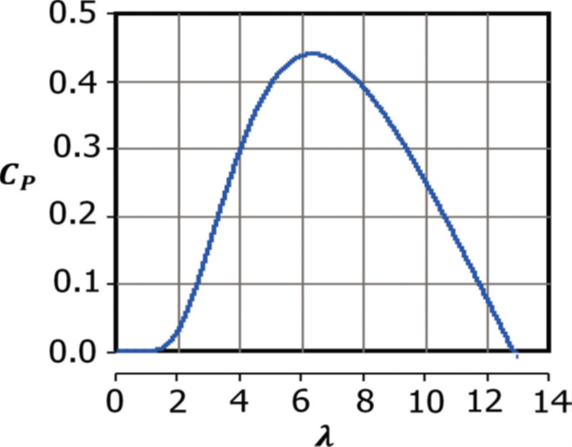
Fig. (2). Power coefficient for different tip-speed ratios.
Operation of Variable Speed Wind Turbines
A VSWT that operates at low wind speed guarantees that the optimum value of power is captured from the cut-in till rated speed, by keeping Cp at its maximum value. Every wind speed has optimum power point which is obtained at specific rotor speed. Fig. (3) shows an example of the output power of a VSWT power at different wind speeds and turbine rotor speeds, where the pitch angle is kept equal to zero. The maximum power available at a WT can be gained by an algorithm or a locked-table utilizing the converter support for power regulation.
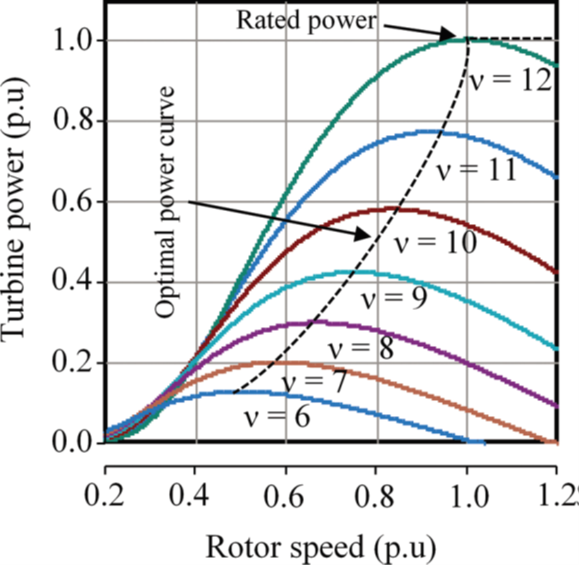
Fig. (3). Turbine power at different wind and rotor speeds.
At high wind speed condition, the WT aerodynamic power increases, causing an increase in rotational speed too. Pitch control system is employed to limit the aerodynamic power to avoid rotor over-speed that may lead to a mechanical system failure. The blades’ pitch angle is regulated to decrease the power coefficient, so the extracted power is limited to the WT nominal power [31].
Wind Turbine Parts
WTs system consists of various parts. The WT system has three main parts outlined as follows [37, 38]:
GRID-CONNECTED WIND TURBINES: REQUIREMENTS AND POWER QUALITY
If the voltage and current are continuous and have a pure sinusoidal wave with a constant frequency and amplitude, this would be perfect ‘ideal’ PQ case. Nowadays, the terminology of PQ is commonly used in recent power systems due to the unprecedented development of the power electronic interface technologies and renewable energy resources under the umbrella of smart grids. To-date, there is no typical and unified definition for the PQ [33].
Without a doubt, PQ has dissimilar interpretations for parties in different electric entities. For instance, PQ is used sometimes to express the quality of voltage, while others use it for the quality of current, and some use it to define the service reliability. Moreover, it can be used to express the electricity quality in the electrical energy markets. Excessive utilization of recent power-electronic devices and the increasing integration of renewable energy resources with their inverter-based interfaces into distribution systems have brought different PQ problems with these systems [39].
PQ can be defined as a terminology that describes maintaining the near sinusoidal waveform of power distribution node voltages and line currents at rated operating conditions. Generally, voltage quality focuses on variations of the voltage from the ideal waveform (that is characterized by a sine wave of constant magnitude and frequency). Therefore, PQ can be defined as a set of electrical limitations (reference limits) that enables an equipment to operate in its planned manner without major operating losses or lifetime deteriorations [40].
The main PQ problems associated with the excessive penetration of WTs are harmonic distortion, voltage imbalance, and voltage fluctuations and flickers. As a result, precautionary measures need to be defined through which the lowest acceptable level of power quality could be guaranteed besides ensuring the right behavior of the equipment that is fed from the power distribution system [41]. The past years have witnessed a rapid increase in the installation of wind power units and other distributed generation units. In fact, the riskiest source of energy is believed to be the wind energy with respect to PQ. When the grid involves WTs, PQ becomes a multifarious issue which greatly relies on the interface technology between the wind turbines and the grid [41- 44]. In order to cover WT impacts on PQ, several guidelines were published; such as the IEC 61400-21 [17].
This section provides a comprehensive review of the various PQ issues associated with the grid-integrated WTs and their inter-connection measures.
Flicker
One of the significant characteristics regarding PQ in wind energy is the voltage flicker [45]. Basically, voltage flickers are defined as a continuous rapid variation of input supply voltage sustained for an appropriate period to enable visual recognition of a variation in electric light intensity. Flicker is a PQ problem in which the magnitude of the voltage or frequency changes at such a rate so as to be noticeable to the human eye [39, 46].
Regarding the wind energy systems, the rapid change in wind speed, wind shear, yaw error, and tower shadow may cause a variation in the output power that results in voltage fluctuations at the PCC which sequentially generate flickers [10, 42]. The flicker severity is assessed over a short period (usually 10 min) is known as Pst, and that evaluated over a longer period of time (two hours) is known as Plt. Thus, Plt is a combination of twelve Pst values. Calculation of Pst is commonly expressed as given by Eq. (4) [33, 47]:

where Pa, Pb, Pc, Pd, and Pe are the surpassed flicker levels during 0.1, 1, 3, 10 and 50% of the surveillance period. By definition, value of one for Pst expresses a visible disturbance, a level of optical severity at which 50% of persons might sense a flicker in a 60 W incandescent lamp. Excessive light flicker can cause severe headache and can lead to the so-called ‘sick building syndrome’ [48].
The critical value of irritability is set at Pst = 1, magnitude of the maximum acceptable voltage change in relevance to voltage changes per minute is illustrated in Fig. (4) [49]. It is hard to measure the flicker accurately, and for this purpose, IEC Standard 61000-4-15 developed a device called ‘flickermeter’ to calculate the functional specifications of flicker [50].
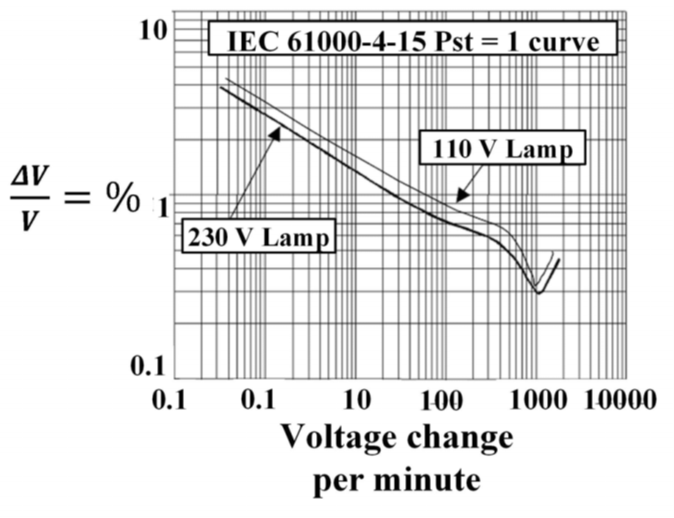
Fig. (4). The IEC curve for Pst =1 for different voltage changes [49].
IEC 61400-21 [17] specifies a measurement procedure to determine the flickers emitted from WTs. Moreover, the representation of the flicker for two different situations namely, switching and continuous operation is defined. In the continuous operation, the flicker resulted from active and reactive power fluctuation; IEC 61400-21 requires a statistical calculation for the so-called flicker coefficient C( k, va) which is defined as: “A normalized measure of the maximum flicker emission (99th percentile) during continuous operation of a WT”. C(k, va) is determined at each 6, 7.5, 8.5 and 10 m/s of wind speed and network impedance angles: 30°, 50°, 70° and 85°. C(k, va) is calculated as follows:

It should be mentioned that k stands for the network impedance phase angle at the PCC, and va stands for the annual average wind speed at the hub-height of the wind turbine [42]. Also, Sk is the short-circuit capacity of the grid where the WTs are connected. Sn is the WT’s nominal power. In a switched mode of operation of a WT, flickers occur by power fluctuations at the start or the stop operations of the turbines. Based on IEC 61400-21 [17], two indices should be measured during a switching operation, namely kf(k) which is standardized flicker emission data of a single switching process, and ku(k) which is a standardized measure of the change in voltage as a result of the switching action. IEC 61400-21 [17] states that kf (k) and ku(k) should be measured at different angles as 30°, 50°, 70° and 85°. kf (k) and ku(k) are calculated as follows:


where Umax and Umin are at the maximum and minimum root-mean-square (rms) phase-to neutral voltages, respectively. Un is the nominal phase-to-phase voltage. Tp is the transient time period of a switching operation. The WT manufacturers usually perform factory tests on WTs to evaluate the performance and PQ related emissions of each WT. The level of flicker varies from turbine type to another. The variable speed WTs produce lower flicker compared to the fixed speed WTs [10]. This is due to the controllability of variable speed WTs, which absorb the power fluctuations and therefore mitigate flickers [51-53].
Several factors affecting the flicker in VSWTs and they are directly related to the rise in wind speed until the rated value which occurs when the WT reaches its maximum power. When the wind speed increases beyond its rated value, the pitch control will smooth out the variation in output, thus flicker will be reduced consequently [54, 55].
Besides, the flicker emission is significantly influenced by the short-circuit capacity of the connected network at the PCC. A WT usually produces greater flickers in weak grids as the flicker level has an inverse relationship to the short circuit capacity [55].
The flicker emissions of WTs are considerably affected by the wind turbulence intensity, such that the flicker level increases with the increase in the wind turbulence intensity [55]. The grid impedance angle also plays a significant factor that affects the flicker levels. Lower flickers occur when the difference angle between WT power factor and the grid impedance angle reaches 90°. As VSWTs have the ability to control reactive power; flicker can be mitigated by regulating it [22]. Lastly, in the comparison between VSWT types, DFIG has fewer flickers in continuous operation, whereas PMSG has considerably lower values of kf(k) and ku(k) in the switching operation [56].
Harmonic Distortion
Power system harmonics are defined as multiple integer frequencies of the fundamental system frequency (typically 50 or 60 Hz) presented in electrical voltage or current waveforms. Power system harmonics result from various types of harmonic generating equipment such as power-electronic converters, arc furnaces, fluorescent lamps, and other nonlinear loads. Harmonics can cause many problems such as parallel and series resonance, thermal overloading of lines and cables, overheating of transformers, nuisance operation of protection relays, which in turn decrease reliability and increase losses of power systems [57, 58].
The variable speed operation of WTs was made possible with the advancement of the power electronics integration technologies which inject a considerable amount of current harmonics into the electrical networks. Based on the guideline IEC 61400-21 [17], measurements of current harmonics are required only for VSWT, and the fixed speed WTs are to be excluded since they do not include power electronic converters whereby their current harmonic emissions can be neglected [10, 42]. The standard explicitly details certain processes to measure individual and total harmonic current distortion in terms of the rated current in percent (In%) and the bin midpoints for WT operation in the range of the active power levels 0, 10, 20, 30… 100 % of the nominal power (Pn). The generated harmonics shall be measured up to 50 times of the nominal frequency in addition to the interharmonics up to 2 kHz based on the IEC standard 61000 4-7 [59], and for the higher frequency range from 2 kHz to 9 kHz. The measurement process shall be performed at steady state operation and no reactive power production. However, the standard does not consider short-duration harmonics produced during switching operations because these harmonics last for small-time periods.
The total harmonic current distortion (THDC) is determined in terms of the hth harmonic current and the fundamental harmonic one (I1) as follows:
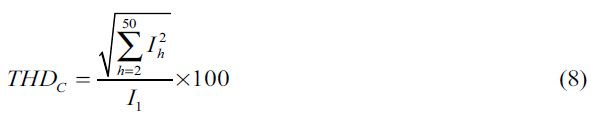
IEC 61400-21 [17] does not claim any limitation for the current harmonic; instead, several standards can be applied to assess the current harmonics such as IEC 61000-3-6, IEEE 519-2014, and EN 50160 [60-62]. The low order harmonic frequencies, i.e. 3rd, 5th, 7th and 11th are the most dominant current harmonics in VSWTs due to the control system and the PWM switching control [63, 64].
The harmonic distortion in VSWTs depends on several factors such as the type of the control system (PWM or hysteresis), converter topology (voltage or current source inverter), harmonic filter and the type of VSWT (DFIG or PMSG). Harmonic distortion appears on both the stator and rotor currents in DFIGs [65-67].
The harmonics and inter-harmonics in DFIG WTs are produced by GSC, RSC and the WT itself. The total induced harmonics in DFIG that are caused by both converters and the machine itself are expressed in details in [68] as follows:

where fAC represents the harmonic frequencies at the AC converter’s sides. S is the generator slip and fs is the stator frequency. The DFIG harmonic emission is also affected by the background supply harmonics [69]. The harmonics of lower order are the dominated ones in DFIG current harmonics, and the values of the 5th and 7th harmonics are relatively high and the THDc will be high when the output current is considerably low [70, 71]. DFIG has higher THDc when compared to PMSG WT, due to the presence of interharmonics [22, 72]. When the PMSGs are being considered; the GSC is responsible for the generation of harmonics. The GSC is typically a six-pulse inverter. The harmonic and inter- harmonic currents can be linked back to the operation of power electronic switching devices.
The generated current of PMSG contains low order harmonics such as the 3rd, 5th, and 7th where the 5th harmonic order is usually higher. The harmonics in PMSG depend on the converter topologies (current-source inverter or voltage source inverter), the converter structure (multilevel, two level or matrix), and the control strategy (hysteresis current control, space vector pulse width modulation or sinusoidal pulse width modulation).
Accordingly, one can notice that the electrical grid plays a vital role in the determination of the percentage of the voltage harmonic distortion at the PCC with WT plants by the variations that may occur in the grid impedance at the PCC. According to the common practice during the design stage of grid-integrated WT projects, the worst case of the grid impedance has to be considered while specifying the maximum allowed harmonic pollution [73] from a WT project.
Voltage Unbalance
Voltage unbalance (VU) is a PQ significant problem that can be explained as “a condition in a poly-phase system in which the rms values of the fundamental components of the line voltages, and/or the phase angles between consecutive line voltages, are not all equal” [74]. VU occurs in electrical power systems due to irregular distribution of single-phase loads over the three phases, single-phase distributed resources, power system faults, asymmetry of lines, and unbalanced power system faults, and others [75].
The expression of Voltage Unbalance Factor (VUF) presented in IEC Standard 60034-26 [76] is commonly used to represent the VU, where WTs should withstand VUF not exceeding 2%. VUF is given as follows:

where V– and V+ denote the phasors of the negative sequence and positive sequence voltage components, respectively.
Short-circuit Current Contribution
Every element in a distribution network such as cables, transformers, and switchgear has a particular designed short-circuit current (SCC) level to be withstood. This SCC can be defined as a measure of the maximum fault current expected for a particular element. Exceeding of the SCC limit of a certain element must be avoided to avoid excessive thermal damages to this element. SCC may cause an intolerable overload to the power system components (machines, transformers, cables, transmission lines, etc.). SCC can even lead to damage depending on the magnitude and duration of these components [77]. An adequately-designed protection system should detect and interrupt excessive SCCs to ensure safe and reliable operation of electrical networks.
Excessive penetration of WT plants leads to a noticeable increase in maximum SCCs in the network [78]. In addition, the intermittent nature of the output power generated by the WTs plants makes their contribution to the grid SCC currents more complex. The relation between the installed capacity of WT farms and the impact of large-scale WTs integration on the PQ performance is directly proportional. Simply, as the wind power increases, a higher SCC will be injected into the system. The effects of different types of WTs on the power grids greatly vary from one type to another. The SCC from DFIG-WT depends on the rotor’s circuit breaker protection settings on the RSC. In an instance where the rotor is short-circuited by a rotor circuit breaker; SCC features of the turbine act as the constant speed WT, a temporary inrush current takes place in the fault and vanishes quickly [79]. The maximum SCC of DFIG is calculated as follows [22, 80, 81]:

where imax is maximum rotor’s fault current, ΔT is the time of the first peak, Tr’ .CB is the transient time constant, Tr′ and TS′ are the stator’s and rotor’s transient time constants respectively, and RCB is the equivalent crowbar resistance. Under a condition that RCB >> Rr; Tr’ .CB is small, and the time when the first peak is formed is given as ΔT →0. In this situation, a simplified equation for DFIG maximum SCC can be derived as follows:

It can be deduced from (12) that a higher crowbar resistance may cause a less peak current; whereas a maximum crowbar resistance value (RCB,max) can be determined if the most permissible rotor-voltage is known. In case of PMSG, the SCC caused by the fault is restricted to the nominal current or just a bit greater than it. It is quite usual to design PMSG power converters to have an overload ability of 10% over their nominal rating. Keeping in mind that, in all kinds of faults, the generator remains connected to the converter and separated from the fault in the grid [82-84]. Therefore, even if there is a grid disturbance, the WT’s current is managed to maintain its acceptable limit, e.g. 1.1 per unit.
Response to Voltage Drops
The occurrence of voltage drops is considered as a specified issue for WTs behavior in power systems. These drops are random in nature and they are classified by their amplitudes and duration time. Past experiences had revealed that wind power generation is greatly affected due to these voltage drops and even in their recovery, if disconnected from the grid. IEC 61400-21 [17] comprises of certain offline tests that determine whether the system can survive these voltage drops and supports grid stability and to what extent precisely. This test is performed when the WT is disconnected from the grid, and consequently, it will not be requested to modify the voltage wave. The considered rated active power (Pn) of the WT is to be between 10% – 30% in the first scenario of the test and then above 90% in the second one, as observed in the test. Further, a number of different six voltage drops are defined in the test, while specifying the magnitude and duration of the rectangular voltage drop [85, 86].
The test is carried out by a simulation to set a fault by linking three or two phases to each other or linking three or two phases to the ground using impedance that is calculated to obtain the voltage magnitudes specified in the standard when the wind turbine is not connected to the grid. A short-circuit generates the voltage drops. The voltage drop testing must not end up in an undesirable condition at the upstream grid, and it must not considerably disturb the WT transient response. During a voltage dip, in the grid, the active power which can be injected is affected by this drop. Consequently, a surplus of the active power is experienced, and over-speed occurs as a result of the imbalance between the aerodynamic power and WT output power [87]. Under these conditions, WTs can get disconnected from the grid. The grid voltage can be improved if the WT can provide a reactive current.
As a comparison between the PSMG and DFIG operators in VSWTs, PSMG operates smoothly when it is subjected to the voltage dip issue and it supplies more reactive power [22, 88]. In PMSG-WT, the full-scale converter isolates the generator terminals from the grid, and the GRC controls the current up to a given reference value (which is usually set to 1.2 p.u.). Because of the active power reduction, a rise in the DC link occurs, and it might cause damage to the converter. For improving PMSG performance during the voltage dip, a crowbar can be used in the DC link to decrease the extra power and balance the power between the grid-side converter and generator-side converter. The voltage dips can greatly affect the DFIG as there is a direct coupling of the stator terminal to the grid. In the absence of a protection system, the transient in the stator current is very high at fault which can affect the DFIG. The transient (from stator) is transferred to the rotor as a result of the magnetic coupling which links the stator to the rotor. The transmitted transient causes higher voltage and currents in rotor windings under fault conditions. It is consequently essential to protect the converter from overcurrent, the rotor winding and the DC bus from overvoltage. The rotor crowbar method can be considered as a traditional solution to improve DFIG performance during voltage dips [89-93].
This is the main procedure that is followed by the majority of the manufacturers to manage fault ride through. Even though the crowbar is not an expensive way of protecting both the generator and the converter in fault conditions, there is one big issue in which DFIG loses the control after the initiation of the crowbar as a result of deactivation of the rotor-side converter [93]. The employment of pitch-angle control of WT system is to avoid the over-speed of the generators rotor which is accomplished by turning the blades to reduce the power coefficient of the WT. Lastly, it should be mentioned that the response of the pitch-angle control can be greatly restricted when a WT is connected to a weak grid because of the great dynamic power that would be caused from backing up the power throughout fault despite the fact that the pitch control mechanism can quickly turn the blades to their maximum values [94].
Voltage-ride Through
One of the major characteristics of wind power plant that has a considerable impact on power system networks is the voltage-ride through that is commonly recognized as FRT. Transmission System Operators (TSOs) in several nations are establishing grid connection requirements (grid codes) for the wind generators to ensure that the electric system is stable and has a sufficient amount of access to wind power, and they fulfil various technical needs, including the FRT, that means capacity of the WT system to stay steady and connected to the network in case of faults that may occur in a network [86, 95, 96]. Due to errors in the transmission systems, huge temporary voltage defects in a power system can be caused. The design of each power system is made in a way so that it can bear a large unexpected loss of a particular value of generation capacity and it can function accordingly. If a generation unit connects to the healthy grid, it loses connection and stability during or after a grid fault, and this generation is lost [96, 97]. It is evidently seen that the frequency of the system is reduced at a very fast rate in case of a huge loss of generation, and the need of load shedding arises to make sure that the system remains stable [98]. Previously, WTs had quite fewer needs regarding their functioning during a grid fault; they use cut off in the duration as per the voltage amplitude and fluctuations in the frequency. Currently, the needs for FRT demands the WTs to stay connected along with this in a few countries to support the grid and maintain the power systems’ stability. In particular, the WTs are obliged to remain connected to the grid after a fault on any or all phases for faults duration of specific periods that differ from one code to another, while specifying the minimum voltage level (percentage of the rated voltage) during the fault and the time to remain connected during the fault, whereas the maximum voltage dip duration is also specified. However, disconnection of WTs is permitted if the fault remained longer than the standard clearing time [10]. An example of voltage profiles for FRT of different grid codes in European countries is shown in Fig. (5) [97, 99].
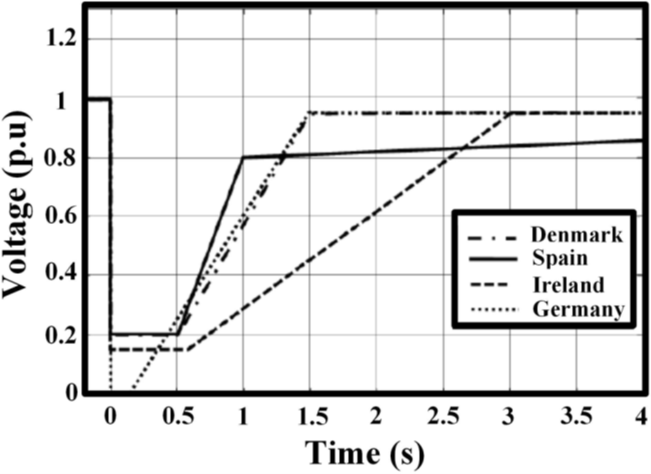
Fig. (5). FRT profile for different grid codes [99].
In addition, the needs of grid codes for FRT capability of the WTs vary from one grid code to another, these needs also include the reactive power support, restoring active power, and short-circuit power and grid impedance angle aspects. A brief description of the grid codes of the countries mentioned in Fig. (5) is given as follows: The German code demands that the WT must inject reactive power when voltages dip 10% or more. Moreover, when the voltage is below 50%, the active power shall not be produced just reactive power [100]. The Spanish grid code states the requirement for reactive current in comparison to all current injected [101]. In the Irish grid code, despite remaining coupled to the grid, WTs are required to supply active power along with maximum reactive current [102]. For the Danish grid code, there is no demand for providing the reactive current; nevertheless, the grid code requires to study the WT performance during voltage dips [103]. The turbines behave in a different way for FRT according to their generator’s topologies, control, and protection.
RESULTS AND DISCUSSION
Furthermore, fixed speed WTs cannot support reactive power; as a result, these WTs are unable to meet most of the grid code. However, this problem can be avoided by applying external supporting devices such as FACTS, e.g. STATCOM and SVC [104, 105]. VSWTs can produce reactive power which improves the voltage during critical conditions. However, if the voltage dip is served like German grid code, DFIG can fail to provide the reactive power since the protection system blocks the DFIG due to the current limitation which leads to losing the controllability. On the other side, PMSG with full-scale converter has better flexible control; hence it can meet grid code demands [106, 107]. FRT can be enhanced for VSWTs several methods, e.g. a breaking resistor attached to the DC-bus, energy that can be stored in rotating masses in the form of inertia and by avoiding the operation of maximum power tracking during the faults.
Active Power Control
To ensure coordination between the various WT farms and the grid, the output active power of the WT farms should be controlled, based on the system loading and the grid operator requirements. Different active power regulation modes are required in WTs farms. The most common modes of control are the delta control, specific power limit, and balanced control. IEC 61000-21 and some grid codes require active power regulations (active power control modes) which are responsible for limiting the maximum active power, balancing the active power output, and defining the ramp rates upward or downward.
The frequency converter of the VSWT responds faster to the reference signals. When the fluctuation reduces through regulation of the generator, VSWTs can operate at the maximum power; therefore, efficiency and PQ will all improve. Standard IEC 61400-21 [17] tests the wind speed to check the WTs’ capability to regulate the active power. The test might include both the WT as well as its control system [86]. The three measurements regarding the active power are given, as follows:
It can be noticed from Fig. (6) that the set-point control ensures that the output active power from the WT remains within its pre-set range of operation. The capabilities of a WT to participate in an automatic frequency control scheme are closely linked to its ability to produce active power based on set-point control mode. For example, the data acquisition system and supervisory control of a modern wind farm may regulate the active power set-point of a single WT constantly to attain a particular frequency response. Therefore, participation in an automatic frequency control can be done. In VSWTs, the maximum measured power is, P600 = P60 = P20 [86]. Moreover, VSWTs have the ability to track the active power signal very fast and can meet the IEC 61400 compliance easily [22, 108, 109]. However, it can be mentioned that a PMSG may show slightly faster performance as com pared to the DFIG because its power can be controlled by the inverter instantaneously.
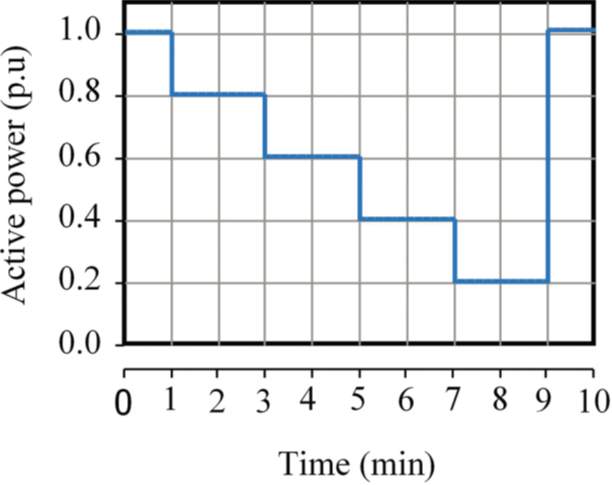
Fig. (6). Active power and the set-point control [17].
Reactive Power Control
The early WTs were using IGs because they are low-cost, rugged, and simple machines that need less maintenance. In the early generation, WTs were lacking controllability of the reactive power, WTs were equipped with IGs that absorb reactive power, and a capacitor bank that is needed for compensating this consumed reactive power. In modern WTs, the use of power electronic converters allows for a full control decoupling between active and reactive power. Today, most gird codes require the ability of WT to produce reactive power to enhance the power system performance during critical situations. The reactive power can be used in voltage adjustment to maintain the desired voltage level [110]. IEC 61400-21 specifies two different assessments to test the reactive power of a WT, namely set-point control and reactive power capability. The grid operator defines the suitable mode of the reactive power control by providing the setpoint signal to the WT plant operator which should follow this set-point signal within a pre-defined time frame. One thing that must be taken into consideration is that the WT capability to conduct reactive power set-point control-mode is associated directly with its capacity to take part in automatic voltage control scheme. The latter can be achieved, for example, from the supervisory-control and data-acquisition system of a contemporary wind farm which consistently updates the reactive power set-point of the individual WTs for the achievement of the desired voltage response. To sum up, for the first test, the practice is the same as that one used to assess the ability of the WT concerning the maximum reactive power. For the second test, it should be of six minutes period and the set-point of reactive power must be regulated for two-minute intervals corresponding to the reactive power of zero, maximum capacitive reactive power and maximum inductive reactive power. The active power sets to 50 % of nominal power, and it should be measured in average values of one minute. The reactive power must be 0.2 s average data. The set-point control is illustrated in Fig. (7) in which a reactive power reference is regulated [86].
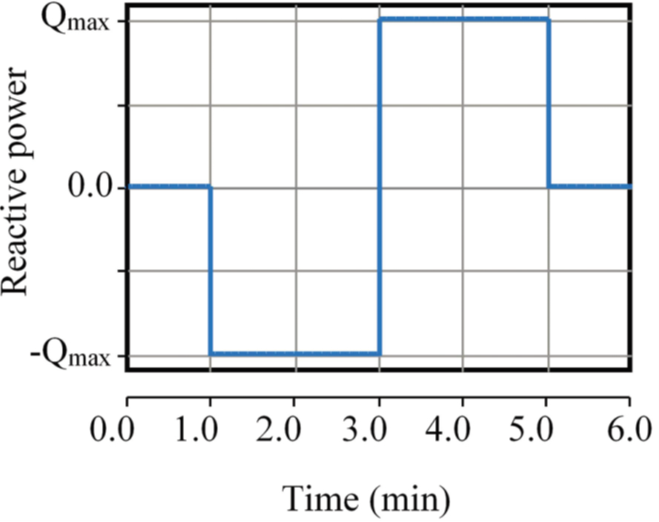
Fig. (7). Adjustment of reactive power set-point control [17].
Reactive power capability takes into consideration the maximum inductive and capacitive reactive power from WTs, the characteristics of the WT shall be illustrated as one-min means data as a function of the output power for a range of 0, 10, 20…. 90, 100 % of the nominal power. Moreover, the WT shall be set to the operation mode of the maximum inductive reactive power to allow for the determination of maximum capacitive reactive power in the complete range of the power. VSWTs can rapidly track the precise reactive power reference given by IEC 614000-21. It takes very little time to change the WTs from inductive to capacitive mode (less than 0.1s) [86]. The response of PMSG is somewhat faster than DFIG as it generates reactive power solely from the inverter that functions like STATCOM [111]. If there is any fault, maximum reactive power can be provided by PMSG, while DFIG regulator is restricted by the crowbar and can only help in maintaining reactive power provided by the converter.
Accordingly, one can say that VSWTs have a faster response to the reference signal of active and reactive power. PSMG functions smoothly when it comes to issues such as voltage dip, short-circuit current, and voltage-ride through, whereas DFIG causes high inrush current and unbalanced reactive power [22].
CONCLUSION
The integration of WTs into the utility grid causes various PQ related issues. As wind energy penetration is currently an emerging topic to increase energy generation capacity and it is expected to be the primary renewable source of electrical power in the near future, the study of wind energy impacts on power quality is therefore necessary. In this regard, coordination between distribution system operators and distributed generation investors while taking into account the updated interconnection regulations is necessary to ensure safe and reliable operation of grid-integrated WTs. Despite the fact that these requirements will increase the investment costs in renewables in general, the distribution systems will reach a point in which no more penetration of renewables will be permitted unless these regulations are met.
In this work, first, a general classification of WTs and their operation principle was reviewed. Because variable speed WTs are frequently used in today’s power systems, much attention was paid for this type of turbines. Second, the various PQ aspects caused due to the integration of the wind energy systems into the grid were presented and discussed. Flickers, harmonic distortion, response to voltage dip, active power and reactive power requirements, fault-ride through and short-circuit current contribution were the addressed PQ power quality events and wind systems’ interconnection requirements.
Although WT manufacturers and operators have developed the WTs’ capabilities to meet the requirements set by the system operators, new capabilities are still needed to cope with the new renewable era. In this regard, future research should include the development of controllers and distributed FACTS that accomplish faster response time to the rapidly changing power demands. In addition, a unified
evaluation process to assess the power quality performance of the grid-connected wind systems is needed to quantify the overall power quality performance of a system in the presence of renewable-based systems on the same basis.
LIST OF ABBREVIATIONS
DFIG = Doubly-fed Induction Generator
FRT = Fault Ride Through
GSC = Grid Side Converter
IG = Induction Generator
PCC = Point of Common Coupling
PMSG = Permanent Magnet Synchronous Generator
PQ = Power Quality
PWM = Pulse Width Modulation
RSC = Rotor Side Converter
SCC = Short Circuit Current
STATCOM = Static Synchronous Compensator
THD = Total Harmonic Distortion
VSWT = Variable Speed Wind Turbine
VU = Voltage Unbalance
WT = Wind Turbine
ACKNOWLEDGEMENTS
The authors would like to thank the anonymous reviewers for their constructive comments and suggestions. In addition, the authors would like to thank Mr. Sherif M. Ismael at the Electrical Engineering Division of the Engineering for the Petroleum and Process Industries (ENPPI) for his support during the revision of this work.
REFERENCES
[1] A. Maleki and M.A. Rosen, “Design of a cost-effective on-grid hybrid wind-hydrogen based CHP system using a modified heuristic approach”, Int. J. Hydrogen Energy, Vol. 42, no. 25, pp. 15973- 15989, 2017.
[2] H. Hafeznia, F. Pourfayaz and A. Maleki, “An assessment of Iran’s natural gas potential for transition toward low-carbon economy,” Renew. Sust. Energ. Rev., Vol. 79. pp. 71-81, 2017.
[3] A. Maleki, M.G. Khajeh and M. Ameri, “Optimal sizing of a grid independent hybrid renewable energy system incorporating resource uncertainty, and load uncertainty,” Int. J. Electr. Power Energy
Syst., Vol. 83, pp. 514-524, 2016.
[4] A. Beddar, H. Bouzekri and B. Babess, “Control of grid connected wind energy conversion system using improved fractional order PI controller: Real time implementation,” Rec. Adv. Electric. Electron.
Eng., Vol. 9, no. 2, pp. 132-141, 2016.
[5] H.S.K. El-Goharey, W.A. Omran, A.T.M. Taha and S.M. El-Samanoudy, “Voltage stability investigation of the egyptian grid with high penetration level of wind energy,” Rec. Adv. Commun.
Network. Technol., Vol. 4, no. 2, pp. 78-89, 2015.
[6] S.H.E. Abdel Aleem, A.F. Zobaa and H.M. Abdel Mageed, “Assessment of energy credits for the enhancement of the Egyptian green pyramid rating system”, Energy Policy, Vol. 87, pp. 407-416, 2015.
[7] S. Sakar, M.E. Balci, S.H.E.A. Aleem and A.F. Zobaa, “Hosting capacity assessment and improvement for photovoltaic-based distributed generation in distorted distribution networks”, In: IEEE
16th International Conference on Environment and Electrical Engineering
(EEEIC), Florence, Italy, 2016, pp. 1-6.
[8] M.A. El-Sharkawi, Wind energy: an introduction, 1st ed.; CRC Press, 2015.
[9] A. Rashad, S. Kamel, F. Jurado and S.H.E. Abdel Aleem, “Stability of distribution networks with wind turbines BT- electric distribution network management and control”, A. Arefi, F. Shahnia, and G. Ledwich, Eds. Singapore: Springer Singapore, 2018, pp. 281- 308.
[10] S.H.E. Abdel Aleem, A.Y. Abdelaziz and A.F. Zobaa, “Egyptian grid code of wind farms and power quality,” In Handbook of Distributed
Generation: Electric Power Technologies, Economics and
Environmental Impacts, Springer Link, 2017, pp. 227-245.
[11] Y.J. Liu, P.A. Chen, P.H. Lan and Y.T. Chang, “Dynamic simulation and analysis of connecting a 5 MW wind turbine to the distribution system feeder that serves to a wind turbine testing site”, In: IEEE 3rd International Future Energy Electronics Conference and
ECCE Asia (IFEEC 2017 – ECCE Asia), Kaohsiung, Taiwan, 2017, pp. 2031-2035.
[12] A.A. Mas’ud, A. Wirba, J.A. Ardila-Rey and R. Albarracin “Wind power potentials in Cameroon and Nigeria: Lessons from South Africa,” Energies, Vol. 10, no. 4. 2017.
[13] Y. Zhang, Z. Chen, W. Hu and M. Cheng, “Flicker mitigation by individual pitch control of variable speed wind turbines with DFIG,” IEEE Trans. Energy Convers., Vol. 29, no. 1, pp. 20-28, 2014.
[14] F. Diaz-Gonzalez, A. Sumper, O. Gomis-Bellmunt and R. Villafafila- Robles, “A review of energy storage technologies for wind power applications”, Renew. Sustain. Energy Rev., Vol. 16, no. 4. pp. 2154-2171, 2012.
[15] S.T. Tentzerakis and S.A. Papathanassiou, “An Investigation of the harmonic emissions of wind turbines,” IEEE Trans. Energy Convers., Vol. 22, no. 1, pp. 150-158, 2007.
[16] S. Liang, Q. Hu and W.J. Lee, “A survey of harmonic emissions of a commercially operated wind farm”, IEEE Trans. Ind. Appl., Vol. 48, no. 3, pp. 1115-1123, 2012.
[17] IEC 61400-21, Wind Turbines-Part 21: Measurement and assessment of power quality characteristics of grid connected wind turbines, 2008.
[18] T. Ackermann and L. Soder, “Wind energy technology and current status: A review,” Renew. Sustain. Energy Rev., Vol. 4, no. 4, pp. 315-374, 2000.
[19] M.Q. Duong, F. Grimaccia, S. Leva, M. Mussetta, G. Sava and S. Costinas, “Performance analysis of grid-connected wind turbines,” UPB Sci. Bull. Ser. C Electr. Eng., Vol. 76, no. 4, pp. 169-180, 2014.
[20] J. Hossain and H.R. Pota, “Power system voltage stability and models of devices BT – robust control for grid voltage stability: High penetration of renewable energy: Interfacing conventional and renewable power generation resources,” J. Hossain and H.R. Pota, Eds. Singapore: Springer Singapore, 2014, pp. 19-59.
[21] M.H. Haque, “Evaluation of power flow solutions with fixed speed wind turbine generating systems”, Energy Convers. Manag., Vol. 79, pp. 511-518, 2014.
[22] A. Ahmed and A.F. Zobaa, “Comparative power quality study of variable speed wind turbines”, Int. J. Energy Convers., Vol. 4, no. 4, pp. 97-104, 2016.
[23] J.M. Ha, H. Oh, J. Park and B.D. Youn, “Classification of operating conditions of wind turbines for a class-wise condition monitoring strategy”, Renew. Energy, Vol. 103, pp. 594-605, 2017.
[24] L. Ziegler, E. Gonzalez, T. Rubert, U. Smolka, and J.J. Melero, “Lifetime extension of onshore wind turbines: A review covering Germany, Spain, Denmark and the UK,” Renew. Sustain. Energy
Rev., Vol. 82, pp. 1261-1271, 2018.
[25] A. D. Hansen and L.H. Hansen, “Wind turbine concept market penetration over 10 years (1995-2004),” Wind Energy, Vol. 10, no. 1, pp. 81-97, 2007.
[26] M. Tazil, V. Kumar, R.C. Bansal, S. Kong, Z.Y. Dong and W. Freitas, “Three-phase doubly fed induction generators: An overview,” IET Electr. Power Appl., Vol. 4, no. 2, p. 75, 2010.
[27] S. Muller, M. Deicke, and R.W. De Doncker, “Doubly fed induction generator systems for wind turbines”, Ind. Appl. Mag. IEEE, Vol. 8, no. 3, pp. 26-33, 2002.
[28] F. Blaabjerg, “Future on power electronics for wind turbine systems”, IEEE J. Emerg. Sel. Top. Power Electron., Vol. 1, no. 3, pp. 139-152, 2013.
[29] H. Polinder, J.A. Ferreira, B.B. Jensen, A.B. Abrahamsen, K. Atallah and R.A. McMahon, “Trends in wind turbine generator systems”, IEEE J. Emerg. Sel. Top. Power Electron., Vol. 1, no. 3, pp. 174-185, 2013.
[30] T. Bakka and H.R. Karimi, “Bond graph modeling and simulation of wind turbine systems,” J. Mech. Sci. Technol., Vol. 27, no. 6, pp. 1843-1852, 2013.
[31] M. De Prada Gil, A. Sumper and O. Gomis-Bellmunt, “Modeling and control of a pitch-controlled variable-speed wind turbine driven by a DFIG with frequency control support in PSS/E,” In: PEMWA
2012 – 2012 IEEE Power Electronics and Machines in Wind Applications, Denver, CO, USA, 2012.
[32] T.P. Chang, S.P. Cheng, F.J. Liu, L.C. Sun and Y.P. Chang, “Site matching study of pitch-controlled wind turbine generator”, Energy
Convers. Manag., Vol. 86, pp. 664-669, 2014.
[33] G.S. Elbasuony, S.H.E. Abdel Aleem, A.M. Ibrahim and A.M. Sharaf, “A unified index for power quality evaluation in distributed generation systems”, Energy, Vol. 149, pp. 607-622, 2018.
[34] F.H. Gandoman, A.M. Sharaf, S.H.E. A. Aleem and F. Jurado, “Distributed FACTS stabilization scheme for efficient utilization of distributed wind energy systems”, Int. Trans. Electr Energ Syst., Vol. 27, no. 11, p. e2391, 2017.
[35] P.O. Ochieng, A.W. Manyonge and A.O. Oduor, “Mathematical analysis of tip speed ratio of a wind turbine and its effects on power coefficient,” Int. J. Math. Soft Comput., Vol. 4, no. 1, pp. 61, 2014.
[36] P.M. Anderson and A. Bose, “Stability simulation of wind turbine systems,” IEEE Trans. Power Appar. Syst., Vol. PAS-102, no. 12, pp. 3791-3795, 1983.
[37] P. Tchakoua, R. Wamkeue, M. Ouhrouche, F. Slaoui-Hasnaoui, A. T. Tameghe and G. Ekemb, “Wind turbine condition monitoring: State-of-the-art review, new trends, and future challenges,” Energies, Vol. 7, no. 4. 2014.
[38] S. Struggl, V. Berbyuk and H. Johansson, “Review on wind turbines with focus on drive train system dynamics”, Wind Energy, Vol. 18, no. 4. pp. 567-590, 2015.
[39] A.F. Zobaa and S.H.A. Aleem, Power Quality in Future Electrical Power Systems. IET Digital Library, UK, 2017.
[40] S.H.E. Abdel Aleem, A.F. Zobaa and M.M. Abdel Aziz, “Optimal C-type passive filter based on minimization of the voltage harmonic distortion for nonlinear loads”, IEEE Trans. Ind. Electron., Vol. 59, no. 1, pp. 281-289, 2012.
[41] M.A. Saqib and A.Z. Saleem, “Power-quality issues and the need for reactive-power compensation in the grid integration of wind power”, Renew. Sustain. Energy Rev., Vol. 43. pp. 51-64, 2015.
[42] S.W. Mohod and M.V. Aware, “Power quality and grid code issues in wind energy conversion system,” M. Aware and D. Lu, Eds. Rijeka: InTech Open, 2013.
[43] H. Emanuel, M. Schellschmidt, S. Wachtel and S. Adloff, “Power quality measurements of wind energy converters with full-scale converter according to IEC 61400-21,” In: 10th International Conference
on Electrical Power Quality and Utilisation, Lodz, Poland, 2009, pp. 1-7.
[44] V. Kumar, A.S. Pandey and S.K. Sinha, “Grid integration and power quality issues of wind and solar energy system: A review”, In: International Conference on Emerging Trends in Electrical
Electronics & Sustainable Energy Systems (ICETEESES), Sultanpur, India, 2016, pp. 71-80.
[45] Z. Chen, “Issues of connecting wind farms into power systems,” In: Proceedings of the IEEE Power Engineering Society Transmission
and Distribution Conference, Dalian, China, 2005, pp. 1-6.
[46] M. Mroz, K. Chmielowiec and Z. Hanzelka, “Voltage fluctuations in networks with distributed power sources”, In Harmonics and
Quality of Power (ICHQP), 2012 IEEE 15th International Conference
on, 2012, pp. 920-925.
[47] IEEE recommended practice for the analysis of fluctuating installations on power systems – Redline,” In: IEEE Std 1453-2015 (Revision
of IEEE Std 1453-2011) – Redline, USA, 2015, pp. 1-174.
[48] IEEE recommended practices for modulating current in high brightness LEDs for mitigating health risks to viewers,” In: IEEE Std 1789-201, USA, 2015, pp.1-80,
[49] X. Yang and J. Gauthier, “How can flicker level be determined before a customer is connected to the electric grid”, In: IEEE Power
& Energy Society General Meeting, Calgary, AB, Canada, 2009, pp. 1-6.
[50] International Electrotechnical Commission, “Electromagnetic compatibility (EMC) – Part 4-15: Testing and measurement techniques – Flickermeter – Functional and design specifications”, IEC, 61000- 4-15, 2010.
[51] A. Larsson, “Flicker emission of wind turbines during continuous operation,” IEEE Trans. Energy Convers., Vol. 17, no. 1, pp. 114- 118, 2002.
[52] M. Boutoubat, L. Mokrani and M. Machmoum, “Control of a wind energy conversion system equipped by a DFIG for active power generation and power quality improvement”, Renew. Energy, Vol. 50, pp. 378-386, 2013.
[53] E. Ghiani, F. Pilo, G.G. Soma and G. Celi, “Power quality measurements performed on a large wind park at low and medium voltage level”, IPST Int. Conf. Power Systems Transients., Lyon, France, June 4-7, 2007.
[54] Y. Zhang, Z. Chen, W. Hu and M. Cheng, “Flicker mitigation by individual pitch control of variable speed wind turbines with DFIG”, IEEE Trans. Energy Convers., Vol. 29, no. 1, pp. 20-28, 2014.
[55] T. Sun, Z. Chen and F. Blaabjerg, “Flicker study on variable speed wind turbines with doubly fed induction generators”, IEEE Trans.
Energy Convers., Vol. 20, no. 4, pp. 896-905, 2005.
[56] T. Thiringer, T. Petru and S. Lundberg, “Flicker contribution from wind turbine installations”, IEEE Transact. Energy Convers., Vol. 19, no. 1, pp. 157-163, 2004.
[57] S.H.E.A. Aleem, M.T. Elmathana and A.F. Zobaa, “Different design approaches of shunt passive harmonic filters based on IEEE Std. 519-1992 and IEEE Std. 18-2002”, Rec. Pat. Electr. Electron.
Eng., Vol. 6, no. 1, pp. 68-75, 2013.
[58] S. Sakar, M.E. Balci, S.H.E. Abdel Aleem and A.F. Zobaa, “Integration of large- scale PV plants in non-sinusoidal environments: Considerations on hosting capacity and harmonic distortion limits”, Renew. Sustain. Energy Rev., Vol. 82, pp. 176-186, 2018.
[59] International Electrotechnical Commission, “Electromagnetic compatibility (EMC) – Part 4-7: Testing and measurement techniques general guide on harmonics and interharmonics measurements and instrumentation, for power supply systems and equipment connected thereto”, IEC 61000-4-7, 2002.
[60] International Electrotechnical Commission, “Electromagnetic compatibility (EMC) – Part 3-6: Limits- Assessment of Emission Limits for the Connection of Distorting Installations to MV, HV and EHV Power System,” 61000-3-6, 2008.
[61] IEEE Std 519-2014. Recommended Practice and Requirements for Harmonic Control in Electric Power Systems. IEEE Std 519-2014 (Revision IEEE Std 519-1992), USA, pp. 1-29, 2014.
[62] EN 50160, Voltage Characteristics of Electricity Supplied by Public Distribution Systems, 2008.
[63] S.T. Tentzerakis and S. A. Papathanassiou, “An investigation of the harmonic emissions of wind turbines,” IEEE Transact. Energy
Convers., Vol. 22, no. 1, pp. 150-158, March 2007.
[64] C. Yıldız, O.F. Kececioğlu, H. Acıkgoz, A. Gani and M. Şekkeli, “Power quality measurement and evaluation of a wind farm connected to distribution grid,” Procedia – Soc. Behav. Sci., Vol. 195, pp. 2370-2375, 2015.
[65] Ramos, A. Martins, and A. Carvalho, “Active filtering of DFIG stator and rotor current harmonics caused by distorted stator voltages,” EPE J. Europ. Power Electron. Driv. J., Vol. 21, no. 1, pp. 43-54, 2011.
[66] S. Djurović, D.S. Vilchis-Rodriguez and A.C. Smith, “Supply induced interharmonic effects in wound rotor and doubly-fed induction generators,” IEEE Transact. Energy Convers., Vol. 30, no. 4, pp. 1397-1408, 2015.
[67] C. Larose, R. Gagnon, P. Prud’Homme, M. Fecteau and M. Asmine, “Type-III wind power plant harmonic emissions: Field measurements and aggregation guidelines for adequate representation of harmonics,” IEEE Transact. Sustain. Energy, Vol. 4, no. 3, pp. 797-804, July 2013.
[68] S.A. Papathanassiou and M.P. Papadopoulos, “On the harmonics of the slip energy recovery drive”, IEEE Power Eng. Rev., Vol. 21, no. 4, pp. 55-57, 2001.
[69] S. Djurović and S. Williamson, “Influence of supply harmonic voltages on DFIG stator current and power spectrum”, In: The XIX
International Conference on Electrical Machines – ICEM 2010, Rome, Italy, 2010, pp. 1-6.
[70] M. Kesraoui, A. Chaib, A. Meziane and A. Boulezaz, “Using a DFIG based wind turbine for grid current harmonics filtering”, Energy
Convers. Manag., Vol. 78, pp. 968-975, 2014.
[71] C. Liu, F. Blaabjerg, W. Chen and D. Xu, “Stator current harmonic control with resonant controller for doubly fed induction generator”, IEEE Trans. Power Electron., Vol. 27, no. 7, pp. 3207-3220, 2012.
[72] D. Schulz, R. Hanitsch, T. Kompa and A. Samour, “Comparative power quality investigations of variable speed wind energy converters with doubly-fed induction and synchronous generator,” PCIM Power Quality Conference Nuremberg, 2002, pp. 39-44.
[73] S. Sakar, M.E. Balci, S.H.E.A. Aleem, and A.F. Zobaa, ”Increasing PV hosting capacity in distorted distribution systems using passive harmonic filtering”, Electr. Power Syst. Res., Vol. 148, pp. 74- 86, 2017.
[74] P. Caramia, G. Carpinelli and P. Verde, Power Quality Indices in Liberalized Markets. Wiley, United States, 2009.
[75] M.S. Kurt, M.E. Balci and S.H.E. Abdel Aleem “Algorithm for estimating derating of induction motors supplied with under/over unbalanced voltages using response surface methodology,” J. Eng., Vol. 2017, no. 12, pp. 627-633, 2017.
[76] IEC 60034-26:2006, Rotating electrical machines – Part 26: Effects of unbalanced voltages on the performance of three-phase cage induction motors, 2006.
[77] J. Ma, W. Zhang, J. Liu, and J.S. Thorp, “Research on Short Circuit Current Characteristics of Doubly-fed Wind Power Generator Considering Converter Regulation,” Electr. Power Components Syst., vol. 45, no. 19, pp. 2118-2130, Nov. 2017.
[78] S. Papathanassiou, N. Hatziargyriou, P. Anagnostopoulos, L. Aleixo, B. Buchholz Carter-Brown, C. Capacity of distribution feeders for hosting DER. Working Group C6. 24, 2014.
[79] Y. Shi, F.T. Li and Y. Jiang, “A comparative analysis of the fault characteristic of D-PMSG and DFIG”, Renew. Energy Resourc., Vol. 30, pp. 53-58, 2012.
[80] M.S. Nazir, Q. Wu and M. Li, “Symmetrical short-circuit parameters comparison of DFIG-WT”, Int. J. Electr. Comput. Eng. Syst., Vol. 8, no. 2, 2017.
[81] A. El-Naggar and I. Erlich, “Fault current contribution analysis of doubly Fed induction generator-based wind turbines,” IEEE Transact.
Energy Convers., Vol. 30, no. 3, pp. 874-882, 2015.
[82] E. Muljadi, N. Samaan, V. Gevorgian, J. Li, and S. Pasupulati, “Short circuit current contribution for different wind turbine generator types,” 2010 Power Energy Soc. Gen. Meet., no. March, pp. 1- 8, 2010.
[83] E. Muljadi, N. Samaan, V. Gevorgian, J. Li, and S. Pasupulati, “Different factors affecting short circuit behavior of a wind power plant”, IEEE Trans. Ind. Appl., Vol. 49, no. 1, pp. 284-292, 2013.
[84] R. Li, Q. Gao and W. Liu, “Characteristics of direct-driven permanent magnet synchronous wind power generator under symmetrical three-phase short-circuit fault”, Power Syst. Technol., Vol. 35, pp. 153-158, 2011.
[85] L. Lin, N. Zhou and J. Zhu, “Analysis of voltage stability in a practical power system with wind power,” Electr. Power Components
Syst., Vol. 38, no. 7, pp. 753-766, 2010.
[86] J.J. Gutierrez, “Power quality in grid-connected wind turbines,” J. Ruiz and I. H. Al-Bahadly, Eds. Rijeka: InTech Open, 2011.
[87] A. Mullane, G. Lightbody and R. Yacamini, “Wind-turbine fault ride-through enhancement” IEEE Transact. Power Syst., Vol. 20, no. 4, pp. 1929-1937, 2005.
[88] C. Bing, Y. Xiaodong, X. Yang, W. Xu, L. Qun, S. Rong, S. Jingxian and Z. Jingbo “Power quality measurement and comparison between two wind farms equipped with FSIG+PMSG and DFIG”, In: International Conference on Power System Technology, Hangzhou, China, 2010, pp. 1-7.
[89] H. Nguyen and M. Negnevitsky, “A review of fault ride through strategies for different wind turbine systems”, In: UPEC 20th Australasian
Universities Power Engineering Conference, Christchurch, New Zealand, 2010, pp. 1-5.
[90] M. Rahimi, M. Parniani, “Efficient control scheme of wind turbines with doubly fed induction generators for low voltage ride-through capability enhancement”, IET Renew Power Gen., Vol. 4, pp. 242- 252, 2010.
[91] K.A. Lima, A. Luna, P. Rodriguez, E.H. Watanabe and F. Blaabjerg, “Rotor voltage dynamics in the doubly Fed induction generator during grid faults,” IEEE Transact. Power Electron., Vol. 25, no. 1, pp. 118-130, 2010.
[92] S. Wang, J. Hu and X. Yuan, “Virtual synchronous control for grid connected DFIG-based wind turbines,” IEEE J. Emerg. Sel. Top.
Power Electron., Vol. 3, no. 4, pp. 932-944, 2015.
[93] R.A. Ibrahim, M.S. Hamad, Y.G. Dessouky and B.W. Williams, “A review on recent low voltage ride-through solutions for PMSG wind turbine”, In: International Symposium on Power Electronics
Power Electronics, Electrical Drives, Automation and Motion, Sorrento, Italy, 2012, pp. 265-270.
[94] A. Dekhane, S. Lekhchine, T. Bahi, S. Ghoudelbourg and H. Merabet, “DFIG modelling and control in a wind energy conversion system”, In: First International Conference on Renewable Energies and Vehicular Technology, Hammamet, Tunisia, 2012, pp. 287- 292.
[95] X. Luo, J. Wang, J.D. Wojcik, J. Wang, D. Li, M. Draganescu, Y. Li and S. Miao, “Review of voltage and frequency grid code specifications for electrical energy storage applications,” Energies, Vol. 11, no. 5, 2018.
[96] B. Singh and S.N. Singh, “Wind power interconnection into the power system: A review of grid code requirements,” Electr. J., Vol. 22, no. 5, pp. 54-63, 2009.
[97] M. Tsili and S. Papathanassiou, “A review of grid code technical requirements for wind farms”, IET Renew. Power Gener., Vol. 3, no. 3, pp. 308, 2009.
[98] C. Wessels, F. Gebhardt and F.W. Fuchs, “Fault ride-through of a dfig wind turbine using a dynamic voltage restorer during symmetrical and asymmetrical grid faults,” IEEE Transact. Power Electron., Vol. 26, no. 3, pp. 807-815, 2011.
[99] S. Metatla, S. Mekhtoub, R. Ibtiouen and A. Nesba, “Dynamic behavior of doubly fed induction generator during network voltage dips”, In: International Conference on Electrical Sciences and
Technologies in Maghreb (CISTEM), Tunis, Tunisia, 2014, pp. 1-6.
[100] O.N. Netz, “Grid code; high and extra high voltage”, E-One Netz GmbH, Bayreuth, 2006. Available at: http://www.eon-netz.com. [Accessed 13.05.18].
[101] Ministro de la Industria Turismo y Commercio, resolucion de 4 octobre de 2006 de la Secreteria General de Energia, por la que se aprueba el procidimiento de operacion 12.3. Requisito de respuesta frente la huecos de tension de las instalaciones eolicas. 2006 http://www.ree.es. [Accessed 13.05.18].
[102] Energinet, Wind turbine connected to grid below 110kV, English version of Technical Regulation TF 3.2.6. http://www.energinet.dk. [Accessed 13.05.18].
[103] Distribution System Operator ESB Networks. Distribution Code. version 2.0, 2007. Available at: http://www.esd.ie/electricalengg services.html. [Accessed 13.05.18]
[104] S. Mali, S. James and I. Tank, “Improving low voltage ride-through capabilities for grid connected wind turbine generator”, Energy
Procedia, 2014, Vol. 54, pp. 530-540.
[105] K.Z. Heetun, S.H.E. Abdel Aleem, A.F. Zobaa, S.H.E.A. Aleem, and A.F. Zobaa, “Voltage stability analysis of grid-connected wind farms with FACTS: Static and dynamic analysis,” Energy Policy Res., Vol. 3, no. 1, pp. 1-12, 2016.
[106] A. Moghadasi, A. Sarwat and J.M. Guerrero, “A comprehensive review of low-voltage-ride-through methods for fixed-speed wind power generators”, Renew. Sustain. Energy Rev., Vol. 55, pp. 823- 839, 2016.
[107] M.J. Hossain, H.R. Pota and R.A. Ramos, “Improved low-voltageride- through capability of fixed-speed wind turbines using decentralized control of STATCOM with energy storage system”, IET Gener. Transm. Distrib., Vol. 6, no. 8, p. 719, 2012.
[108] M.R. Abedi and K.Y. Lee, “Modeling, operation and control of wind turbine with direct drive PMSG connected to power grid”, In: IEEE PES General Meeting | Conference & Exposition, National Harbor, MD, USA, 2014, pp. 1-5.
[109] Y. Wang, J. Meng, X. Zhang and L. Xu, “Control of PMSG-based wind turbines for system inertial response and power oscillation damping,” IEEE Transact. Sustain. Energy, Vol. 6, no. 2, pp. 565- 574, 2015.
[110] W. Sharad and V. Mohan, “Power quality and grid code issues in wind energy conversion system”, In: An Update on Power Quality. In Tech Open, 2013.
[111] W. Hu, Y. Zhang, Z. Chen and Y. Hu, “Flicker mitigation by speed control of permanent magnet synchronous generator variable-speed wind turbines,” Energies, Vol. 6, no. 8, pp. 3807-3821, 2013.
Published by Terry Chandler, Director of Engineering, Power Quality Thailand LTD/Power Quality Inc., USA. January, 2001
E-mail: terryc@powerquality.org, terryc@powerquality.co.th
What is Power Quality?
ITIC Curve

CBEMA Curve
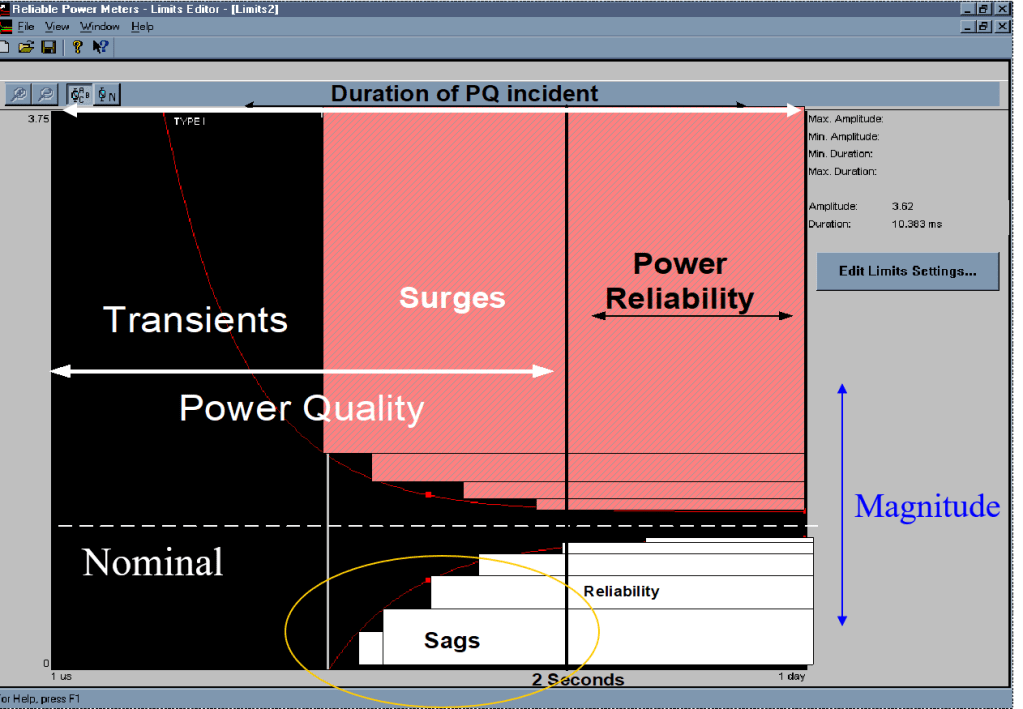
Power Quality Parameters Utility Side
Sag or Dip

Voltage Sag Utility

Power Quality Parameters User Side
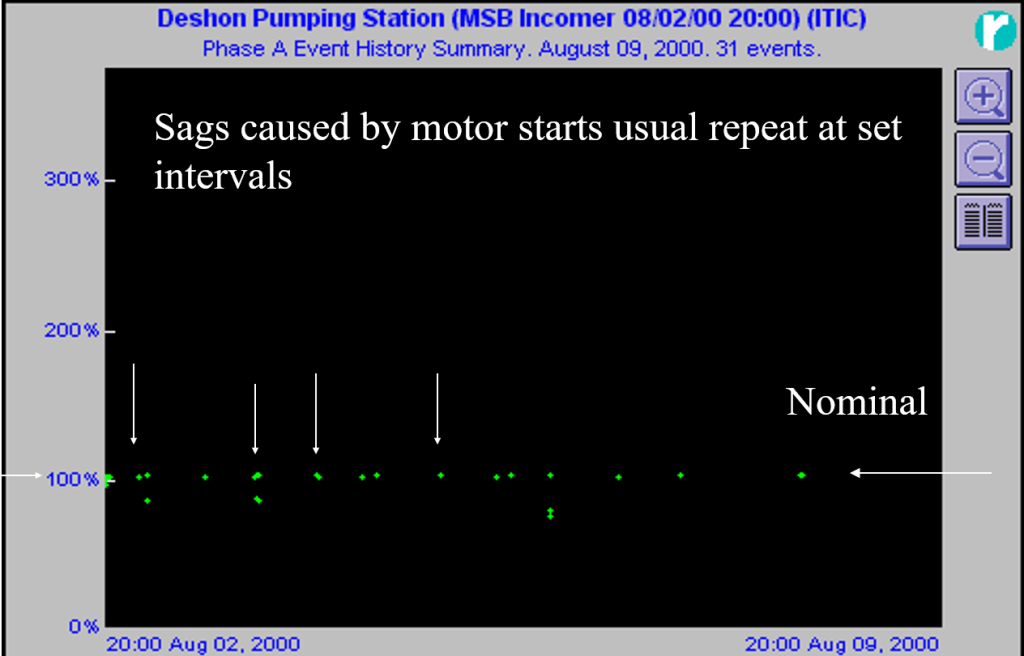
Sags Caused by Motor Starting
Welder Caused Sags

Fast Voltage Transients User
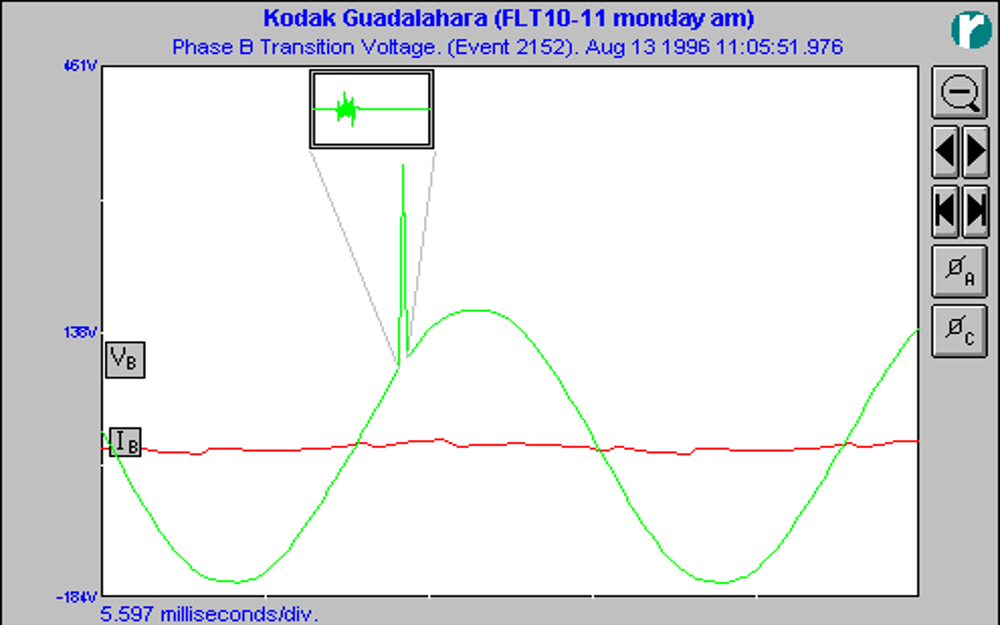
Fast Transient Detail

Wave shape incident (PF capacitor switching)

Voltage Sag and Surge User
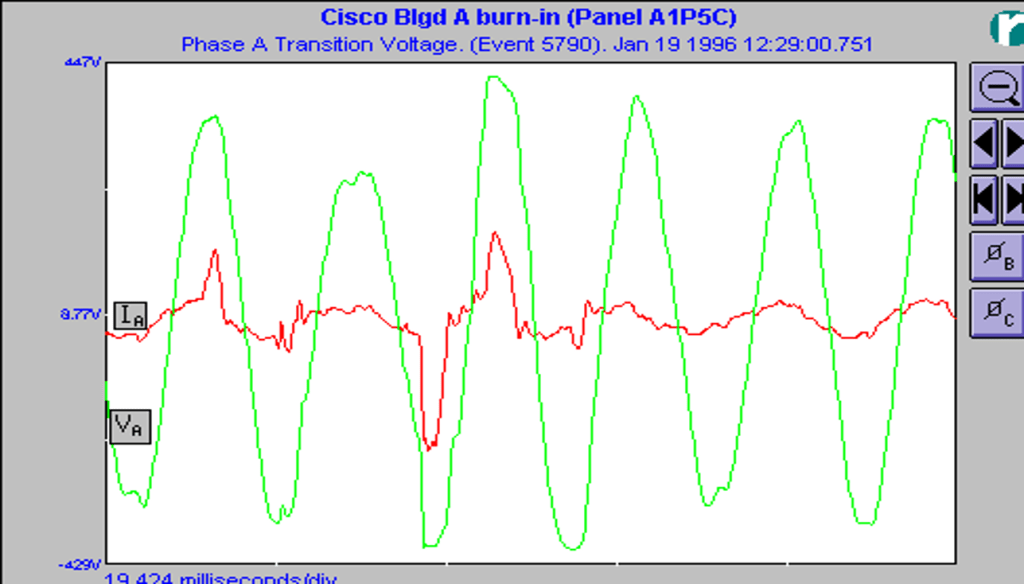
Voltage Common Mode Neutral to Ground

Flicker
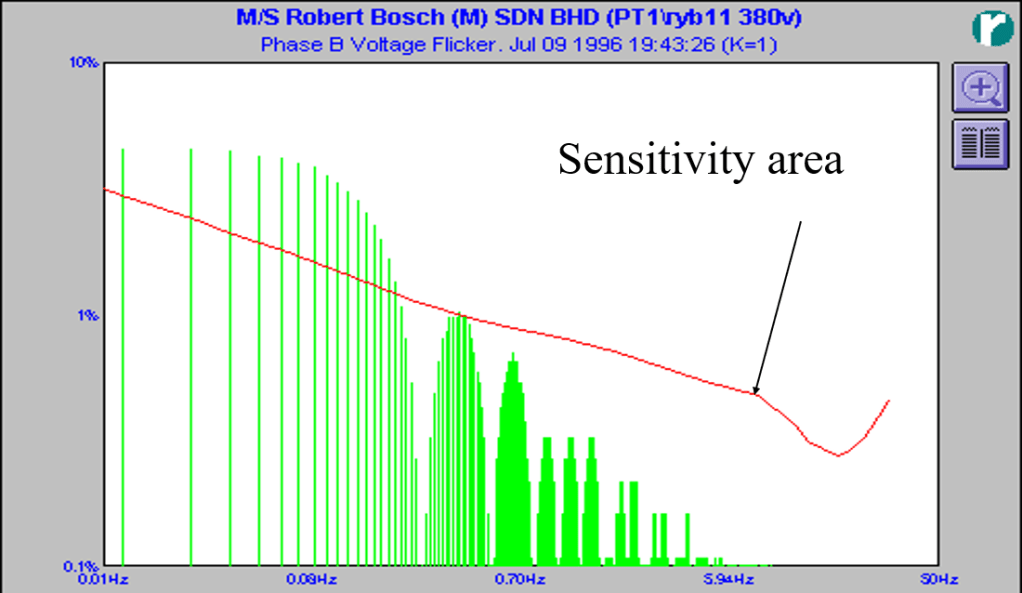
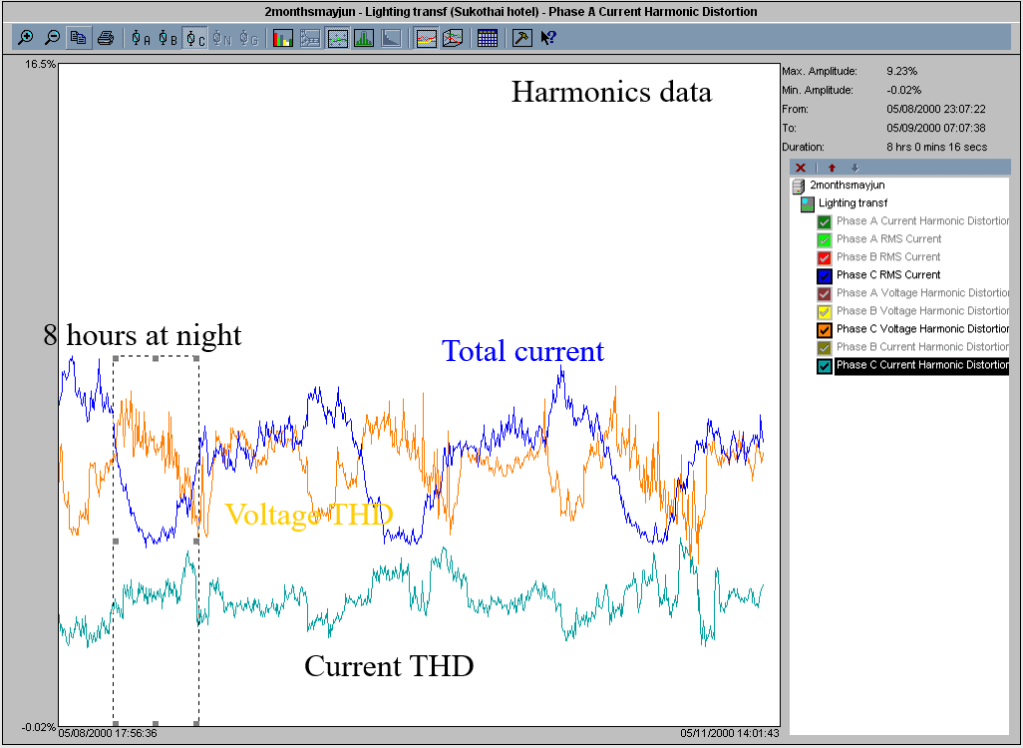
Power Reliability vs Quality
Mr.Phil Sarikas , Intel Corporation 4/97
Source of the PQ Problem?
In PQI’s 20 + years of experience and data shows
Sources of Power Quality Problems in Order of Frequency of Occurrence
Economics of Power Quality
The use of sensitive (electronic) equipment and controls increases the costs of typical power disturbances*
Trends of PQ
What Does That Mean?
The annual “cost of poor power quality” is $12 billion in US?
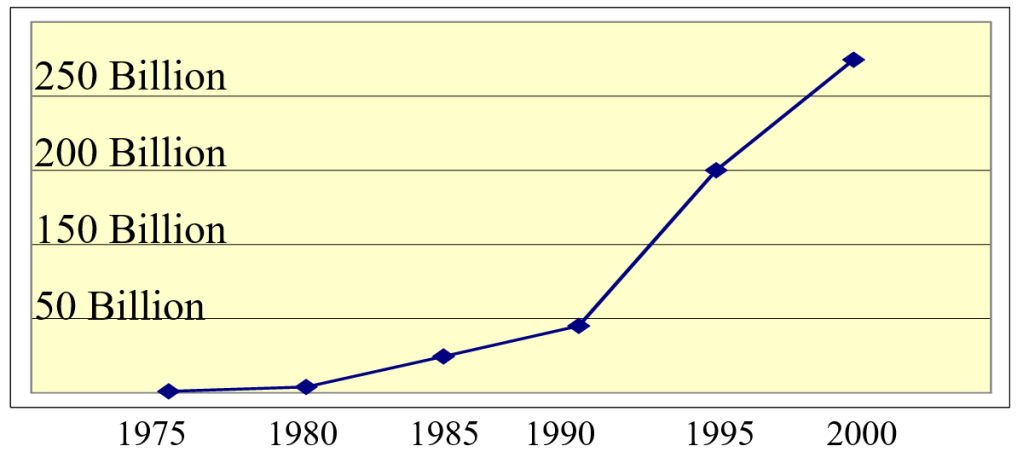
Semiconductor Sales
Losses to Industry, Estimates per event by EPRI.
Automotive $50,000 to $500,000
Source: Electrical Power Research Institute
Losses in Semiconductor Manufacturing Wafer Fab
$250,000 and up per PQ event
Chemical Industry
Source: Electrical Power Research Institute
Equipment Manufacturer
Source: Electrical Power Research Institute
Table: 1993 Computer Losses in USA
| Cause | In millions of $ | # of reports |
| Theft | $1011 | 275,000 |
| Power Surge | $318 | 389,000 |
| Accidents | $246 | 276,000 |
| Misc. | #157 | 269,000 |
| Lightning | $86 | 91,000 |
Source: Safeware, The Insurance Agency
ISP Site Hosts
Paper Manufacturer
Source: Electrical Power Research Institute
Industry Losses 2001
Study by Sandia National Labs July 1998
The Power Quality Market Place

What Determines the Acceptable Level of Power Quality?
The Increasing Cost of Power Quality Events
Advances in Microelectronics
Advances in AC to DC Power Supplies
Symptoms of Power Quality Problems
What is the Typical PQ USA? (Voltage Sags from the Utility at USER level)
USA study 300 sites, 24 different utilities , 1993 to 1995, by EPRI.
Typical in Thailand?
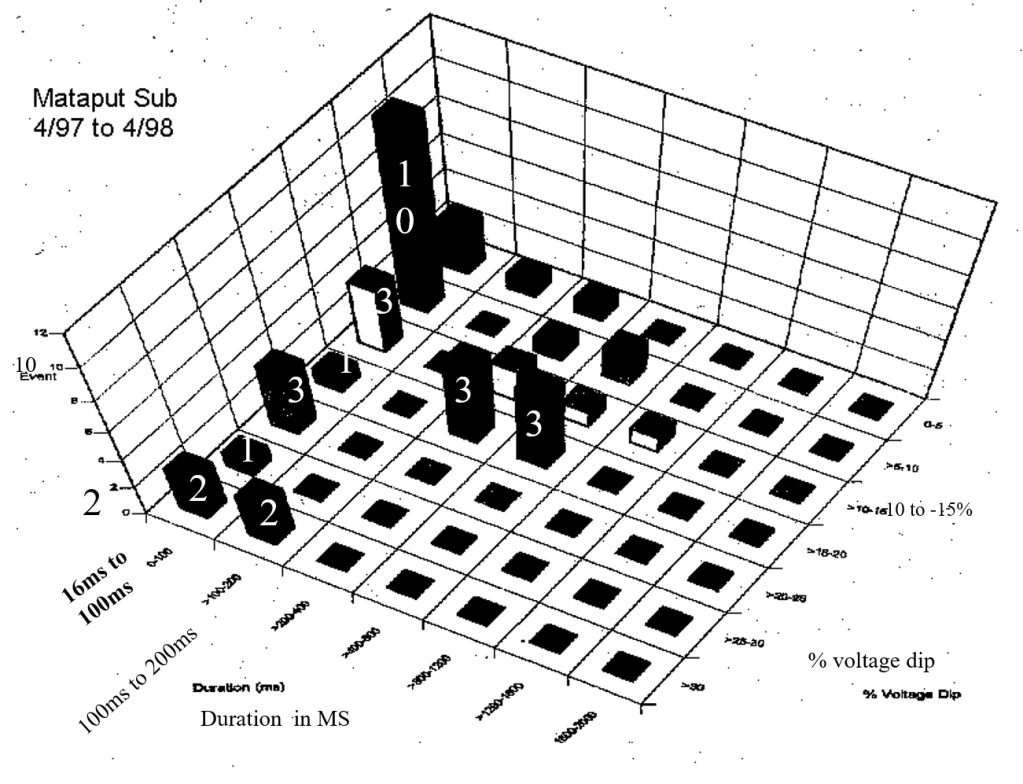
In Thailand Mataput Sub Typical
Sags
Power Quality Malaysia (TNB)
At the transmission level 1-year 1998
The Challenge
If some industries need nine 9’s (99.9999999%)and other industries need four 9’s (99.99%) what should the utility plan to deliver to be the most cost effective power supplier?
Future
Future II
Future of the Power Quality
Power Quality Inc.
Please feel free to leave a question in the comments section or contact Terry Chandler, terryc@powerquality.org, terryc@powerquality.co.th
Published by
Conference Paper: 23-25 Sept. 2020, Rome, Italy.
Published in: 2020 International Symposium on Electromagnetic Compatibility – EMC EUROPE
Abstract
A multipoint measurement technique for detecting rapid voltage changes causing electromagnetic interference, and its propagation effect in a power distribution network, is presented. The main advantage of the proposed techniques lies in its capability to detect rapid voltage change disturbance and its correlation with other electromagnetic interference events simultaneously. This is achieved by combining a multipoint measurement technique and a coincidence ratio evaluation method. A multipoint measurement technique was applied by using four distributed power quality analyzers which record conducted electromagnetic interference events. The recorded data is evaluated using the coincidence ratio and the time gap analysis method. The results show that a rapid voltage change in a 440 V power distribution subsystem has a probability in between 70 %and 93.8%of triggering a sag in an uninterrupted power supply, and thus electromagnetic interference towards other subsystems.
Keywords—Rapid Voltage Changes, electromagnetic interference, coincidence ratio, propagation, multipoint, measurement
INTRODUCTION
There are many issues associated with power quality (PQ) degradation that occur due to electromagnetic interference (EMI), mainly consisting of conducted disturbances. The PQ issue refers to a wide variety of electromagnetic phenomena that characterize the voltage and current at a given time and at a given location on the power system [1]. PQ issues due to EMI problems not only occur in a power distribution network with a physical connection to earth but also occur on islanded power networks such as a ship [2], [3].
Typical conducted EMI events are harmonic distortion, flicker, voltage surge, burst, voltage dip, voltage sag, voltage interruption, rapid voltage change (RVC) and swell. In a power distribution network, these could not only cause issues for the system that is directly connected to the interference source, but they could also propagate and interfere with other systems or subsystems that are located further away.
The problem of locating the EMI source, using the intercorrelation between each EMI in a power distribution network, is still a critical task [4]. Several methods based on a distributed multipoint measurement technique have been recently proposed to tackle the problem [4]–[10]. A method using a master-slave distributed measurement [4], [5] and a phasor measurement unit (PMU) [6] have been proposed for identifying and locating the EMI source. In [4], [5] the system measures continuously and the synchronization of all measurements can be obtained by synchronizing the clock of the slaves and master. However, these techniques are only used to find the source of harmonic EMI in the and cannot be used to determine the correlation between an EMI event with another EMI event. Whereas, evaluating the relationship between each EMI event is important because in the power distribution network, the equipment in the subsystem may be supplied by different parties.
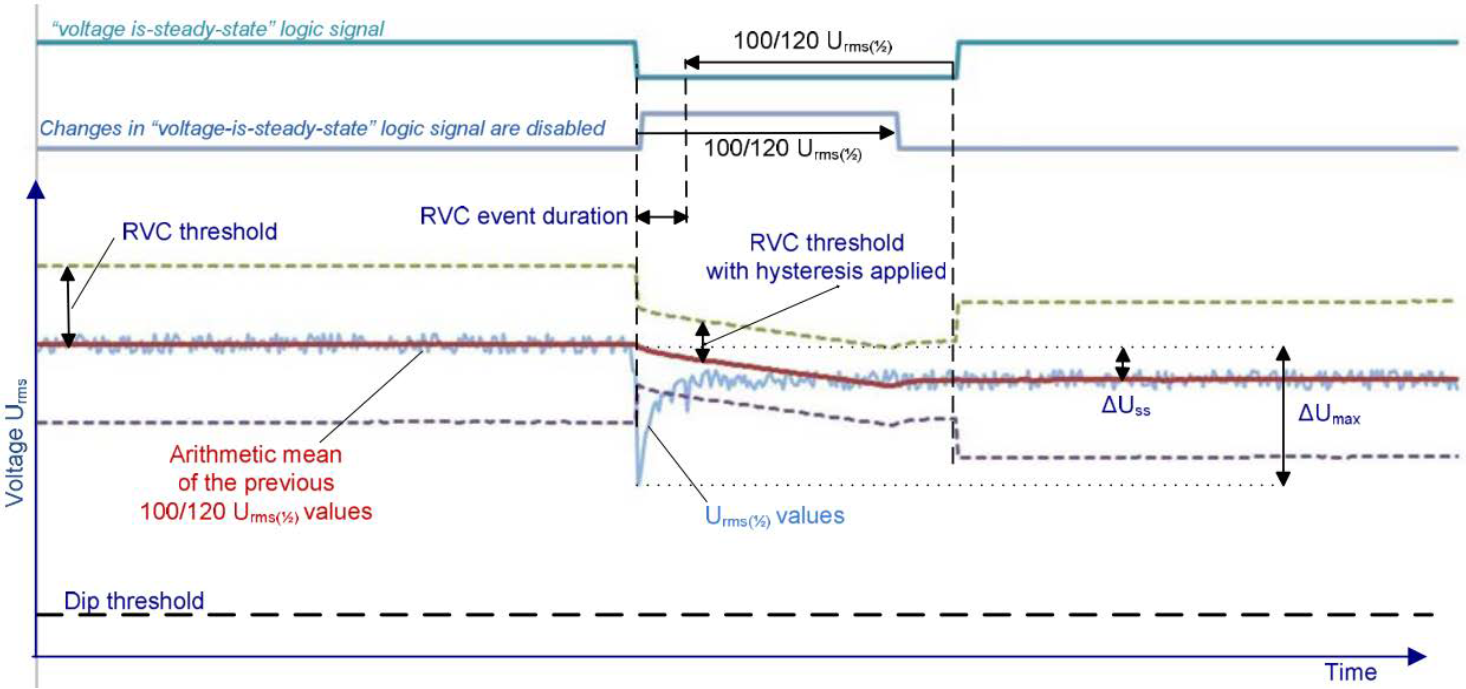
Fig. 1. The RVC event general consideration [16]
On the other hand, to detect an RVC event with small voltage disturbance (bellow dips and swell threshold) as recommended by IEC 61000-4-30:2015 standard [11], a precise and accurate measurement system is required. However, if it is applied in a continuous multipoint measurement, it requires a very large storage memory. To solve this problem, this study proposes a method using a specific and simultaneously recording technique which was applied to the multipoint measurement system. This proposed method is important because, through synchronous recording, the correlation between an RVC event and related EMI events at different locations can be determined.
To validate the proposed method, a measurement has been applied to the power distribution network on a ship. The correlation between an RVC event from the 440 V power distribution system with other EMI disturbances in other subsystems has been investigated. Furthermore, the RVC propagation and its effect are considered by analyzing the coincidence ratio and the time gap. This analysis is needed to determine the correlation with other EMI events because, in a distributed measurement system, each event is recorded with a different timestamp even if it is triggered by the same source event. In other words, an event at one point does not trigger measurements at the other points.
This paper is organized as follows: Section II describes the general consideration of the RVC event based on IEC 61000-4-30:2015 standard. Section III describes the measurement method using a multipoint measurement and data analysis method. Section IV presents the measurement and analysis result of the RVC effect, and, finally, Section V gives the concluding remarks of the study.
RVC EVENT GENERAL CONSIDERATIONS
For many years, the RVC was known as a non-destructive EMI, and its main effect is light flicker [12]–[14]. Nowadays, several studies show that RVC will result in power quality disturbance. The non-flicker effects that have been reported are impairment of electronic equipment and malfunction of a control system [15], [16].
The RVC is introduced in the IEC standard 61000-4-30:2015 as a quick transition in root mean square (RMS) voltage between two steady-state conditions, during which the voltage does not exceed the dip or swell thresholds [11]. An RVC can be a voltage increase or voltage drop. If the deviation in voltage is more than the sag or swell thresholds, then the event is not recorded as RVC but becomes a sag or swell [11]. IEC 61000-4-30 standard does not specify the RVC threshold. The threshold should be defined by the user based on the application as a percentage of the declared input voltage Udin, a deviation between 1% and 6% from the declared input voltage is recommended [11], [17], [18]. This standard also defines the measurement and evaluation method of an RVC. Based on IEC 61000-4-30:2015, four parameters characterize an RVC event: [11], [14], [17]:
The main characteristic of an RVC event based on these parameters are shown in Fig. 1 [18], [19]. Considering an RVC is a sudden event, “it can be modelled as a small step-like amplitude variation at time t*” as is shown in (1) [20].

“where U is the RMS waveform amplitude in steady-state operating conditions, φ is the initial phase of RVC waveform, δφ is the phase shift during RVC event, δU is the relative amplitude variation in consequences of the RVC event, and 𝑓=𝑓0(1+𝛿𝑓) is the frequency of the waveform, which may differ from the nominal frequency value 𝑓0 (e.g 50 Hz or 60 Hz) by a static fractional frequency offset δf” [20].
As a conducted electromagnetic wave, the propagation of RVC is influenced by several parameters, medium permittivity, medium permeability, impedance, length of the medium, and installed electrical component. The time delay of the electromagnetic wave propagation or TD (s) depends on the total length of the conductor or L (m) and velocity of propagation or v (m/s) expressed in (2) [21].
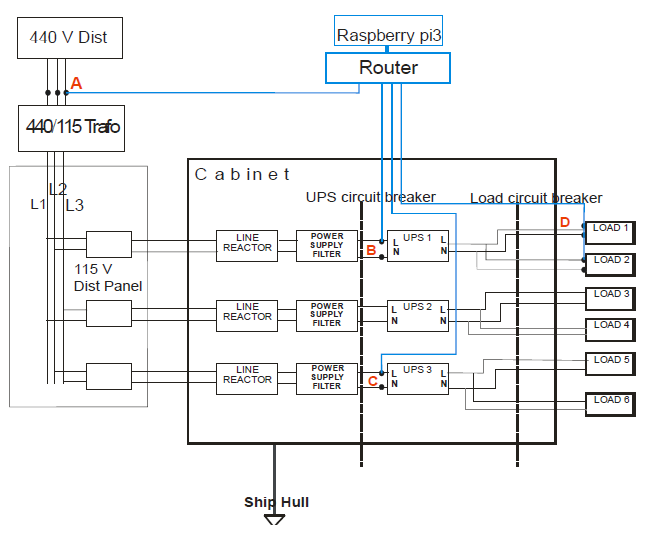
Fig. 2. System under test indicating the measurement points at which the PQubes are connected.

In the case of a homogeneous medium, the velocity of propagation or v (m/s) of the voltage and current wave travel on the transmission line (two parallel-wire with insulation) is expressed in (3).

where the speed of light or v0 ≌ 3 x 10⁸ m/s, the unit єr is the relative permittivity of insulation between conductors and the unit μr is the relative permeability [21]. For a transmission line, that the conductor is copper and the insulation material is PVC (єr ≌ 4), with non-magnetic dielectrics (μr =1) the velocity of propagation or v (m/s) of the voltage and current waves that propagate along that transmission line will be ≌ 1.5×10⁸ m/s. So, in this case of per 1 m conductors, the time delay approximately is 6,66 ns/m.
MULTIPOINT MEASUREMENT SETUP AND DATA ANALYSIS METHOD
In this study, PQ measurement was conducted on the islanded three-phase electricity network of a real ship with isolated terra (IT) configuration. The network consists of a 440 V distribution subsystem, a 440 V/115 V step-down transformer, a distribution panel that distributes voltage to three different lines. Each line consists of a reactor line, a low-pass filter, an uninterruptable power supply (UPS) and two loads.
In general, the characteristics of the PQ shipboard electrical network must comply with STANAG 1008 ed. 9 standard requirements [22]. To evaluate RVCs propagation effect, a distributed multipoint measurement technique was applied. The measurement consists of four power quality analyzers model PQube 3 manufactured by PSL-Power Standard Lab that are installed at four different measurement points:
1) Point A: PQube A that is installed at the 440 V power distribution output
2) Point B: PQube B that is installed at UPS 1 input
3) Point C: PQube C that is installed at UPS 3 input
4) Point D: PQube D that is installed at UPS 1 output
All PQubes are interconnected with a router, while a Raspberry pi-3 is used for time reference. Each PQube has a sampling rate of 512 samples per cycle at 50/60 Hz and an accuracy ±0.05 % rdg ±0.05 % FS. It has a voltage measurement range from 0 VAC to 1300 VAC (L-L). This PQube uses Urms measurement method with true single-cycle RMS, and updates every ½ cycle based on IEC 61000-4-30:2015 standard [23]. Fig. 2 shows the measurement system configuration as was implemented in the ship power distribution network. The data was collected over 2 days during normal journey operation of the ship.
In this study, each PQube monitors the current and voltage continuously, and stores the data based on event triggers and record the data automatically only if any EMI event occurs within the threshold value. It specifically records EMI events like RVC, dip, sag, interruption, impulse, and swell events in accordance with IEC 61000-4-30:2015 and programmed using a higher level to measure voltage deviation based on STANAG-1008 ed. 9. Table I show the measurement threshold setting and its comparison with STANAG 1008 ed.9 [24]
In the IEC 61000-4-30:2015, a voltage dip is also referred to as sag [11]. However, in this study, sag is used as a voltage drop with the threshold value of -5% Urms and with duration less then dip duration threshold. The purpose of this sag setting is to record voltages drop event that has a duration shorter than the dip duration.
The stored data is analyzed by the folder timeline structure of each PQube. The folder names contain information about the specific event and at which time it occurred. The time format is hh.mm.ss:mmm. In a total of 15.2 GB of data was gathered in 2 days.
TABLE I. MEASUREMENT THRESHOLD SETTING COMPARED WITH STANAG 1008 ED.9.
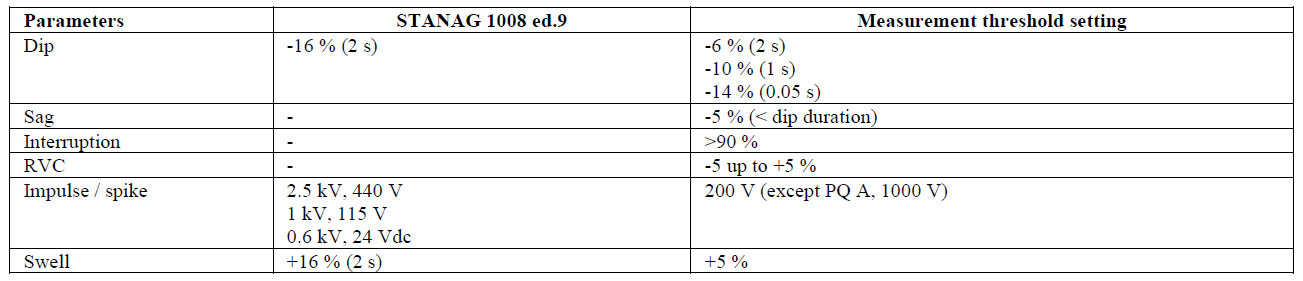
To calculate the event percentage correlation with RVC event at 440 V distribution subsystem, a coincidence ratio method is used. The coincidence ratio is calculated using the Venn intersection compared with the total sum (union) approach. An intersection is an event that occurs simultaneously in the time window duration on reference measurement point, for example, PQube A with another specific event occurring in any other PQubes. Total sum (union) is the total numbers of two specific events in the two PQubes.
In the ideal situation, the time window can be determined from the total time delay (TD) from wire path, connector path and microstrip path on PCB and also transient time response from each subsystem component. But to simplify the measurement in this case, 1-second windowing is taken because the total connector wire length between point A to point B or point A to point C or point A to point D is approximately 15 – 20 m and the path inside PCB is unknown. Meaning that every EMI event within this time window will be counted as a coincidence event.
Then the total number of the coincident events will be rationalized with the total sum (union) of the specific data events. The coincidence ratio (β) is proposed in [7]:

The PQ1,event x being reference event, in this case, are RVC events at point A, and PQ2 being second measurement point (B, C, D). While the event y can be a dip, sag, interruption, RVC, impulse or swell event on that point.
INVESTIGATION AND RESULT
In this section, we describe the investigation of an RVC example event that occurs in point A, RVC effects or coincidence ratio, and also time gap between RVC events recorded at point A are compared with other EMI event timing.
A. The RVC event example
During two days of measurements, PQube A recorded a total of 80 RVC events. All of the recorded RVC events in point A are voltage drops. To simplify the discussion, we take an example from the measurement result that shows the characteristic of an RVC event in 440 V distribution subsystem. The graph in Fig. 3 is an RVC event example that occurs at point A on the first day of measurement at 09.09.37:810. Fig. 3 shows that the voltage decreases as much as 22 V compared with first Urms (ΔUmax = 4.5 %), and final RMS decreases 1 V compared with first Urms (ΔUss= 0.2 %) and duration of this RVC is 807 ms.
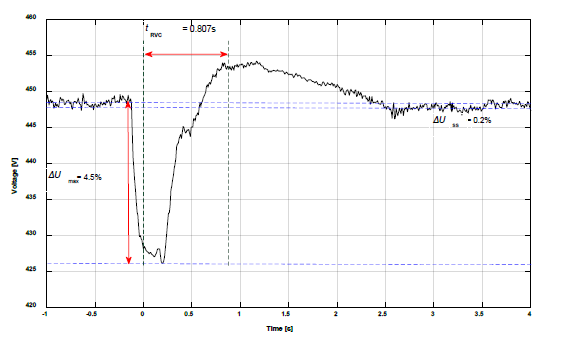
Fig. 3. An RVC event at 440V distribution subsystem, recorded by PQube A on the first-day measurement at 09.09.37:810.
B. RVC Coincidence ratio and effect
An analysis approach using the coincidence ratio was applied to assess the effect of the RVC. By applying (4) and time windowing for 1 second after RVC events at the 440 V distribution subsystem, we can calculate the relationship between RVC events with other events in other subsystems. The higher the percentage of coincidence ratio, the greater their relationship. Table II presents the coincident ratio of each event with the RVC event at point A.
TABLE II. COINCIDENCE RATIO (%) OF RVC EVENT AT POINT A AND OTHER EMI EVENT AT EACH MEASUREMENT POINT.
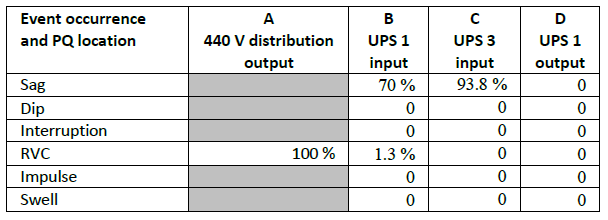
As can be seen from Table II, not all of the EMI disturbances have a correlation with an RVC event. The RVC effect only appears at point B (70%) and point C (93.8%_ as a sag form.
Every time an RVC event happens, it propagates through a 440/115 V step down transformer, a 115 V distribution panel, an impedance line reactor, a power supply filter and ends up being a sag at UPS input in most of the case. These because all the recorded RVC events during two days measurement only form as voltage drop, if in other cases the RVC occur in the form of a voltage increase then the effect might be different.
At point D no EMI event that recorded has a correlation with RVC event. That means the RVC disturbance is eliminated by the UPS subsystem.
C. RVC Propagation
An RVC waveform and RMS value from 440 V power distribution subsystem can change according to the component characteristic in its path. So, it can be detected as a different type of disturbance in the next subsystem even though it comes from the same EMI source. The RVC propagation is considered by analyzing the percentage value of the coincidence ratio, the propagation path, and the time gap.
The time gap (Δt) is the time difference between an RVC event recorded by PQube A and an EMI event which recorded by another PQube. The duration of this time gap is influenced by the total time delay and characteristics of each component in the subsystem. The standard deviation (σ) represents the amount of data dispersion. The time gap average and the standard deviation (σ) is presented in Table III. However, in this case, the value displayed does not take into account if there is a wave reflection or re-reflection due to imbalance impedance.
TABLE III THE TIME GAP BETWEEN RVC EVENT AT 440 V DISTRIBUTION AND OTHER EMI EVENT.
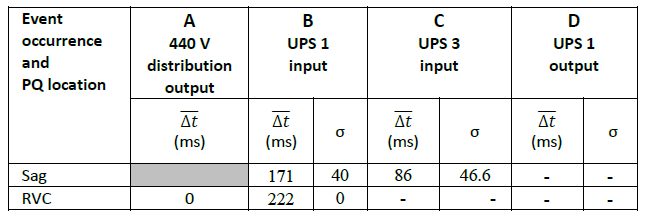
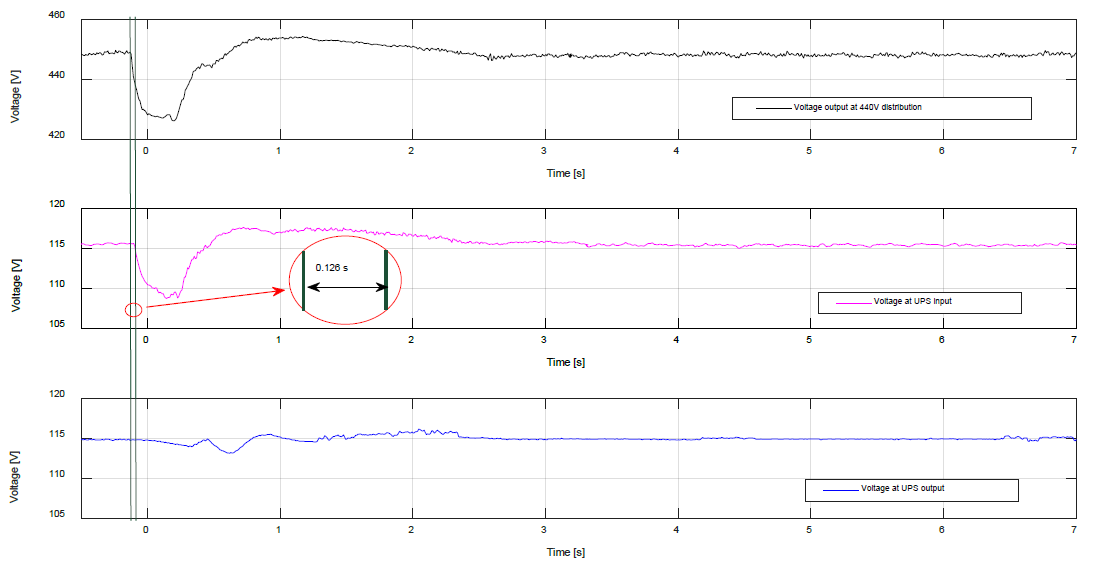
Fig. 4. Comparison between an RVC event at 440 V distribution subsystem, sag event at UPS input and the response at UPS output.
To explain the propagation mechanism, an example of an RVC event at point A with a sag event at point B and point D is shown in Fig. 4. This example is taken from the first-day measurement at 09.09.37. In this case, as soon as the RVC occurs and recorded by PQube A, a sag occur in UPS input around 126 ms after. By comparing the envelope of this RVC event and sag event, it showed similarity in their pattern. It starts from the steady-state phase and then the voltage drop. When the voltage starts to recover, it followed by a voltage increase exceed the Urms, then the voltage ramps down and reach the final steady-state value. At this example, an RVC event with 4.5% (ΔUmax) could have strong correlation cause-effect with the 5.43 % (ΔUmax) voltage decrease (sag event) at point B. This result confirms the relationship between RVC event at 440 V distribution subsystem and sag event at UPS input. At the same time reference, at UPS output, the voltage fluctuates but only 0.8 %. That means, the RVC event does not have much effect on the voltage at UPS output, and it is also in line with the result that was shown in Table II and Table III. The voltage drop greater than 5 % which is recorded at PQube B and PQube C as a sag might be caused due to voltage loss or non-ideal characteristic of a step-down transformer, cable or other components in the pathway.
CONCLUSION
The objective of this research is to find a method to understand the propagation effect of an RVC from the 440 V distribution subsystem on a ship’s power network using a multipoint measurement technique. The proposed method has proven to be useful in determining the correlation between RVC events and other EMI events. The investigation has also revealed that a small voltage disturbance like an RVC in the ship can trigger other voltage disturbances, e.g. voltage sags, in other subsystems. A non-ideal transformer or a voltage loss on components might make the voltage drop bigger. This finding enhances our understanding that any other non-light-flicker effects occur as a result of the RVC event on the ship’s 440 V distribution subsystem. The observations from this study also suggest that to maintain a high PQ, a small disturbance such as an RVC must still be considered and not taken lightly.
ACKNOWLEDGMENT
The authors wish to thank Mr J. Baardink, Mr I. Purwahyudi, and Mr D. Kurniawan for their help performing the measurement.
REFERENCES
[1] IEEE Std 1159:2009, “IEEE Recommended Practice for Monitoring Electric Power Quality.,” vol. 2009, no. June. 2009.
[2] R. Bijman, R. B. Timens, F. Leferink, and T. N. B. V, “Effect of integrated mast on power quality of naval vessel in island configuration,” pp. 489–493, 2013.
[3] C. Klünder, T. Pilsak, H. Hanneken, and J. Luiken Ter Haseborg, “Modern vessels and their problems in EMC – Examples in practice,” IEEE Int. Symp. Electromagn. Compat., pp. 674–679, 2010.
[4] C. Muscas, L. Peretto, S. Sulis, and R. Tinarelli, “Investigation on multipoint measurement techniques for PQ monitoring,” IEEE Trans. Instrum. Meas., vol. 55, no. 5, pp. 1684–1690, 2006.
[5] L. Cristaldi, A. Ferrero, and S. Salicone, “A distributed system for electric power quality measurement,” IEEE Trans. Instrum. Meas., vol. 51, no. 4, pp. 776–781, 2002.
[6] K. V. Suslov, N. N. Solonina, and A. S. Smirnov, “Distributed power quality monitoring,” Proc. Int. Conf. Harmon. Qual. Power, ICHQP, 2014.
[7] M. I. Sudrajat, N. Moonen, H. Bergsma, R. Bijman, and F. Leferink, “Multipoint Measurement Technique for Tracking Electromagnetic Interference Propagation and Correlation in a Complex Installation,” in 2020 IEEE International Symposium on Electromagnetic Compatibility, Signal Integrity and Power Integrity., to be published.
[8] A. Matthee, N. Moonen, and F. Leferink, “Versatile high-sample frequency power quality measurement device,” in 2020 IEEE International Symposium on Electromagnetic Compatibility, Signal Integrity and Power Integrity., to be published.
[9] T. Hartman, N. Moonen, and F. Leferink, “Evaluation of Multichannel Synchronous Conducted TDEMI Measurements for High Voltage Power Electronics,” in Proc. of the 2018 International Symposium on Electromagnetic Compatibility (EMC Europe 2018), 2018, vol. 2018-Augus, pp. 839–843.
[10] T. Hartman, N. Moonen, and F. Leferink, “Direct sampling in multi-channel synchronous TDEMI measurements,” in 2018 IEEE 4th Global Electromagnetic Compatibility Conference (GEMCCON), 2018.
[11] IEC Std 61000-4-30:2015, “Electromagnetic Compatibility (EMC) – Part 4-30: Testing and measurement techniques – Power quality measurement methods.” 2015.
[12] M. H. J. Bollen, M. Häger, and C. Schwaegerl, “Quantifying voltage variations on a time scale between 3 seconds and 10 minutes,” in 18th International Conference on Electricity Distribution, 2005, vol. 2, no. 2005–11034, pp. 413–417.
[13] K. Brekke, H. Seljeseth, and O. Mogstad, “Rapid voltage changes – definition and minimum requirements,” IET Conf. Publ., no. 550 CP, 2009.
[14] J. Barros, M. De Apraiz, R. I. Diego, J. J. Gutierrez, P. Saiz, and I. Azcarate, “Minimum requirements for rapid voltage changes regulation based on their effect on flicker,” in AMPS 2017 – IEEE International Workshop on Applied Measurements for Power Systems, Proceedings, 2017, pp. 1–5.
[15] J. Barros, J. J. Gutierrez, M. De Apraiz, P. Saiz, R. I. Diego, and A. Lazkano, “Rapid voltage changes in power system networks and their effect on flicker,” IEEE Trans. Power Deliv., vol. 31, no. 1, pp. 262–270, 2016.
[16] J. Schlabbach, D. Blume, and T. Stephanblome, Voltage Quality in Electrical Power Systems. 2001.
[17] J. Barros, P. Saiz, M. De Apráiz, L. A. Leturiondo, R. I. Diego, and J. J. Gutierrez, “Limitations in the use of the IEC standard method for detection and analysis of rapid voltage changes in power system networks,” in Proceedings of International Conference on Harmonics and Quality of Power, ICHQP, 2016, vol. 2016-Decem, pp. 530–534.
[18] M. De Apraiz, J. Barros, R. I. Diego, J. J. Gutiérrez, K. Redondo, and I. Azcarate, “Detection and analysis of rapid voltage changes in power system networks,” in 2014 IEEE International Workshop on Applied Measurements for Power Systems, AMPS 2014 – Proceedings, 2014, pp. 81–86.
[19] IEC Std 61000-3-7:2008, “Electromagnetic compatibility (EMC) – Part 3-7: Limits – Assessment of emission limits for the connection of fluctuating installations to MV, HV and EHV power systems.” 2008.
[20] D. Macii and D. Petri, “On the detection of rapid voltage change (RVC) events for power quality monitoring,” in I2MTC 2017 – 2017 IEEE International Instrumentation and Measurement Technology Conference, Proceedings, 2017, pp. 1–6.
[21] C. R. Paul, Introduction to Electromagnetic Compatibility-Second Edition. New Jersey: John Wiley and Sons, 2006.
[22] F. Scuiller, B. Keruel, and M. Richard, “Voltage deviation factor analysis and meaning for warship electric power system,” in 2011 IEEE Electric Ship Technologies Symposium, ESTS 2011, 2011, pp. 434–438.
[23] Power Standards Lab, PQube 3 Power Analyzer Specification. 2019.
[24] STANAG 1008, “Characteristics of shipboard electrical power systems in warships of the NATO navies – edition 9.” NATO, 2004.
Original paper is available on https://ieeexplore.ieee.org/document/9245886
Published by John Teixeira, National Grid, IEEE Boston Section, February 19, 2019.

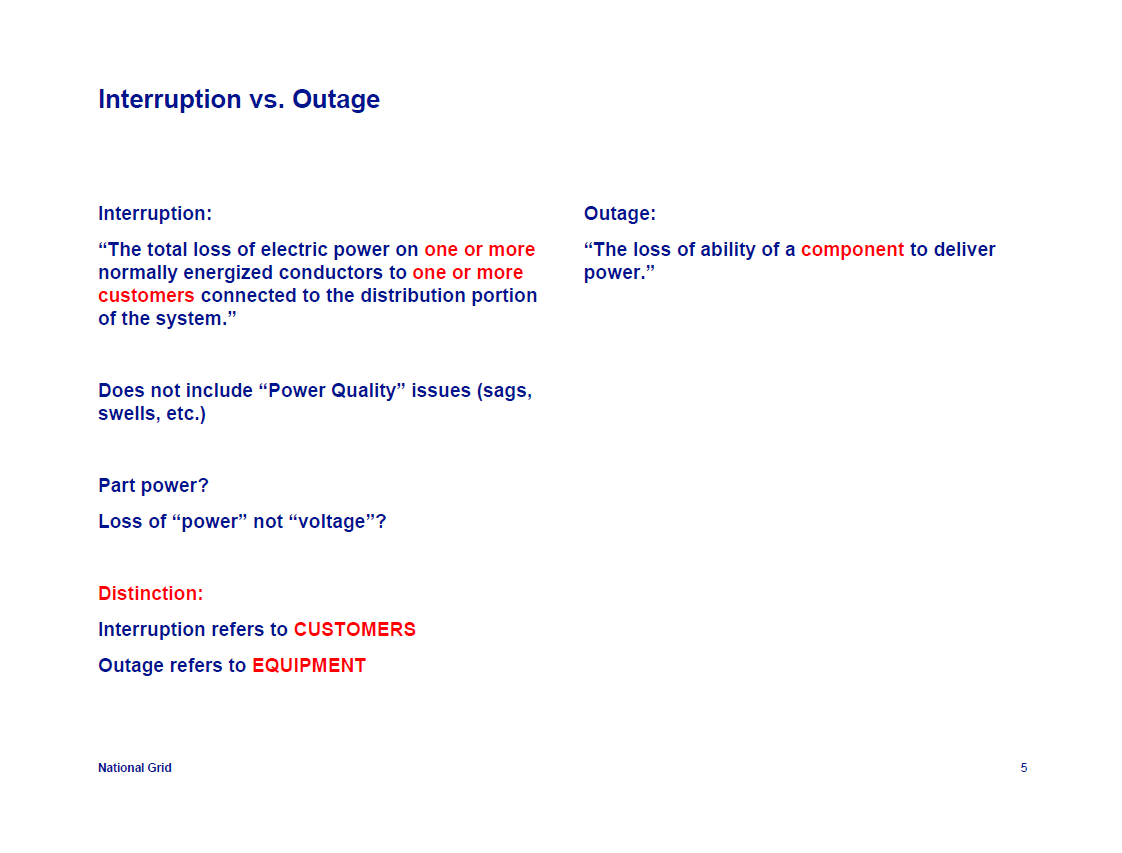
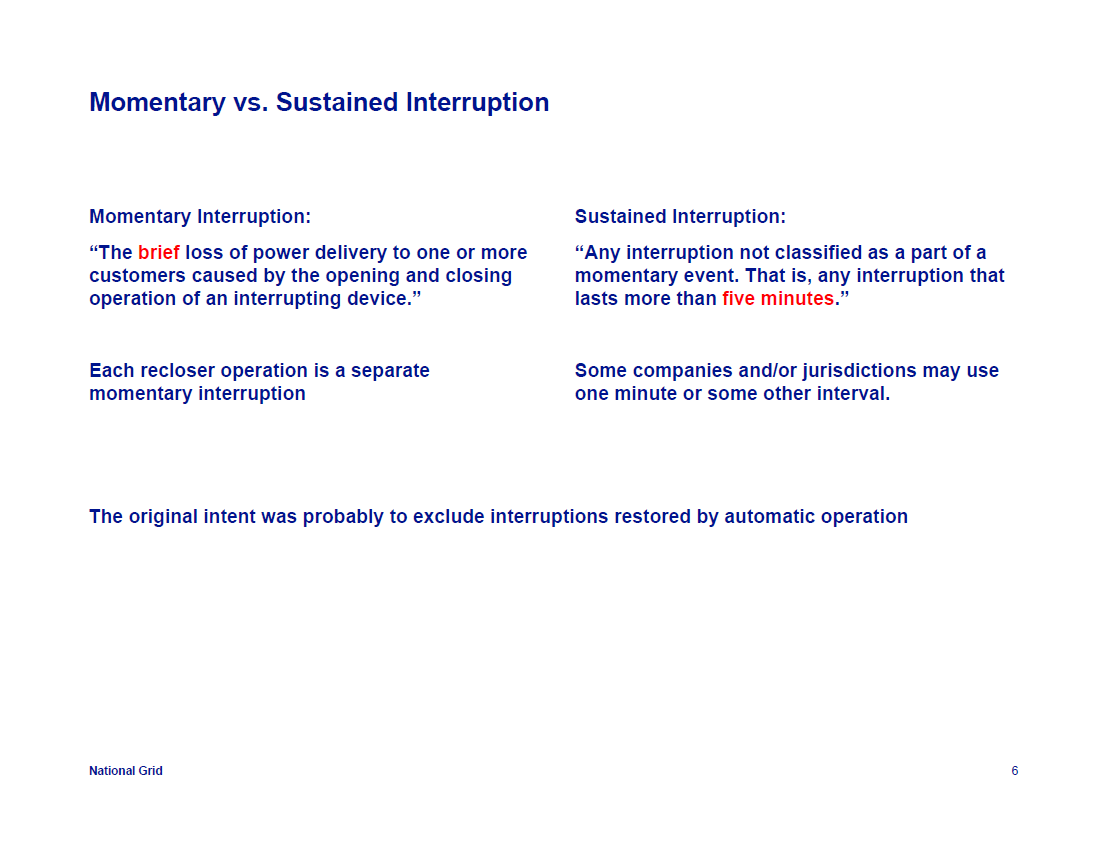
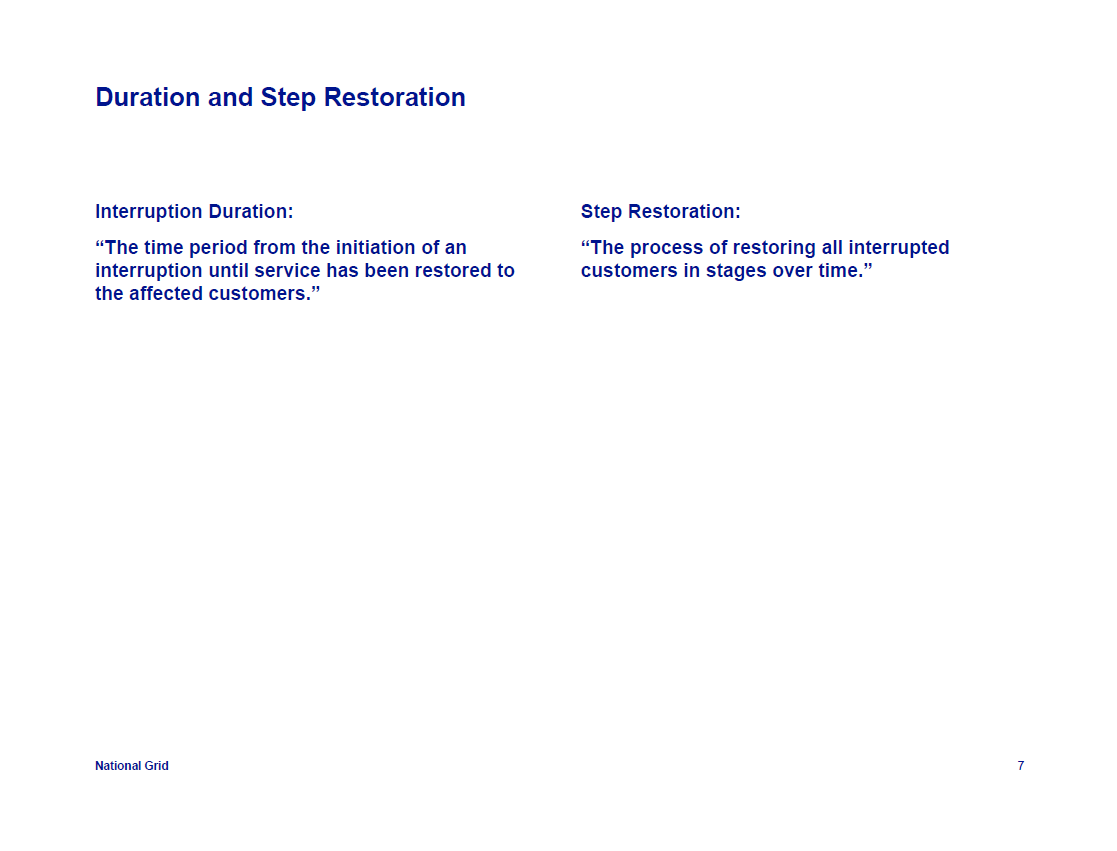
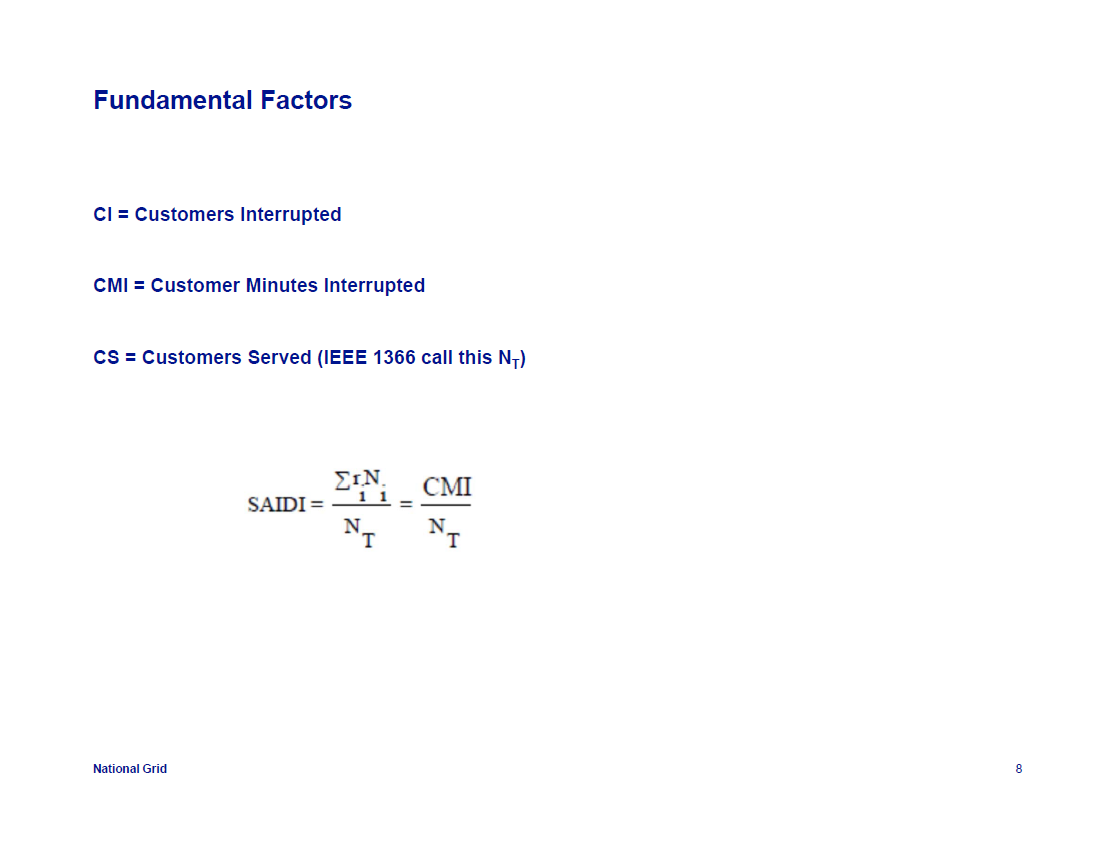

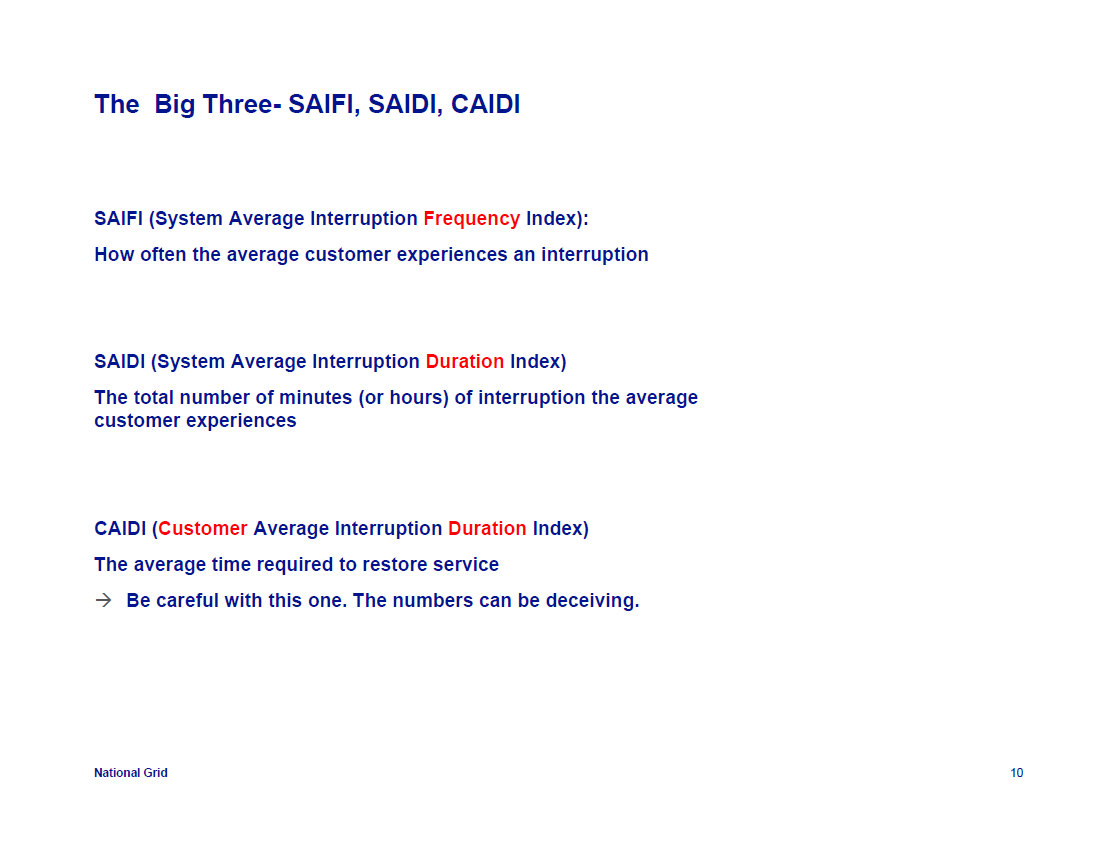

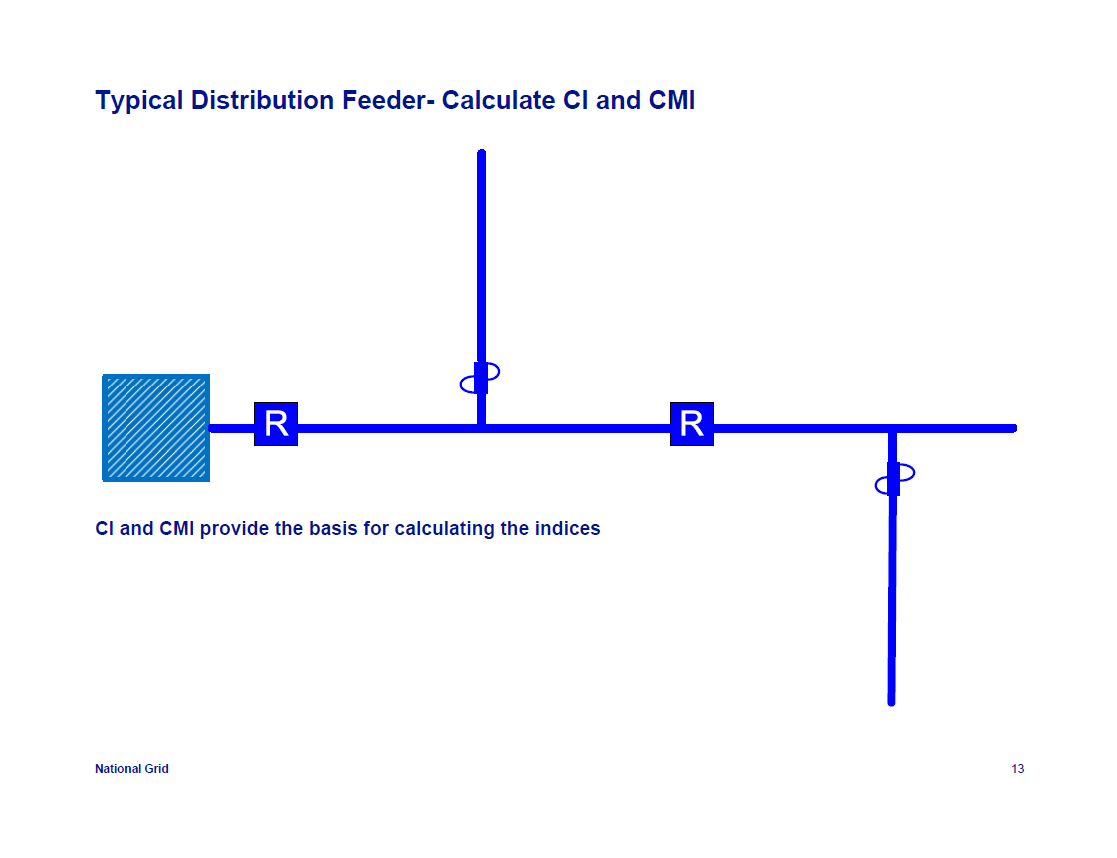
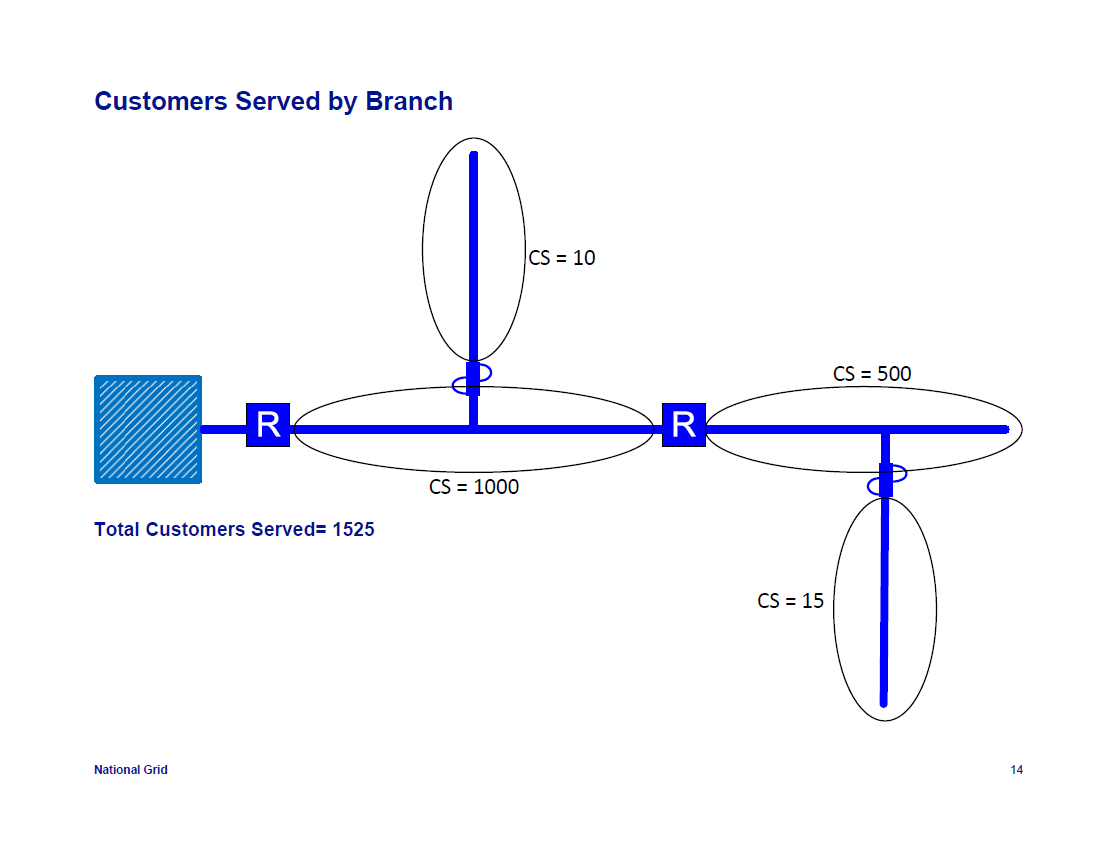
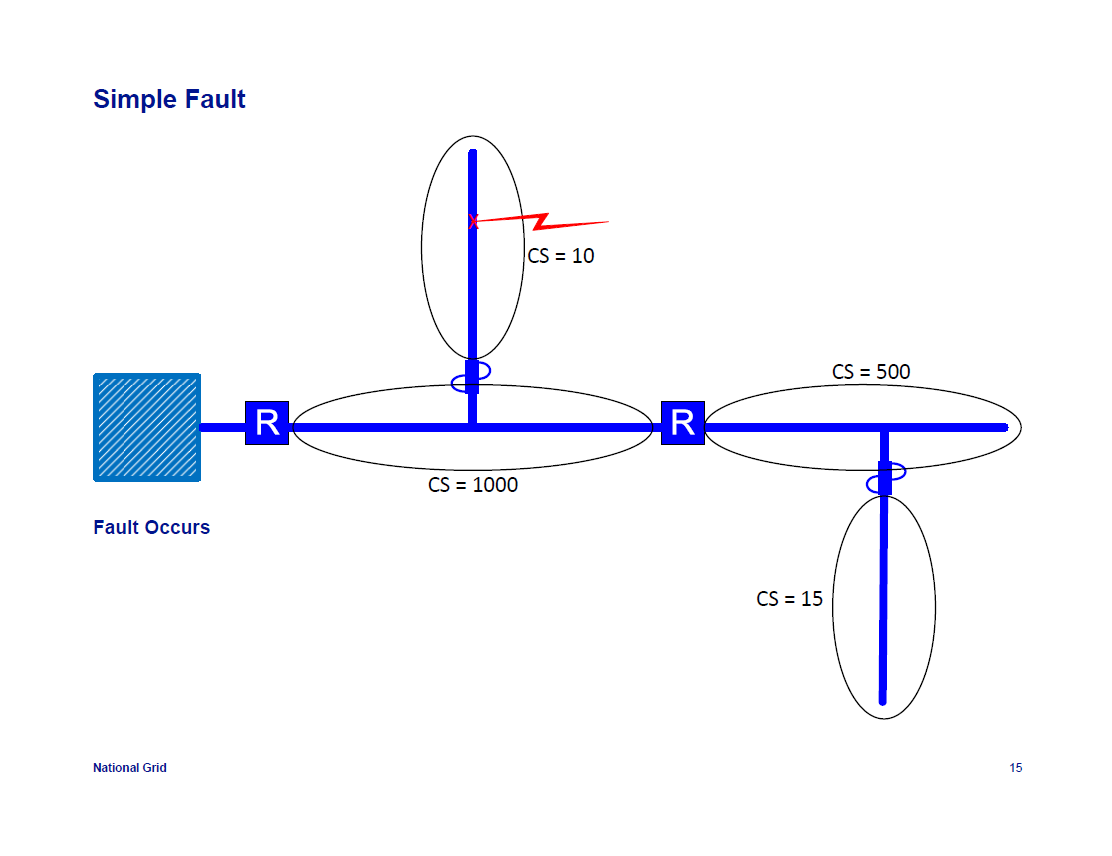
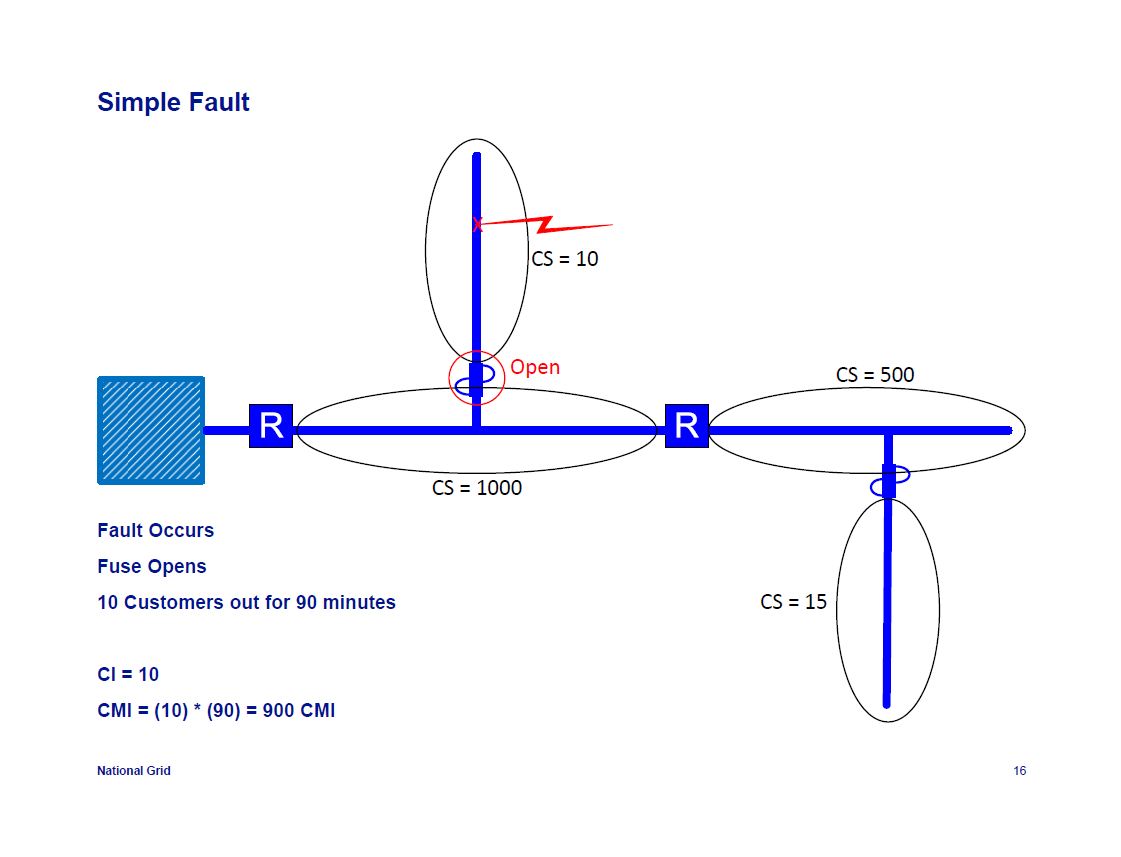
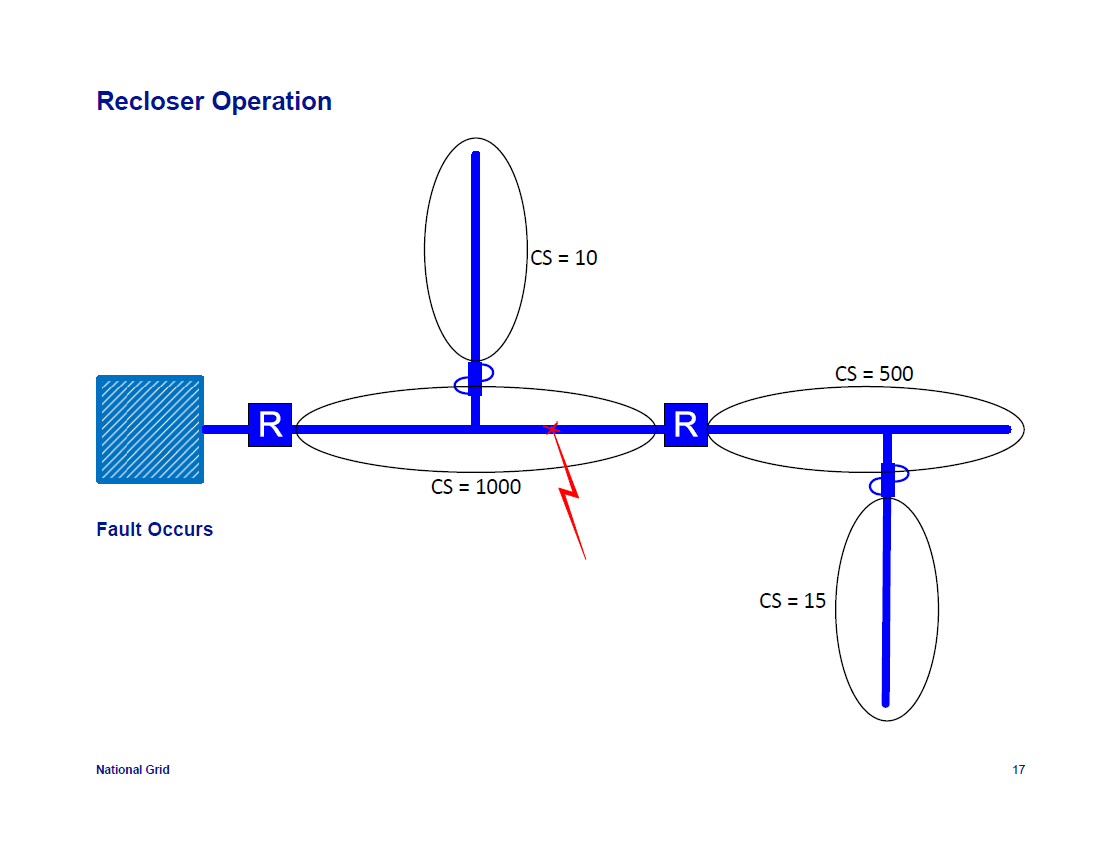
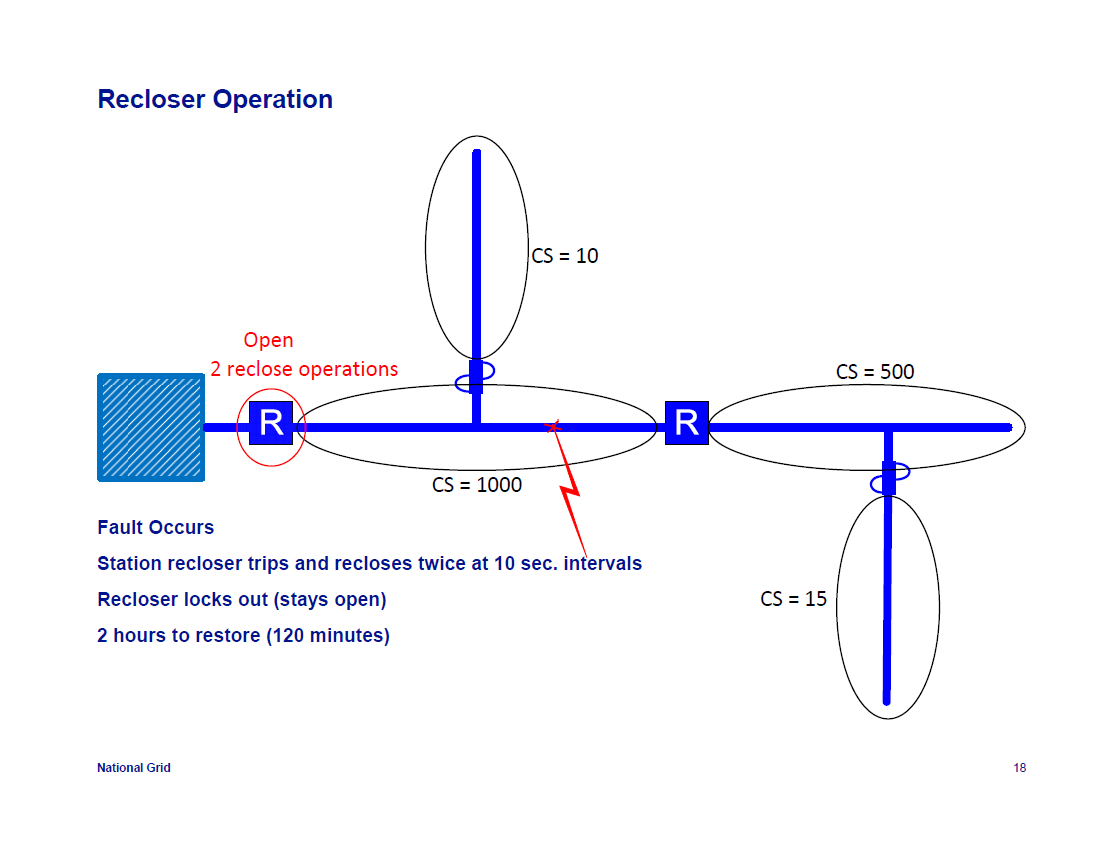
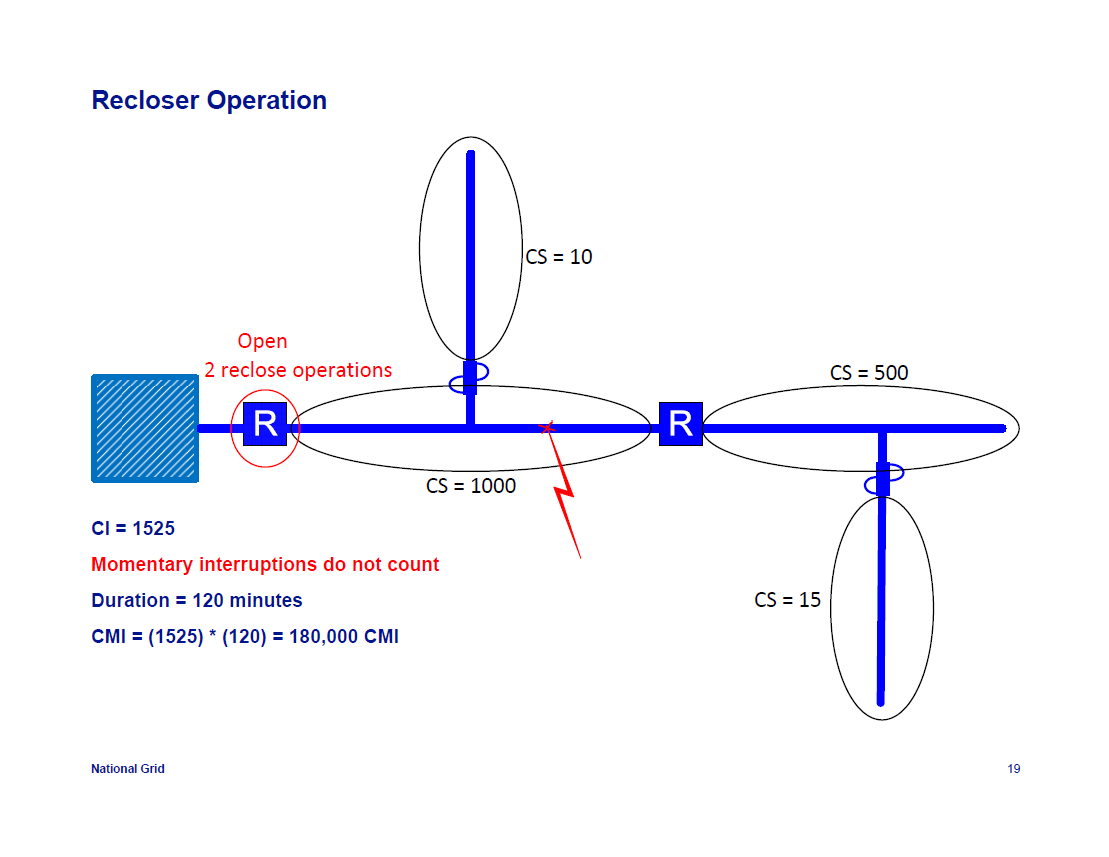
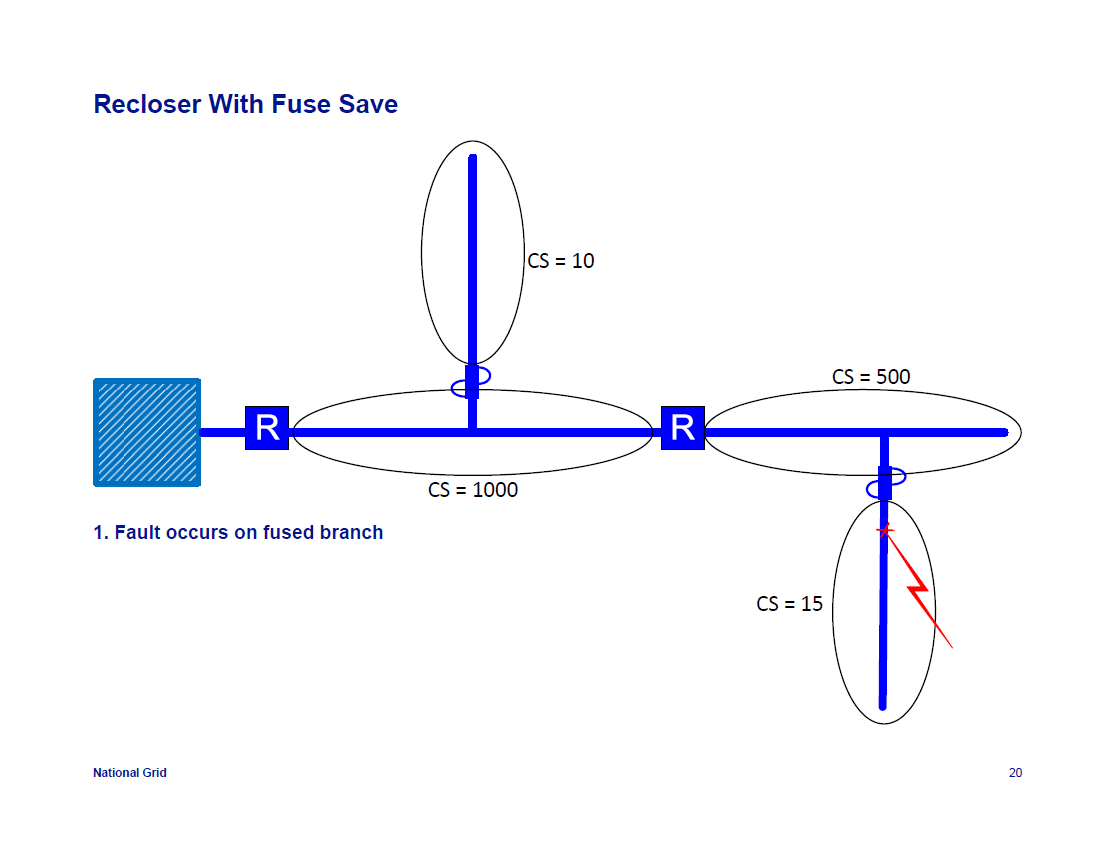
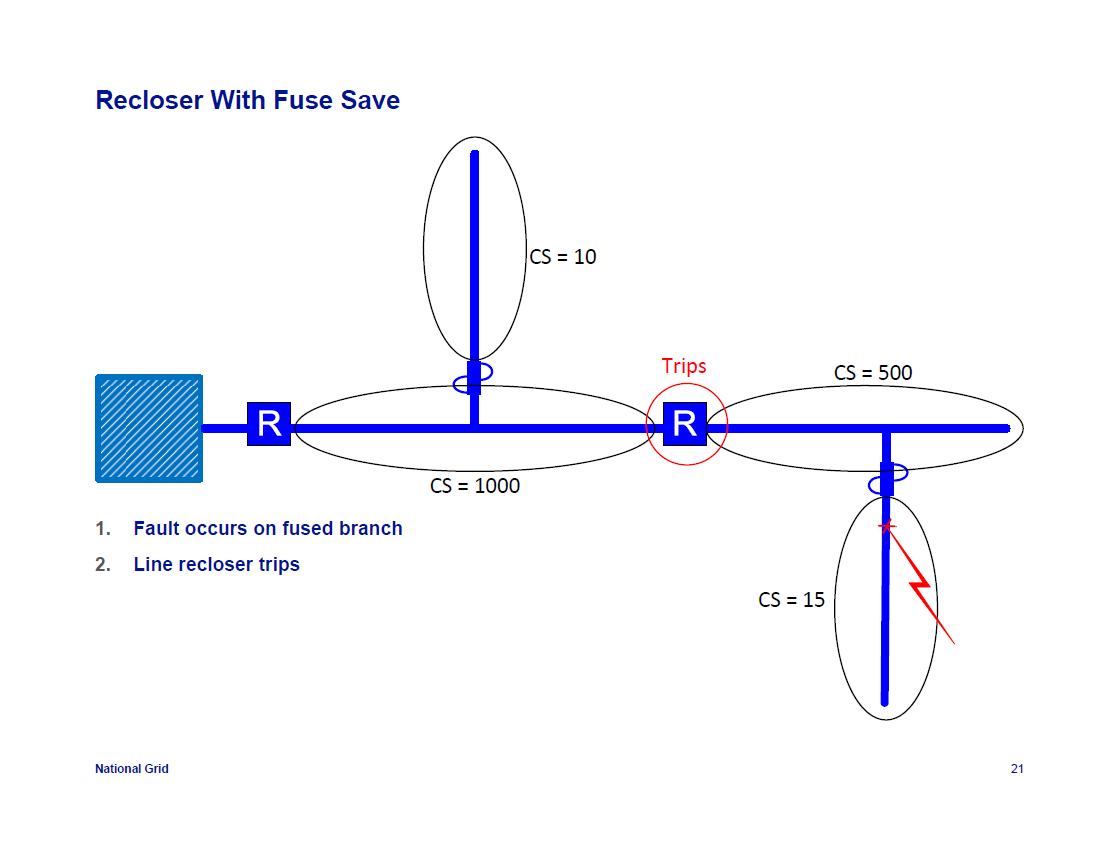
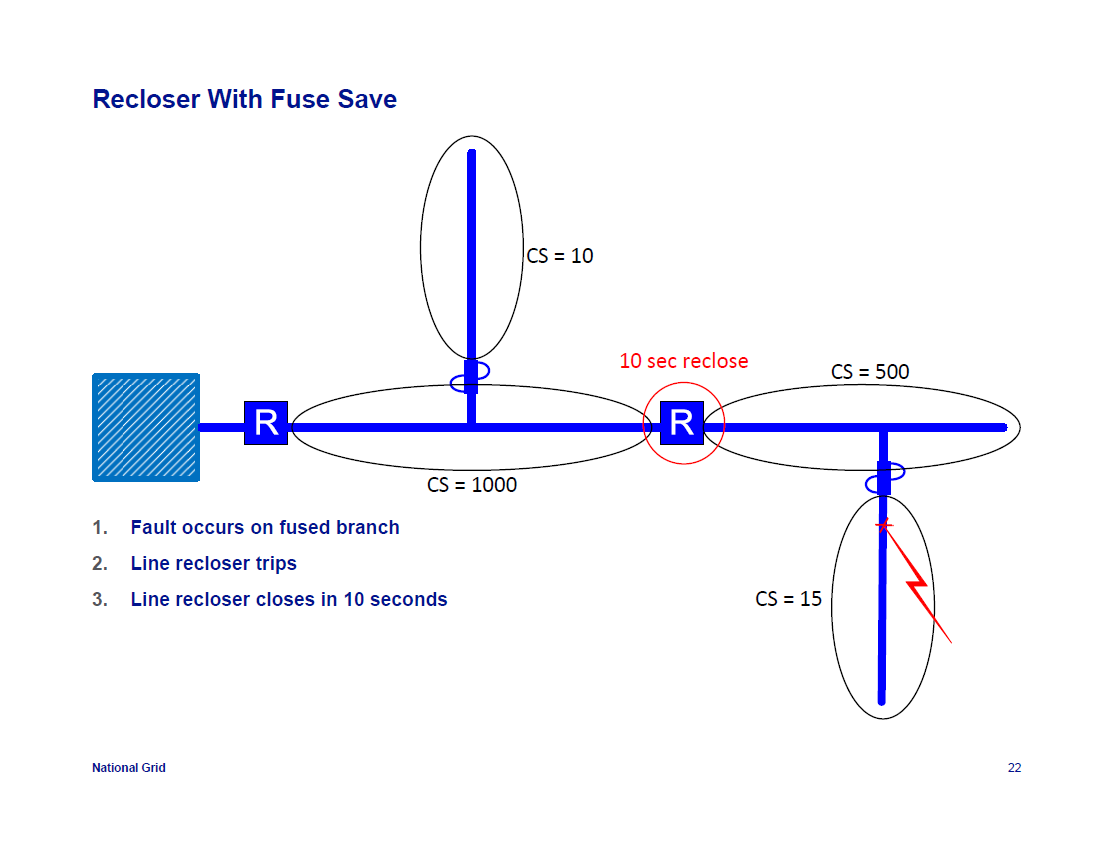
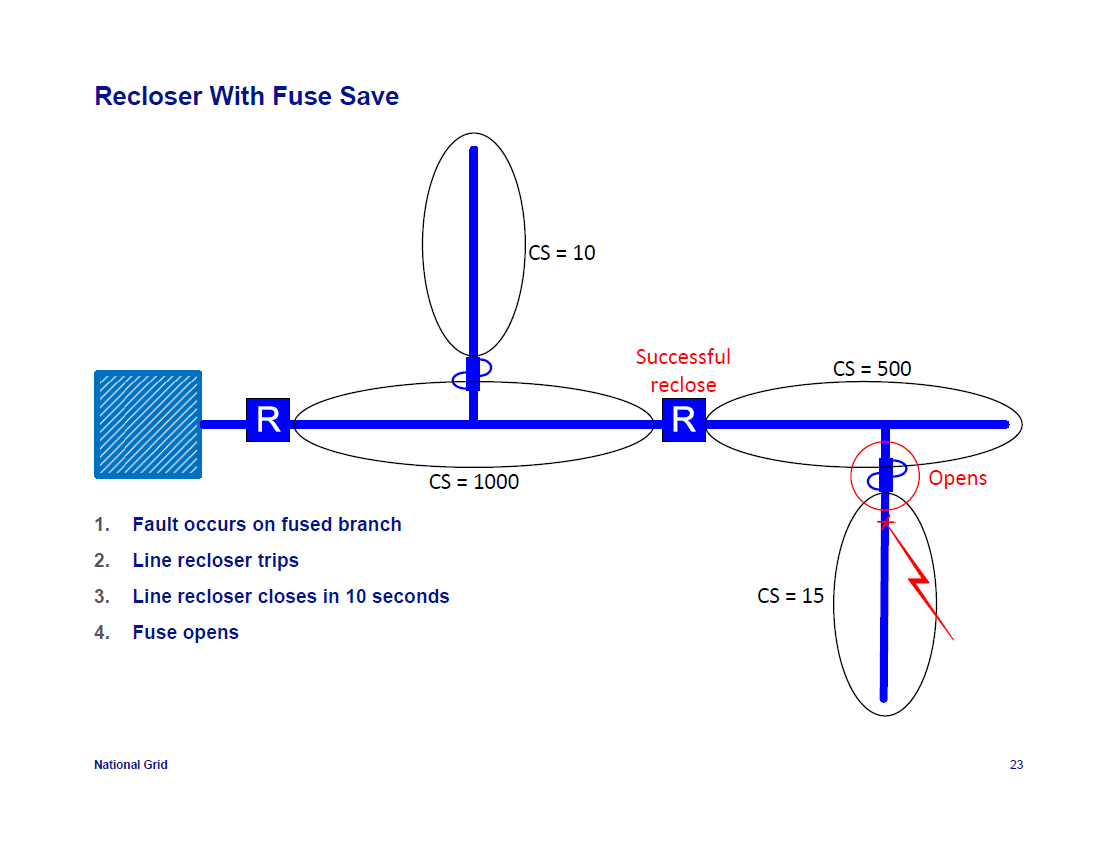
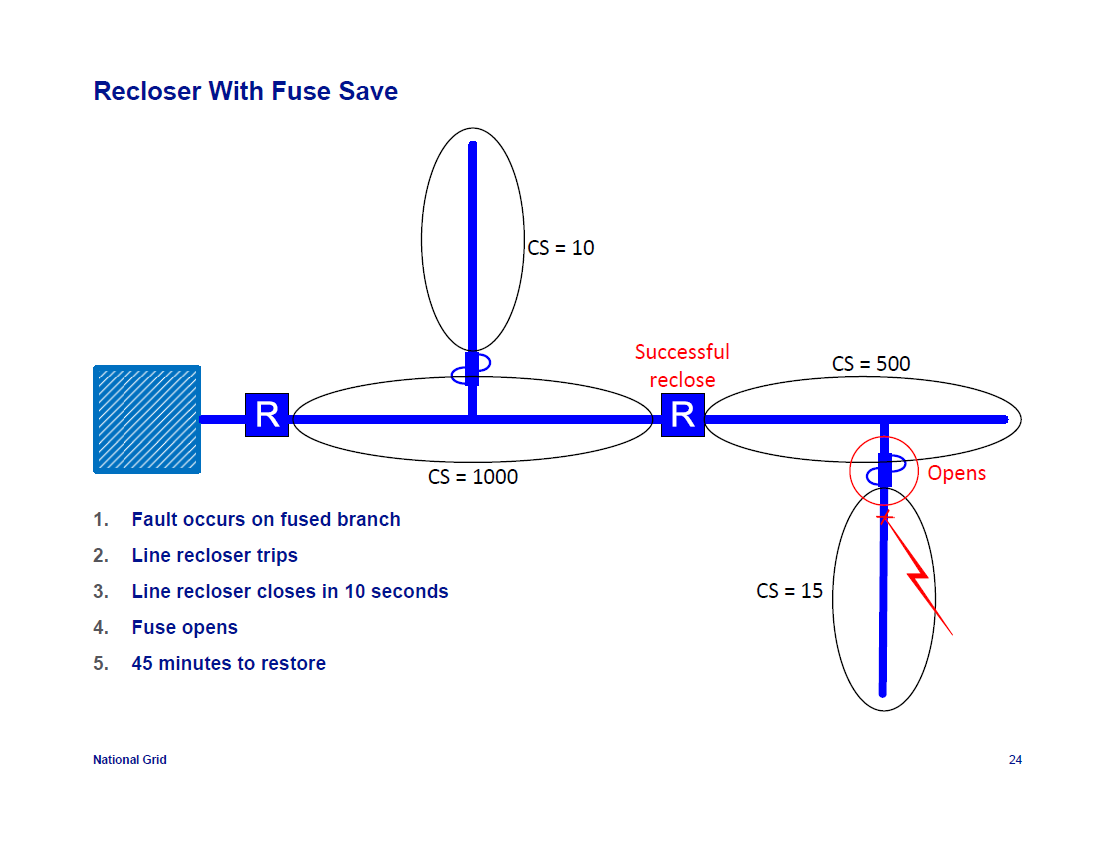
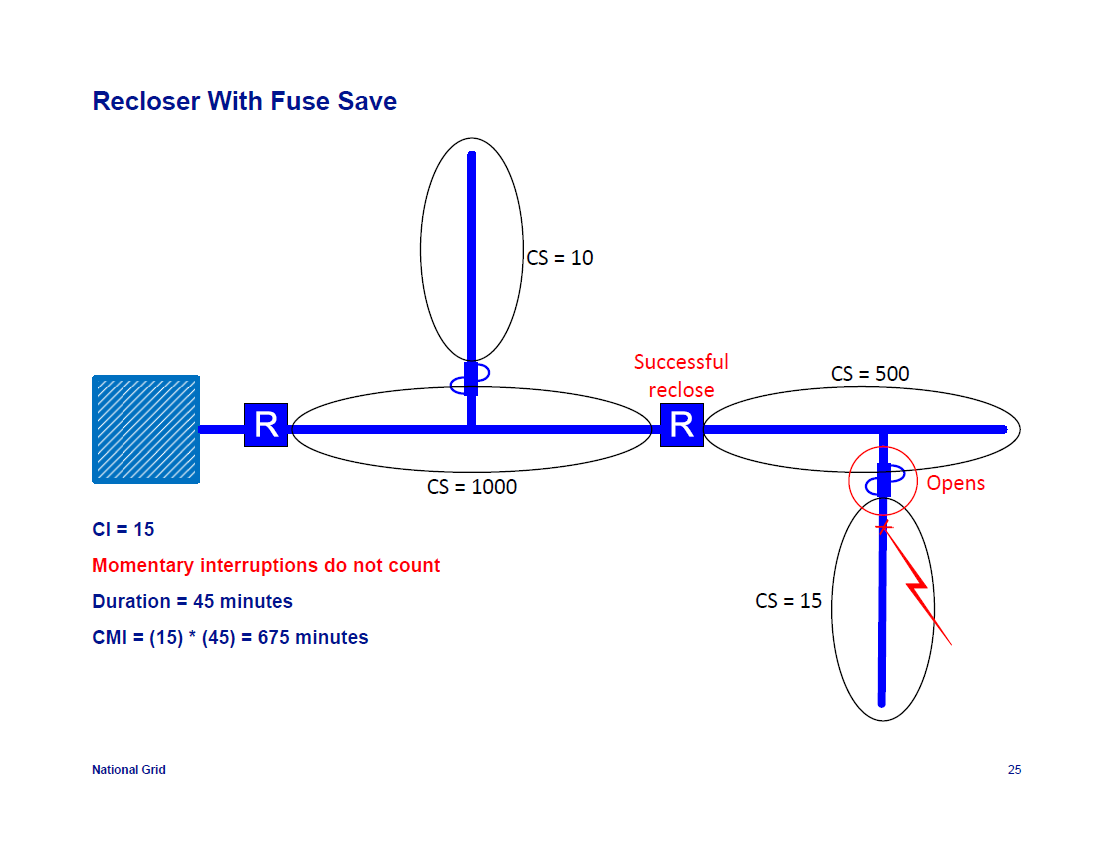

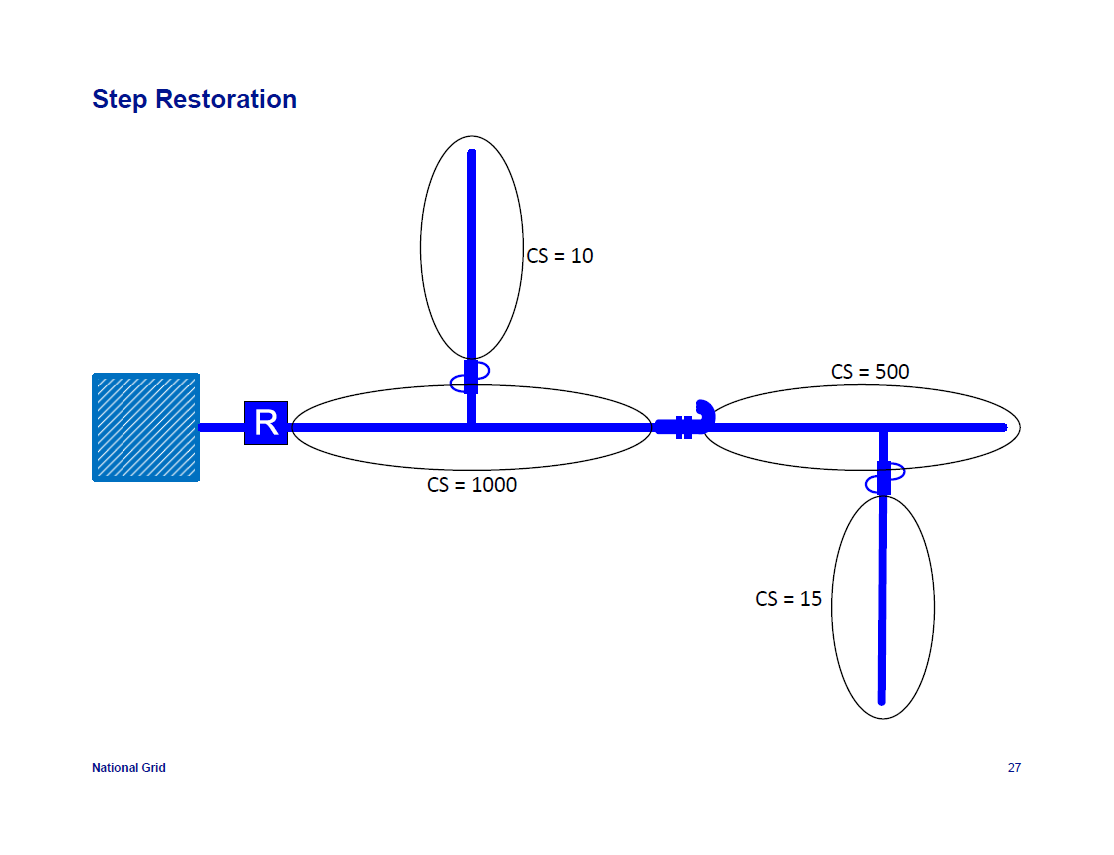
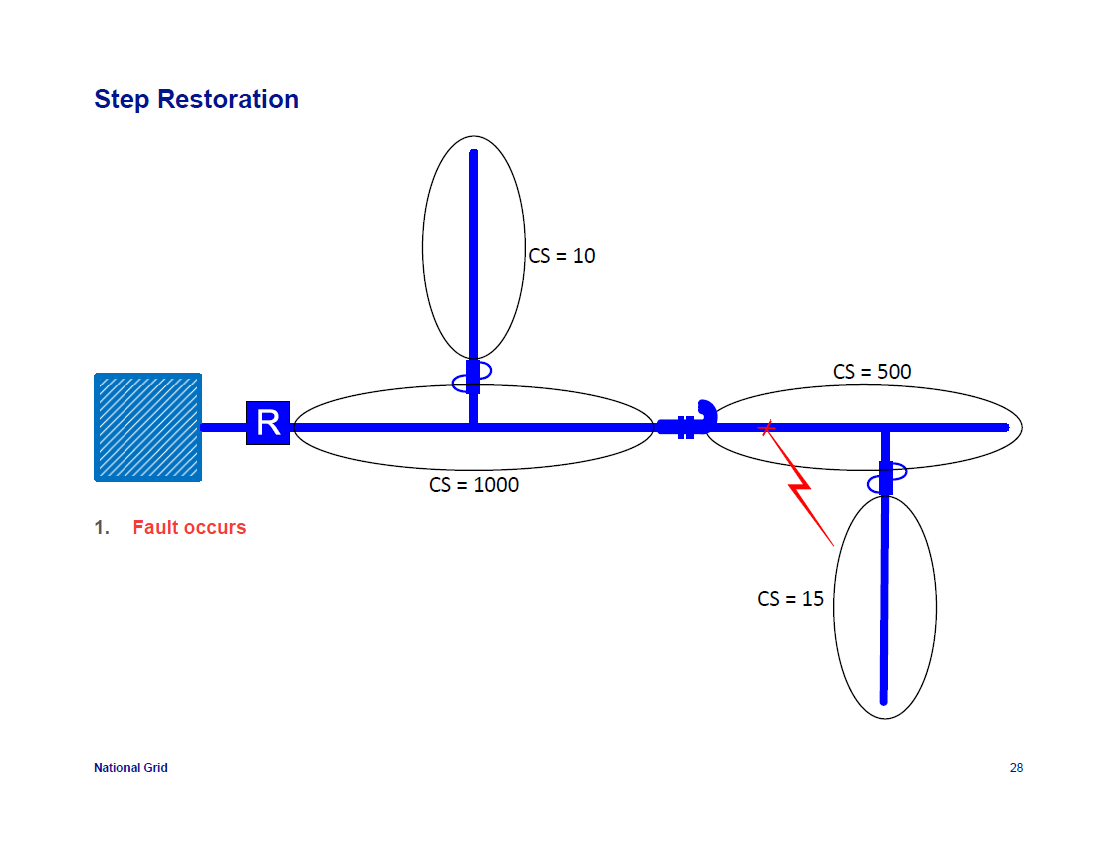
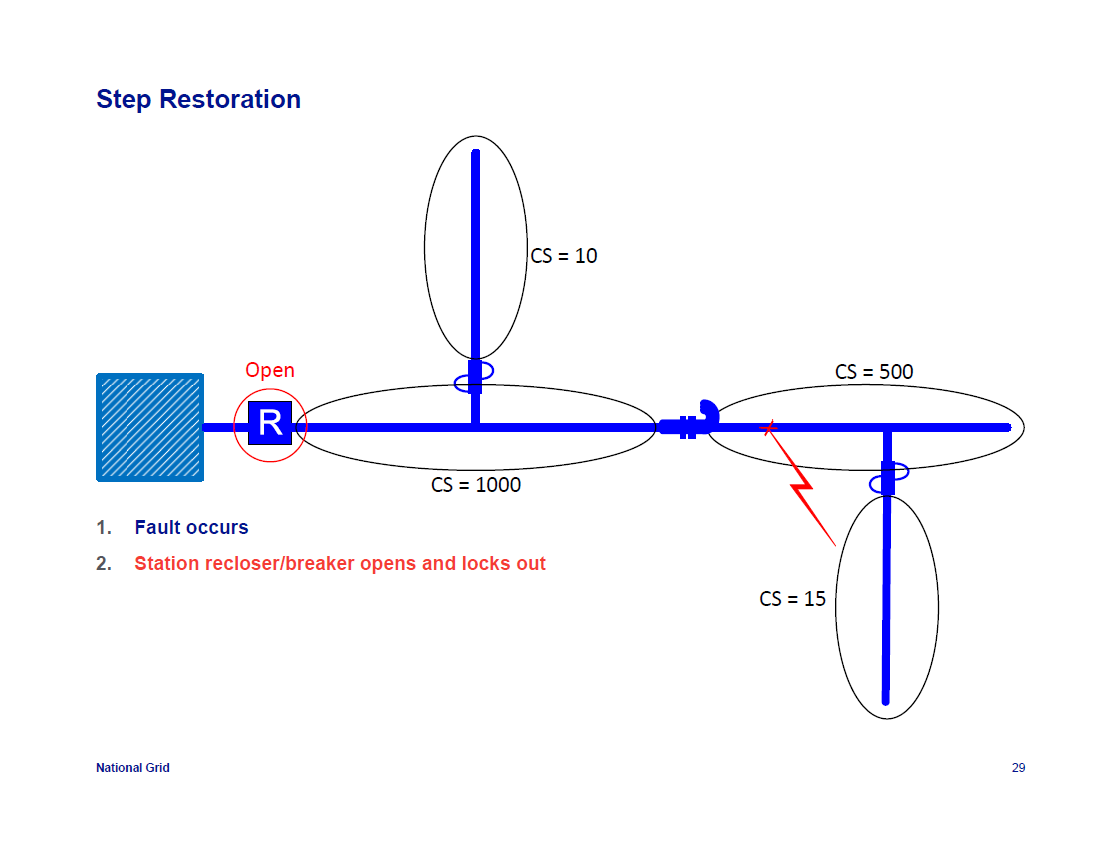
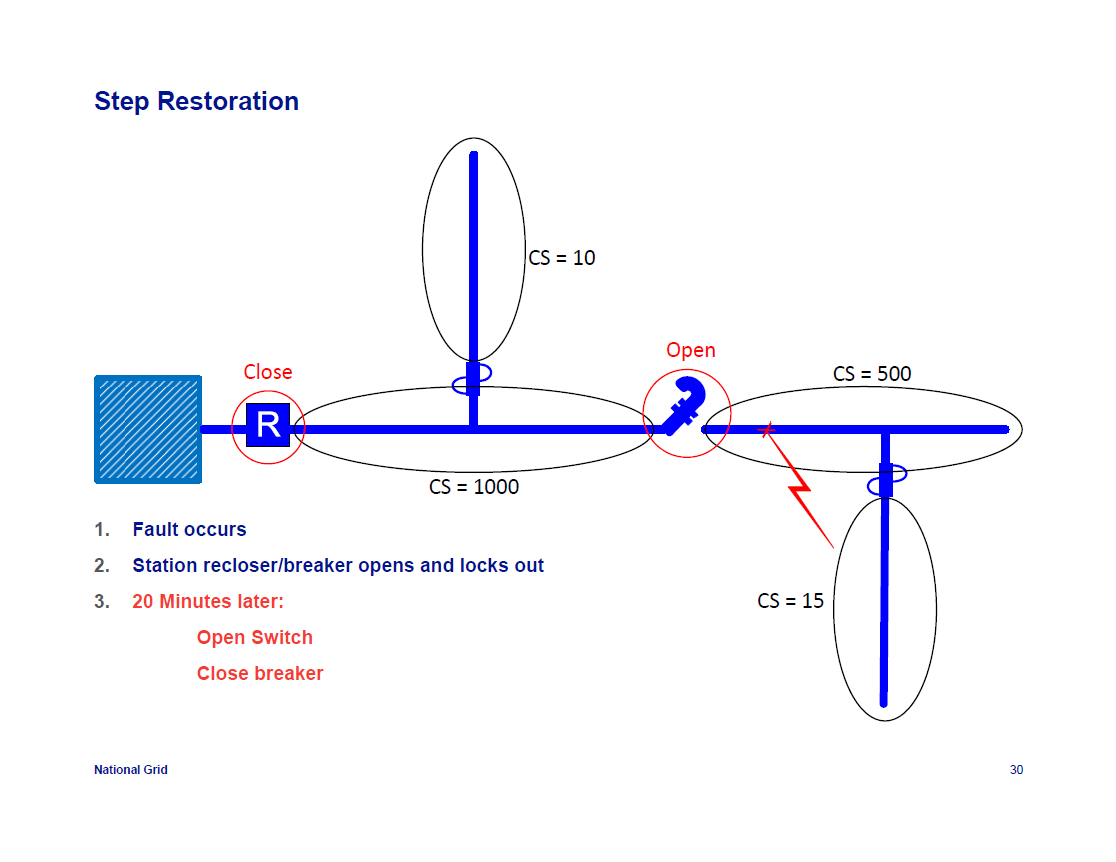
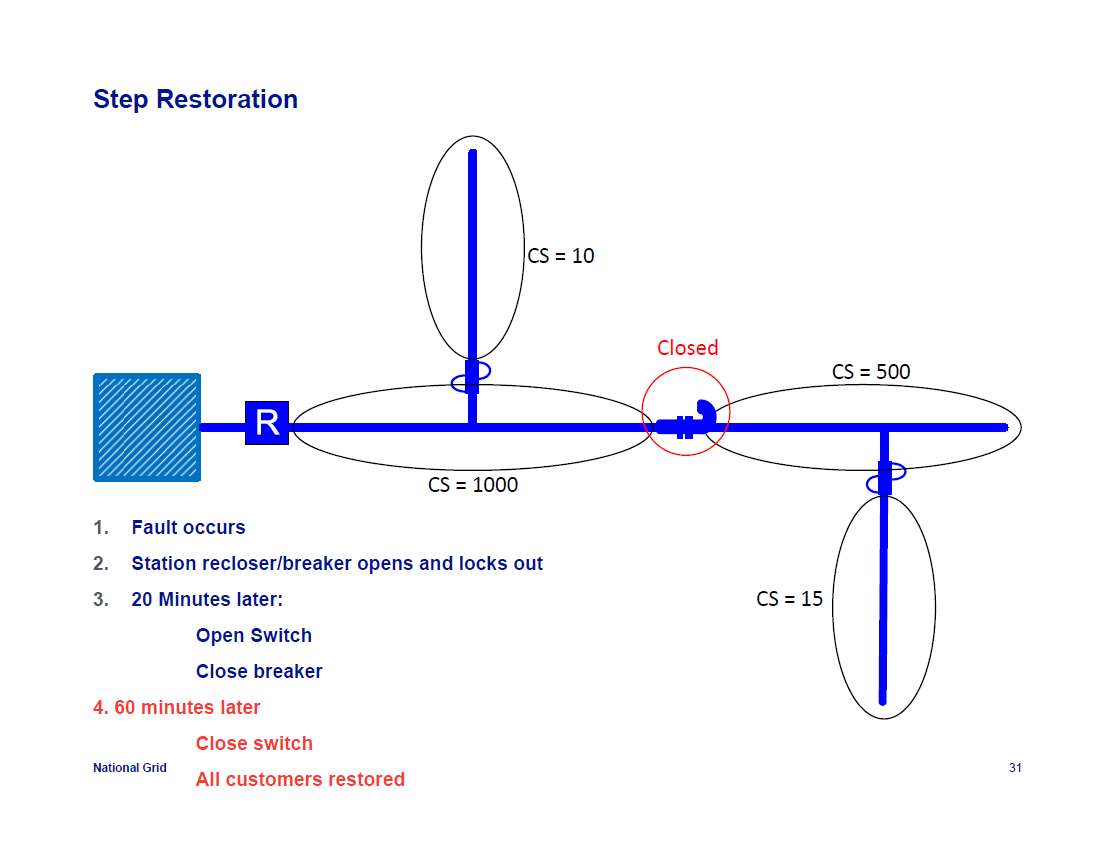
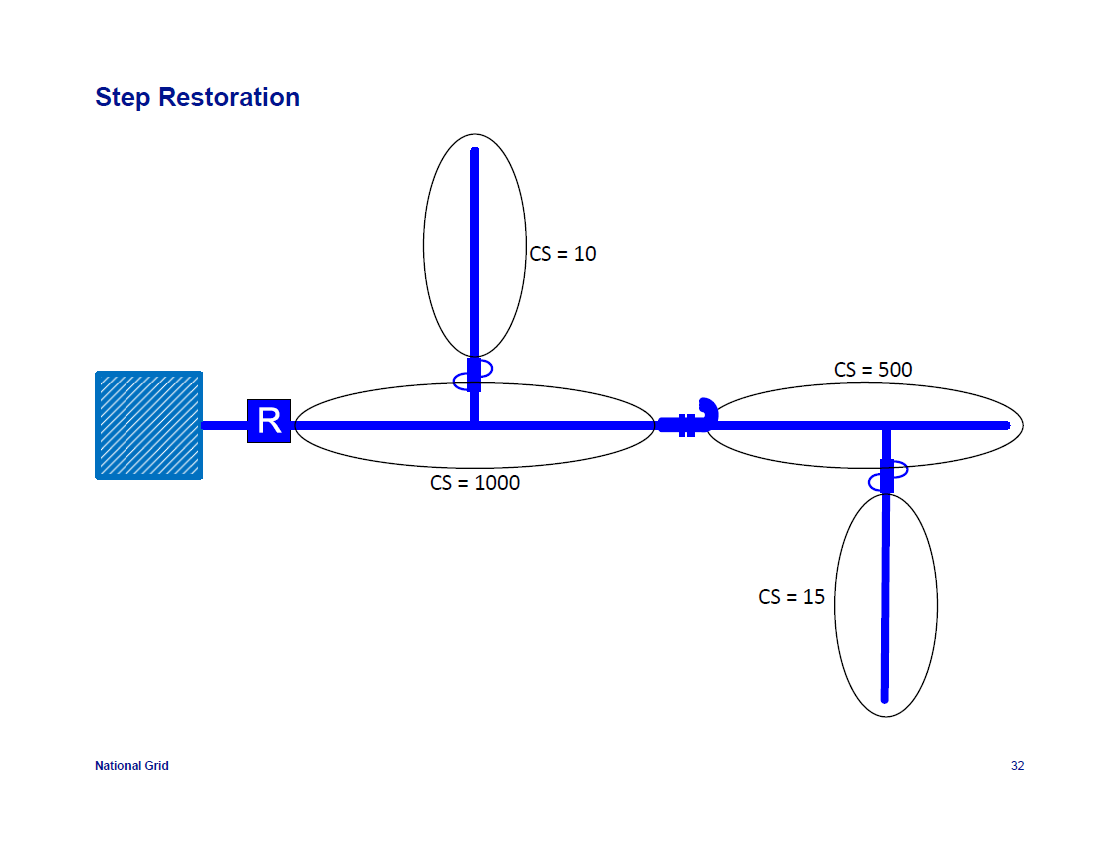
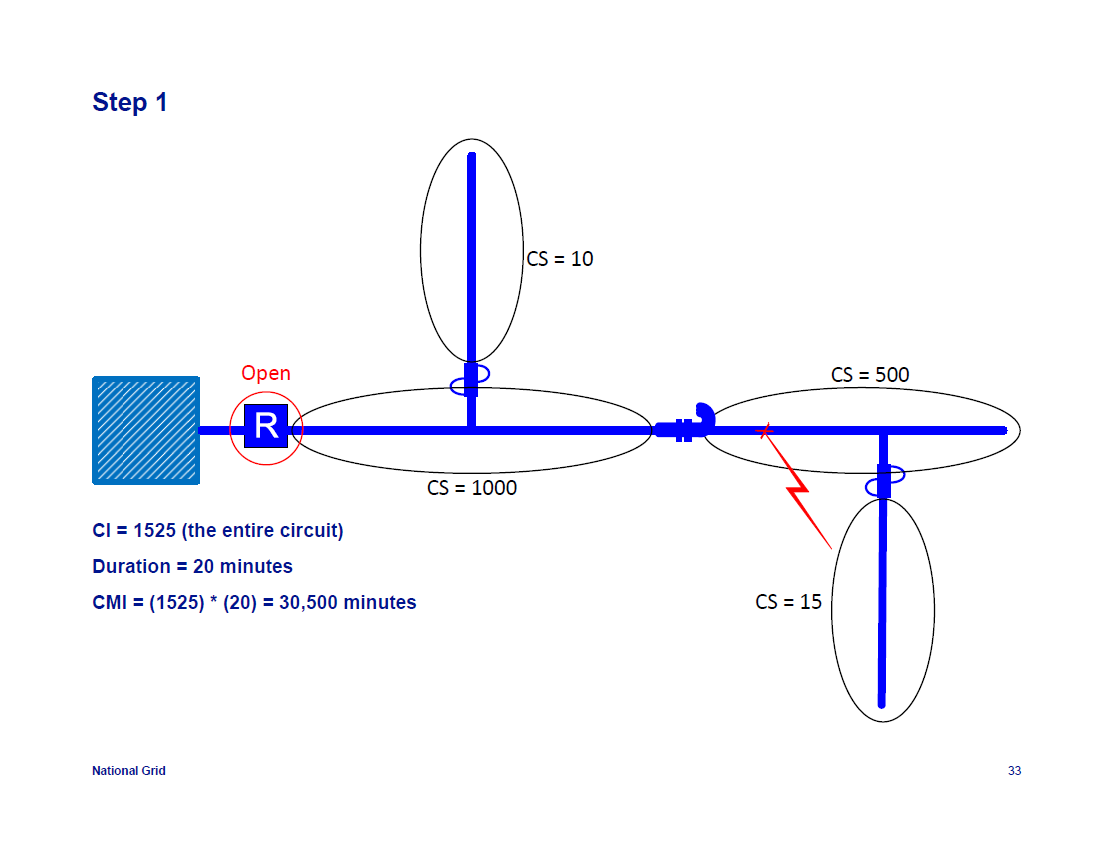
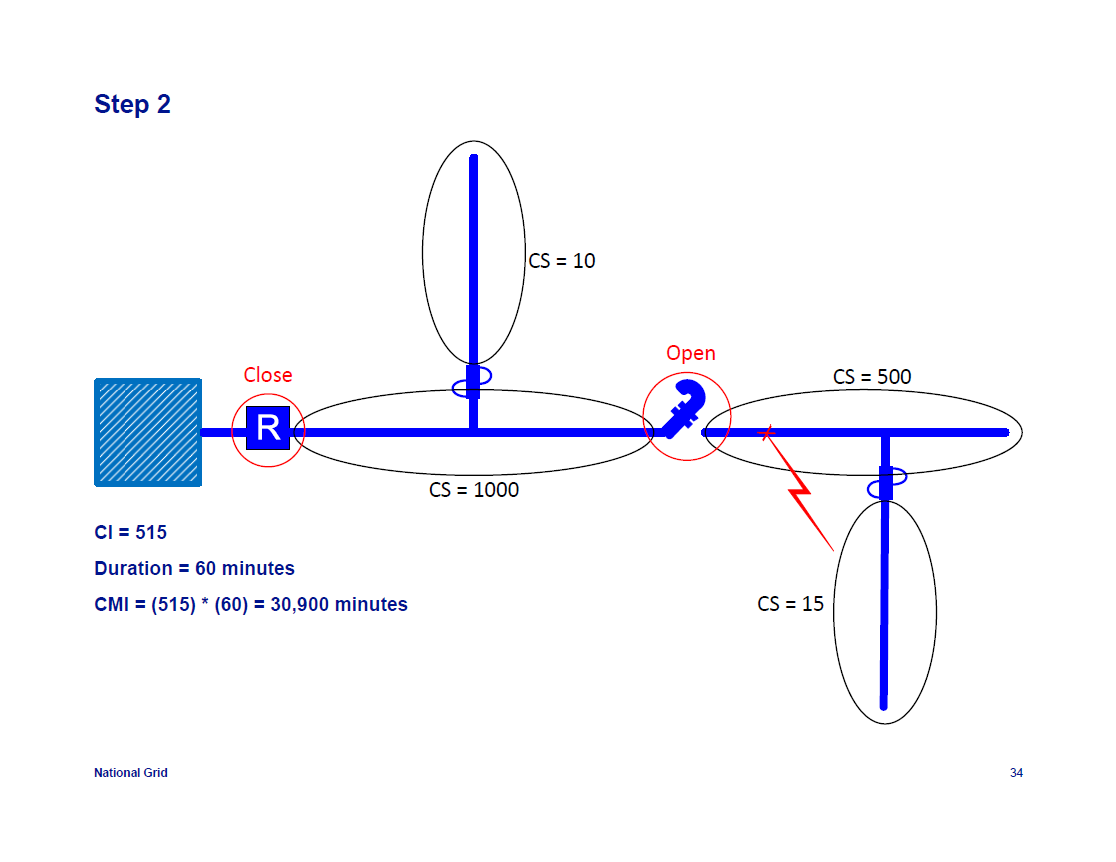
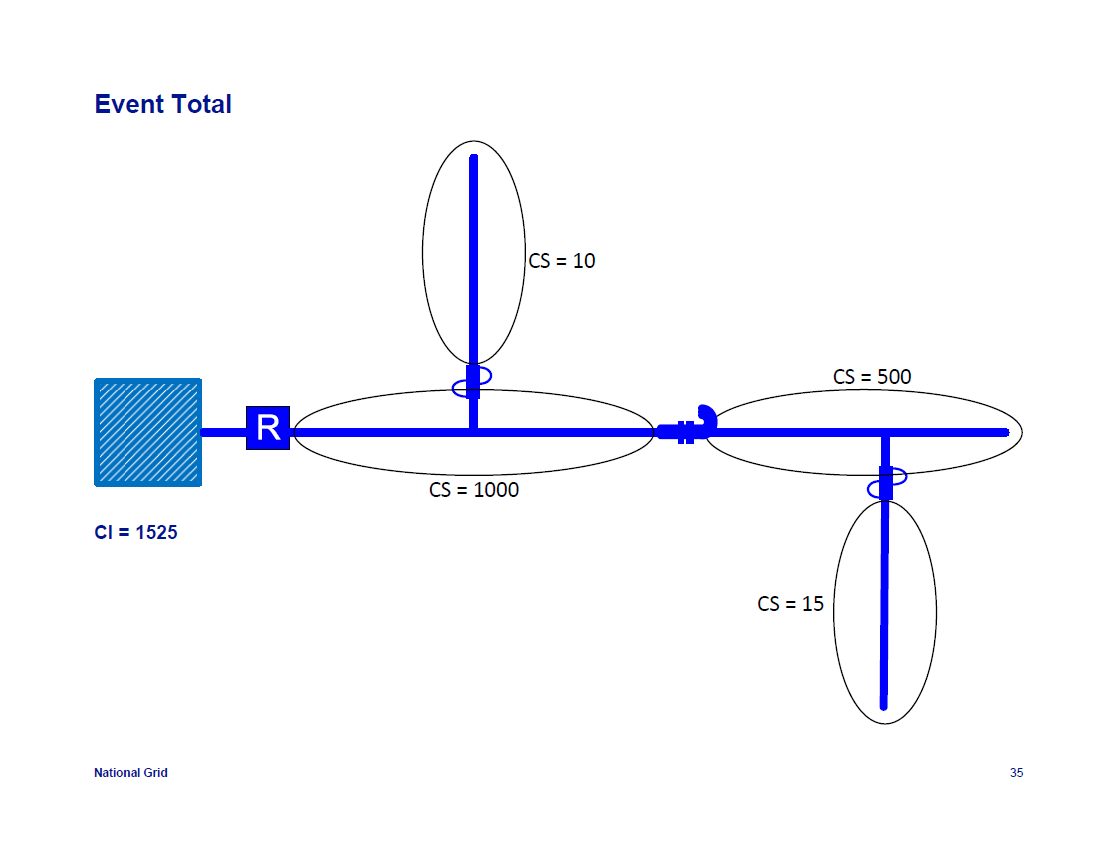
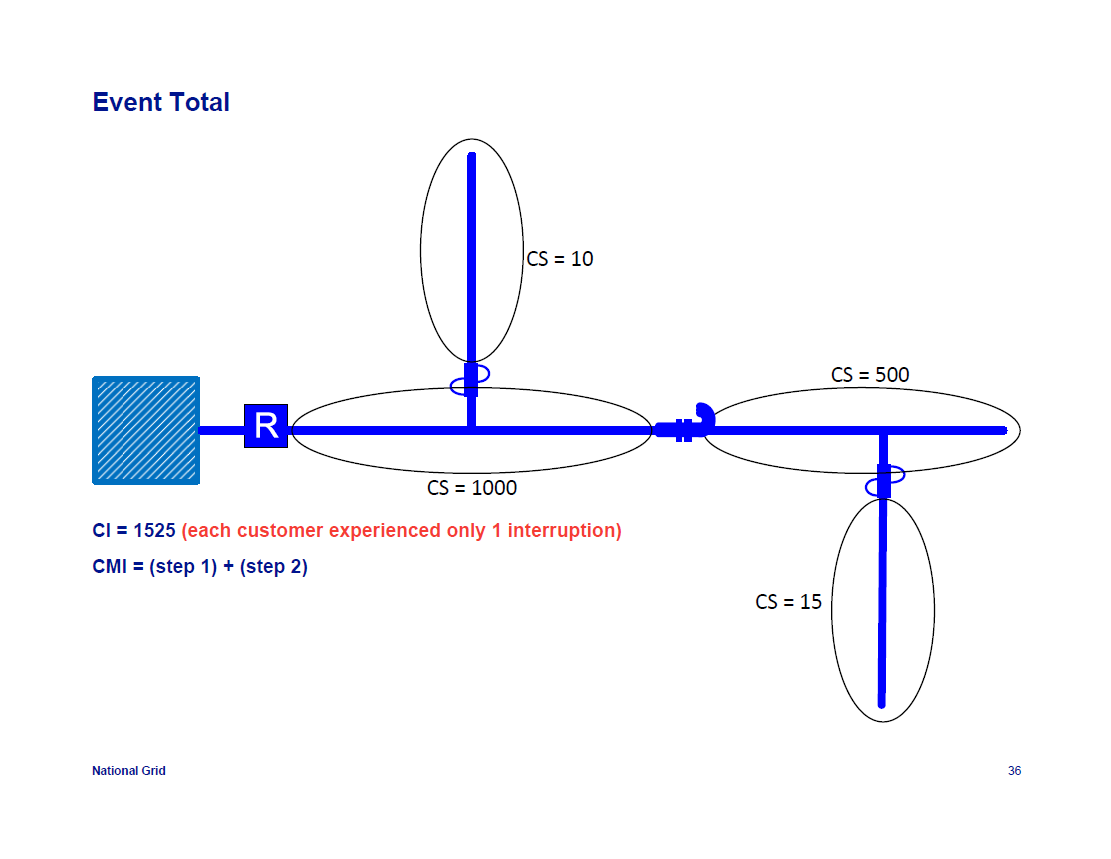
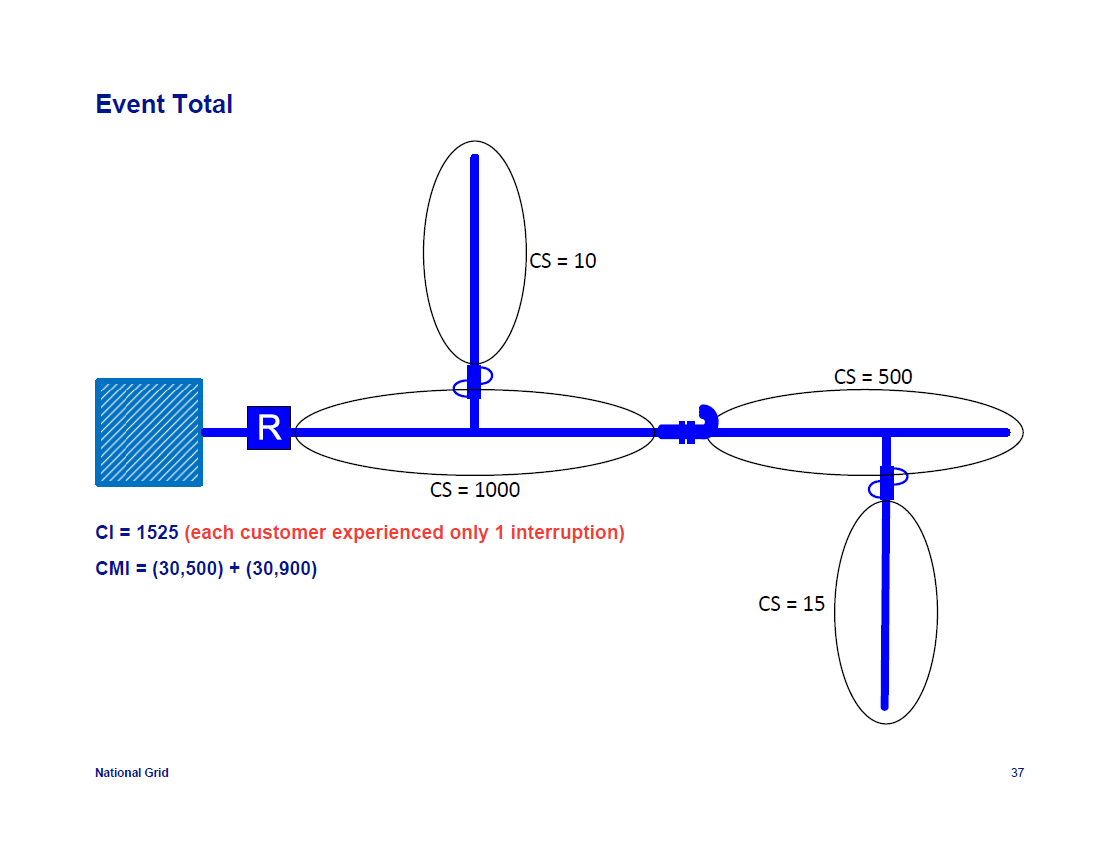
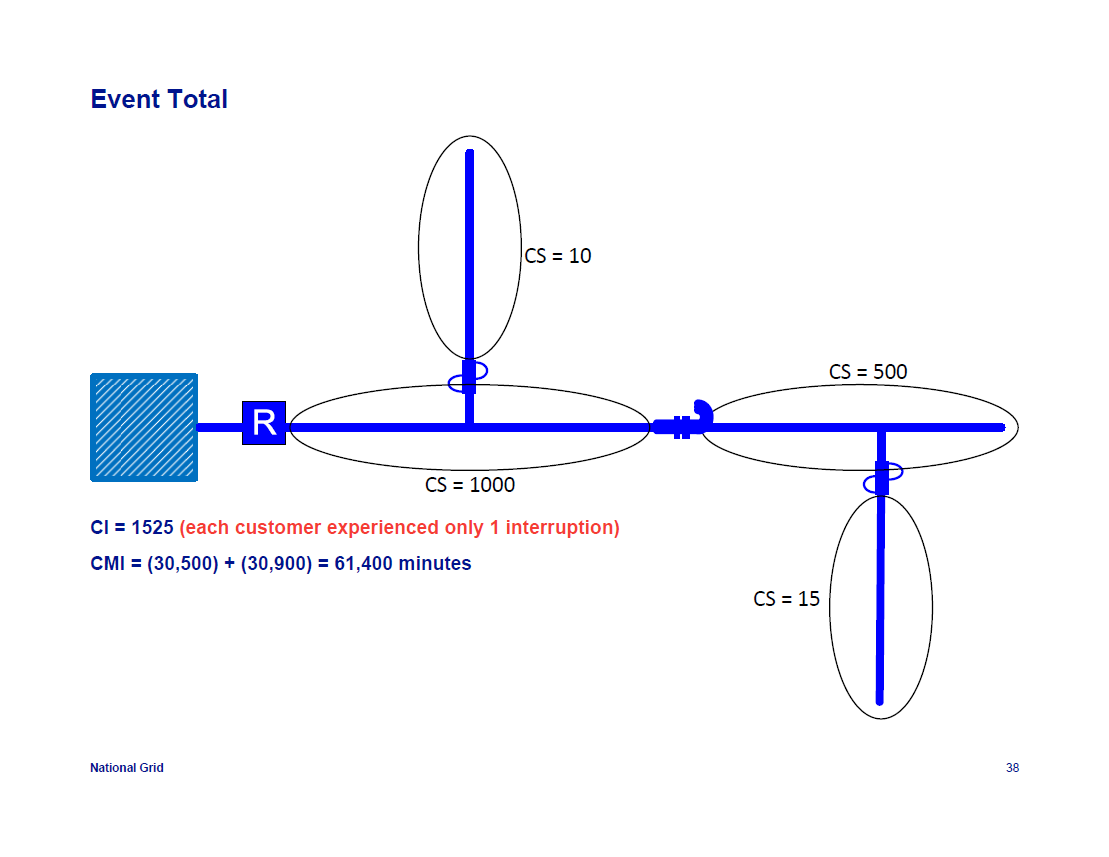
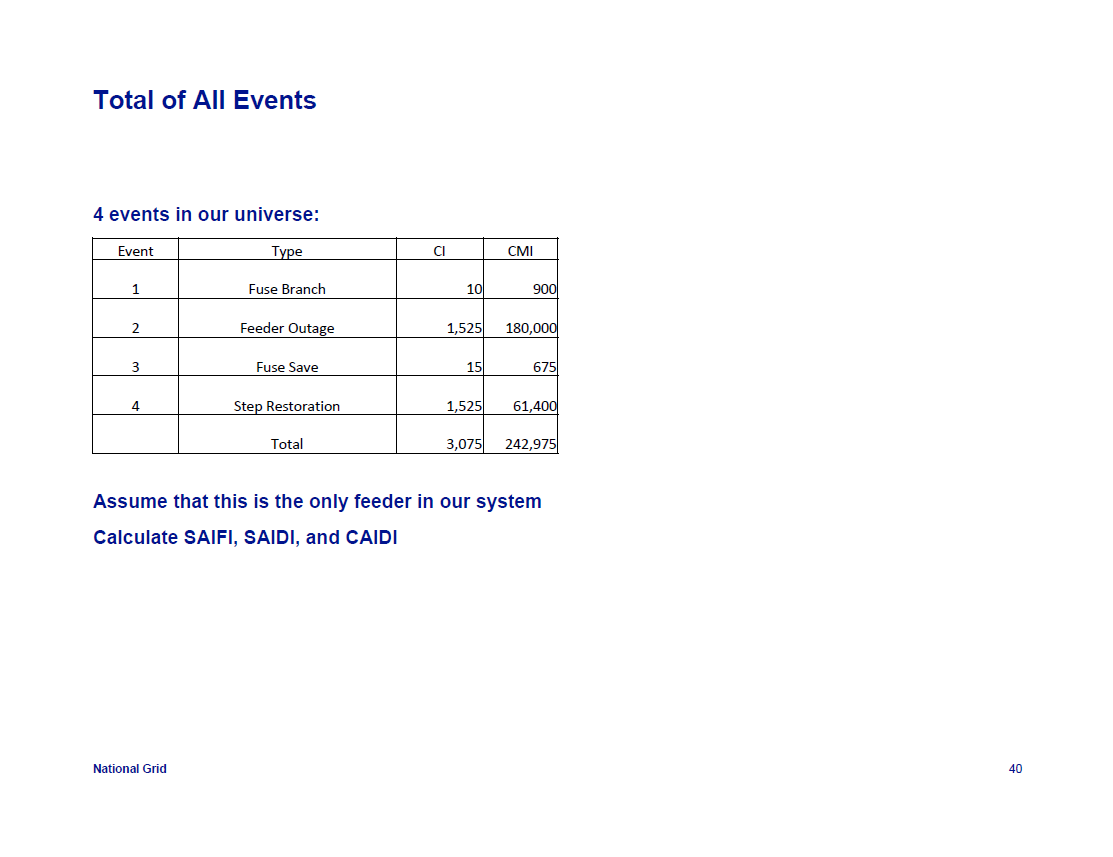
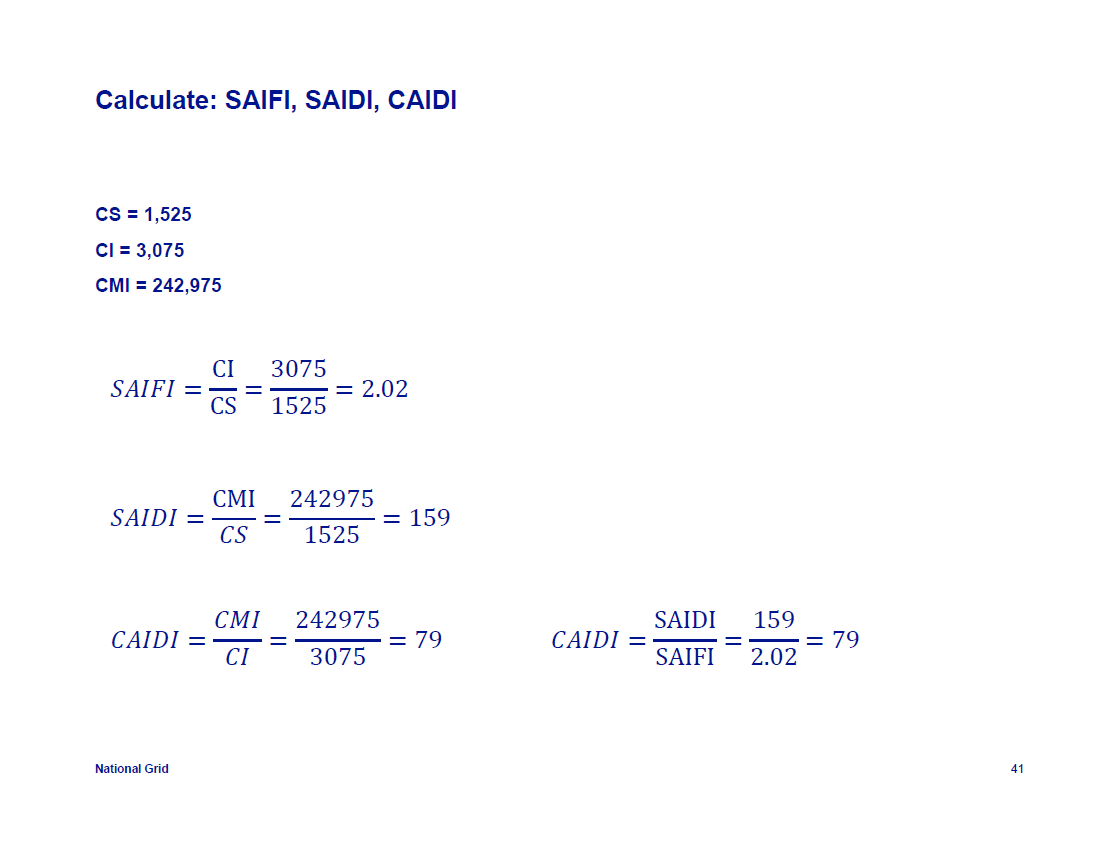


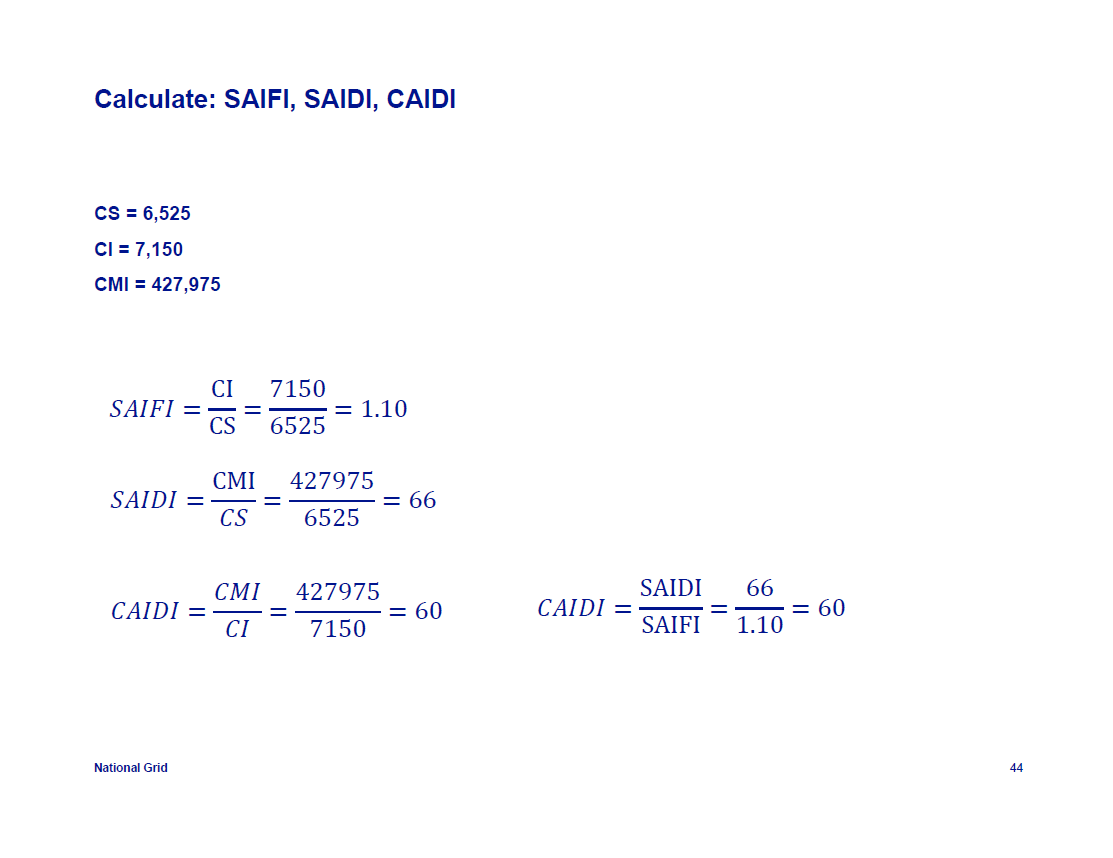
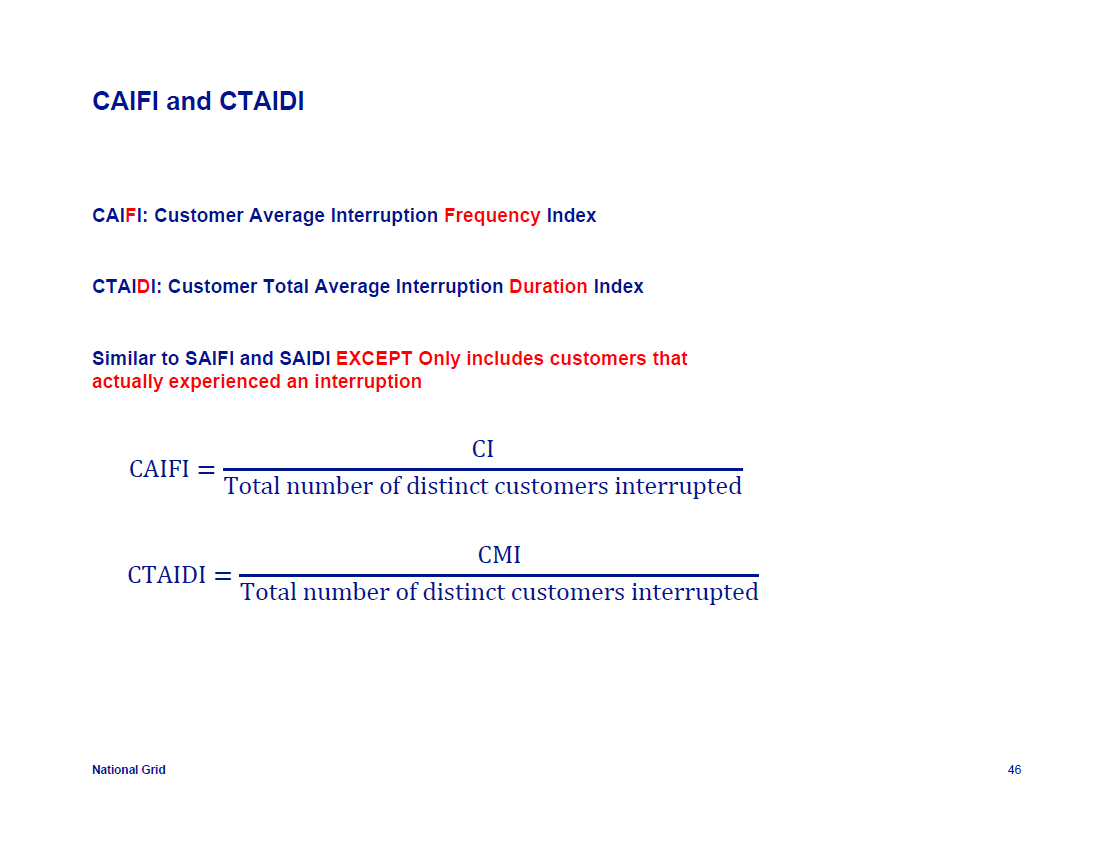
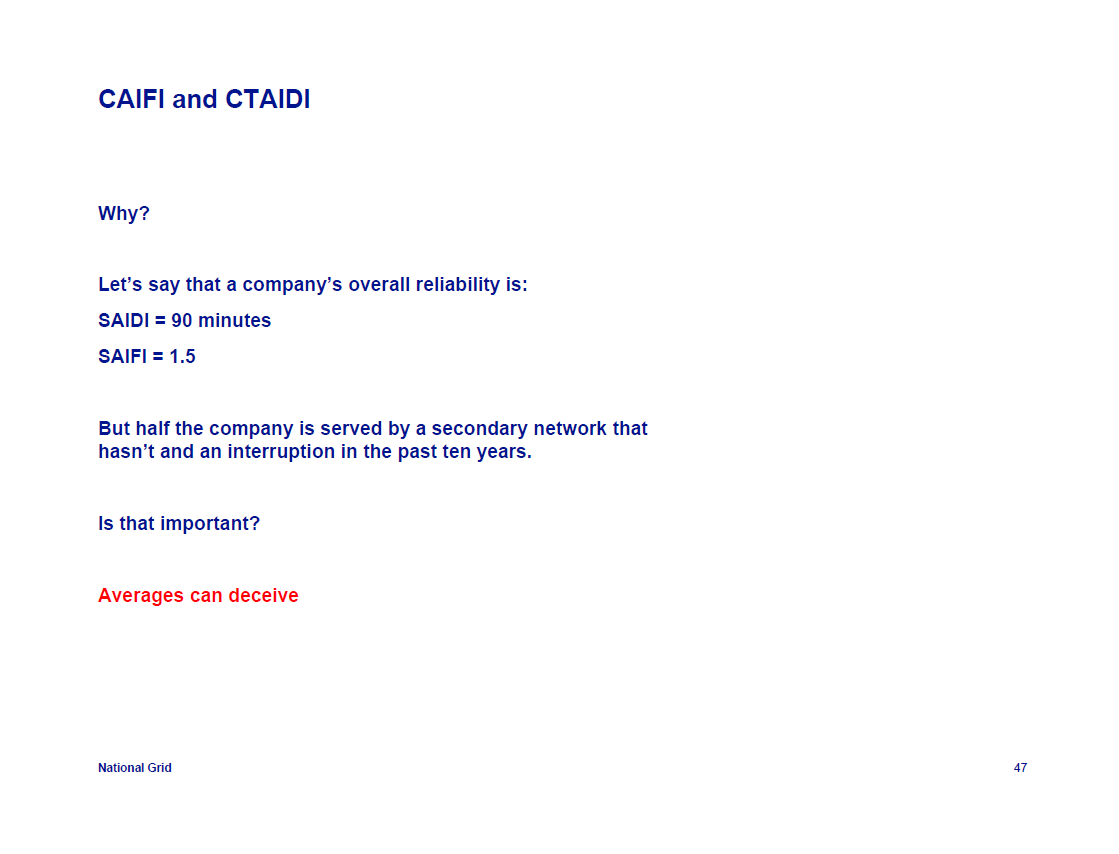

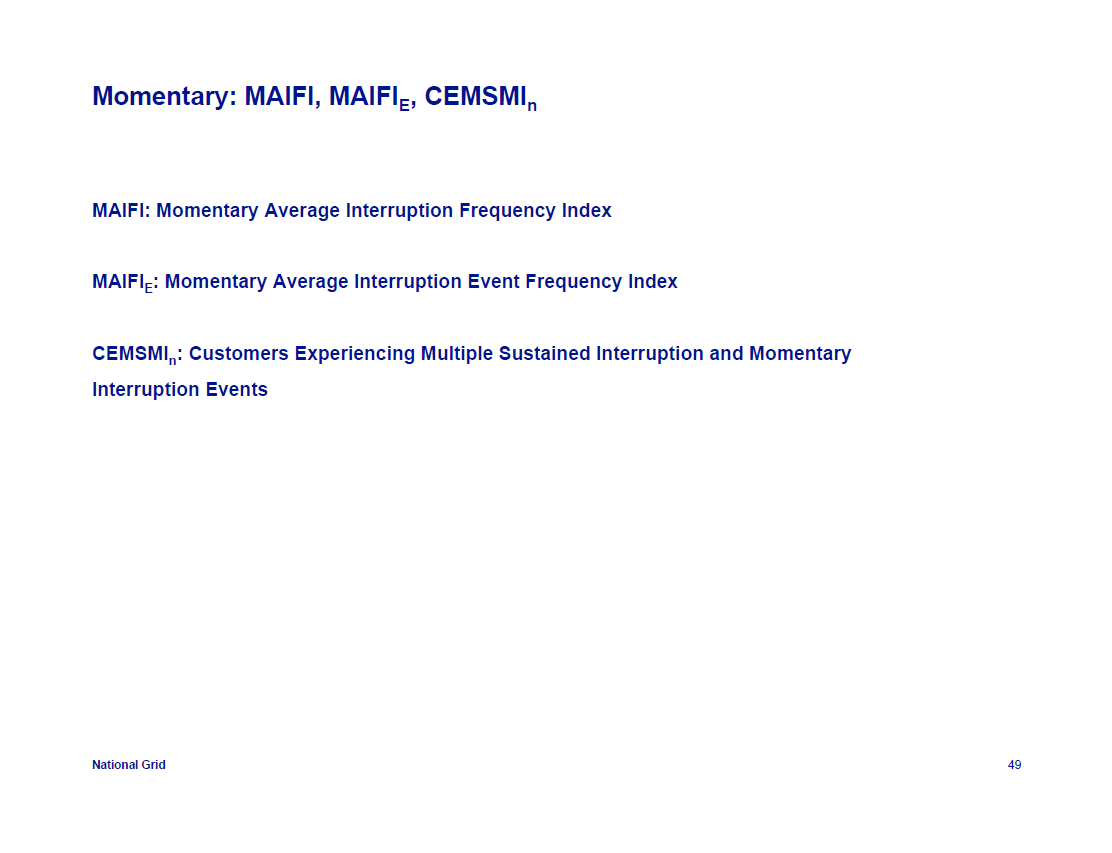
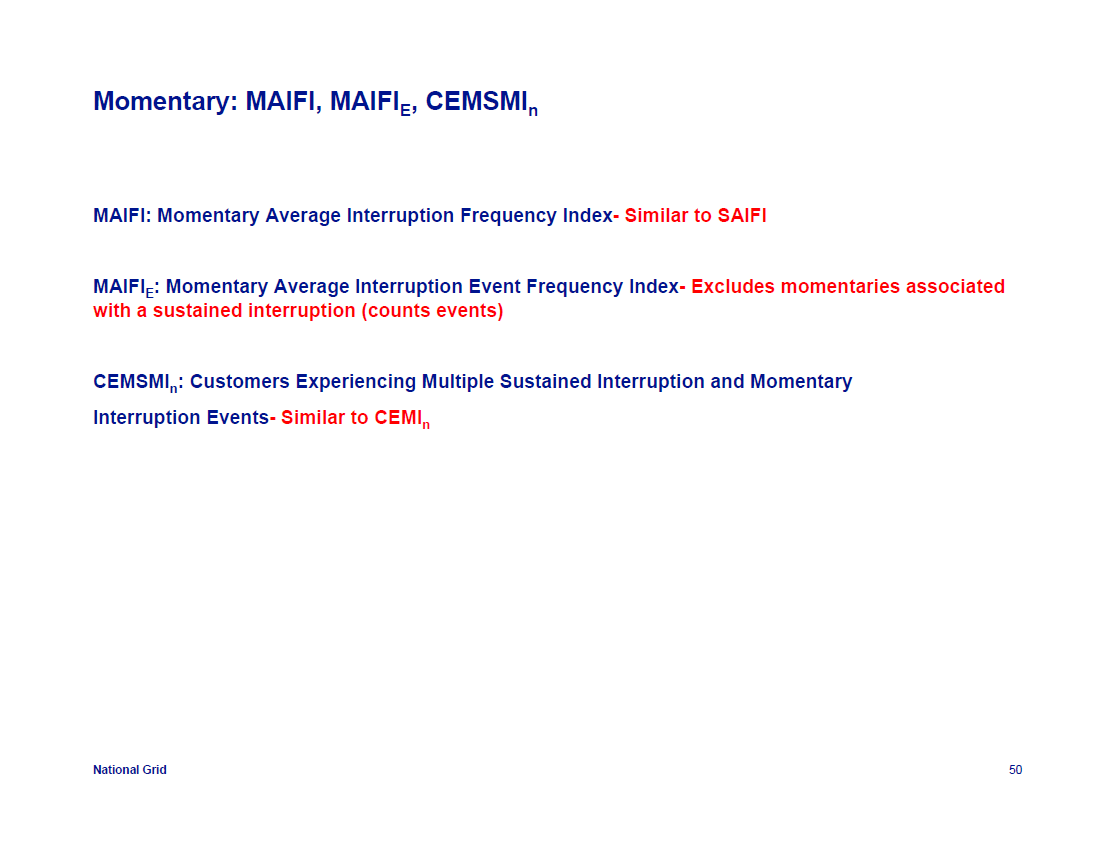
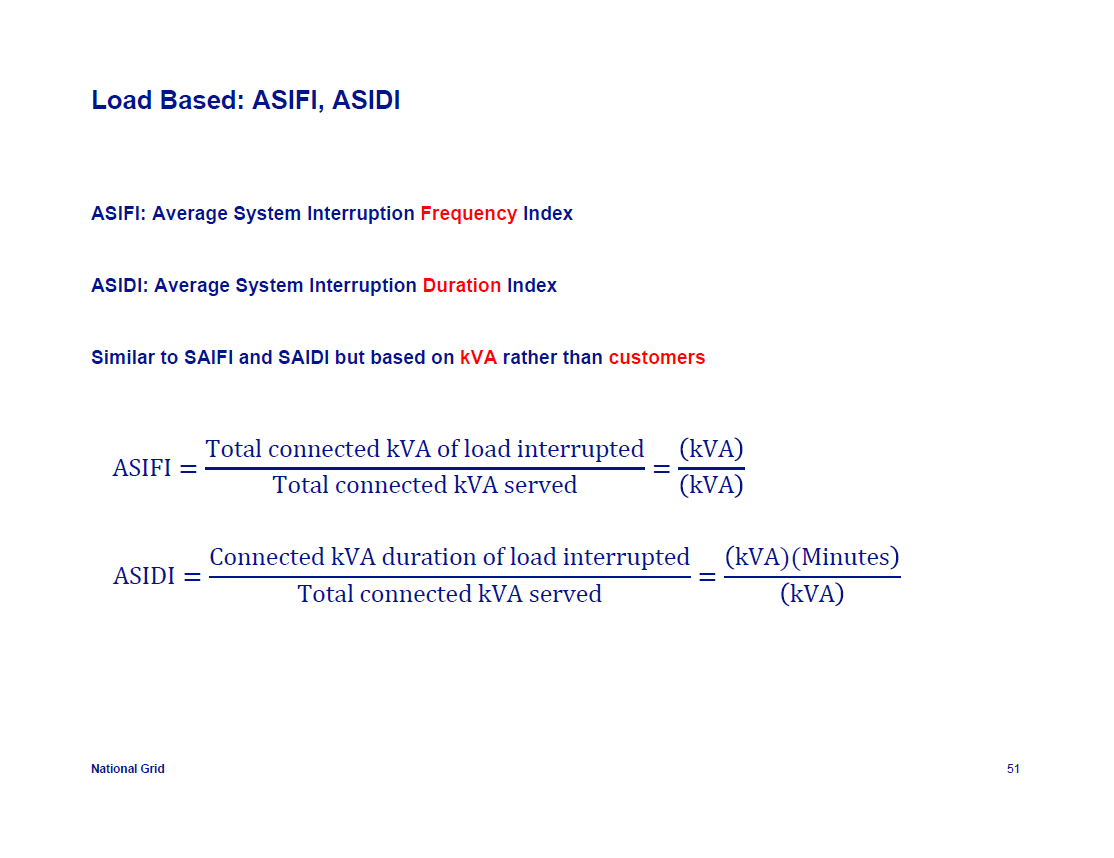

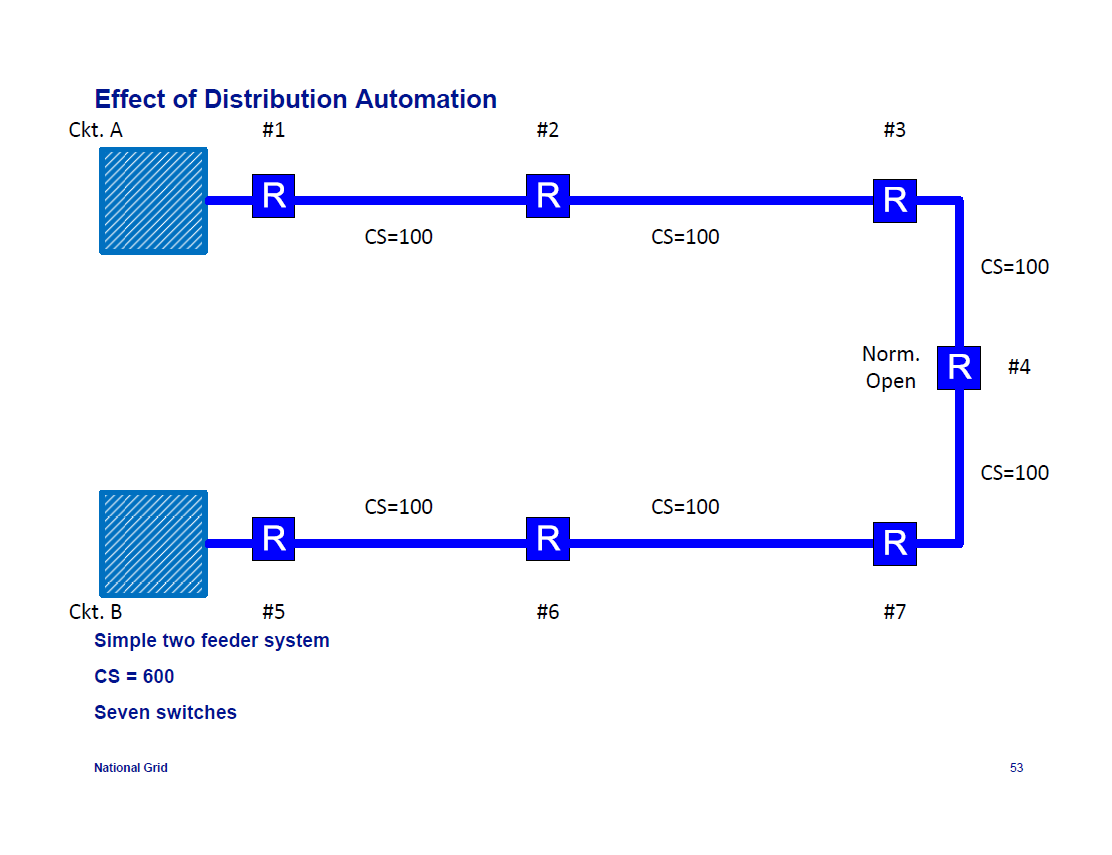
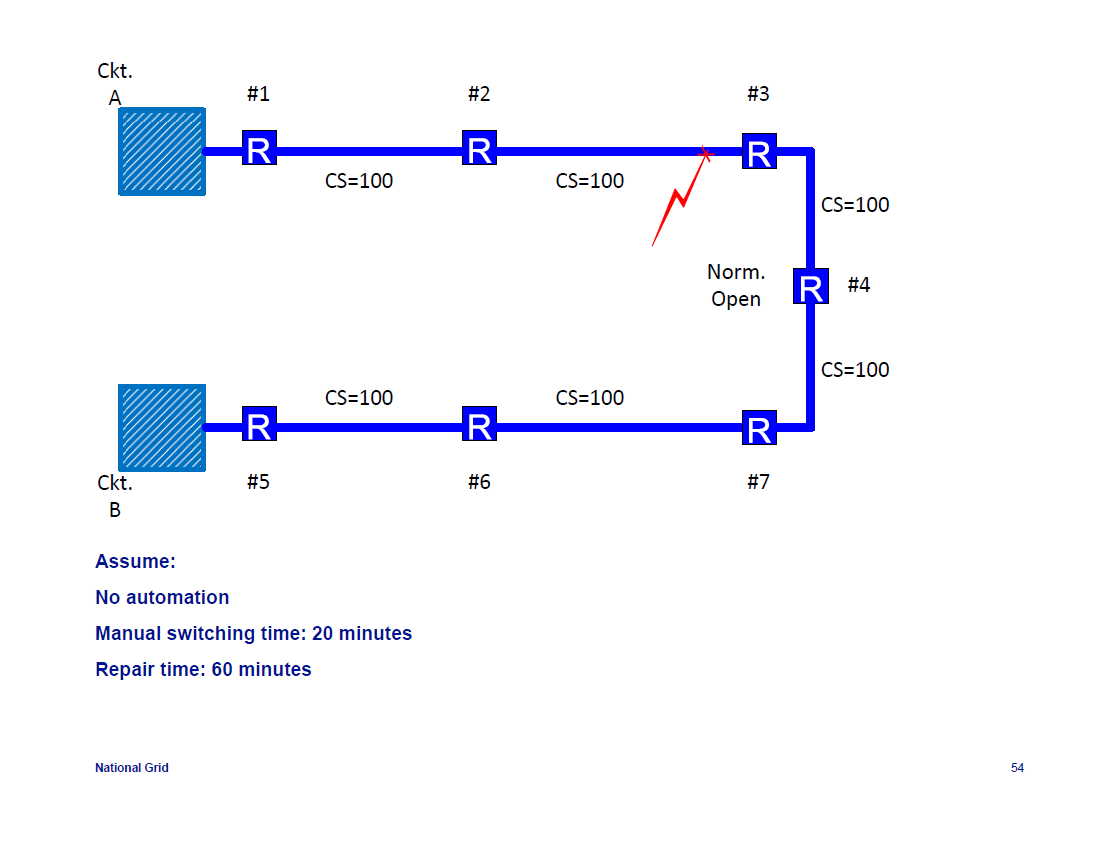
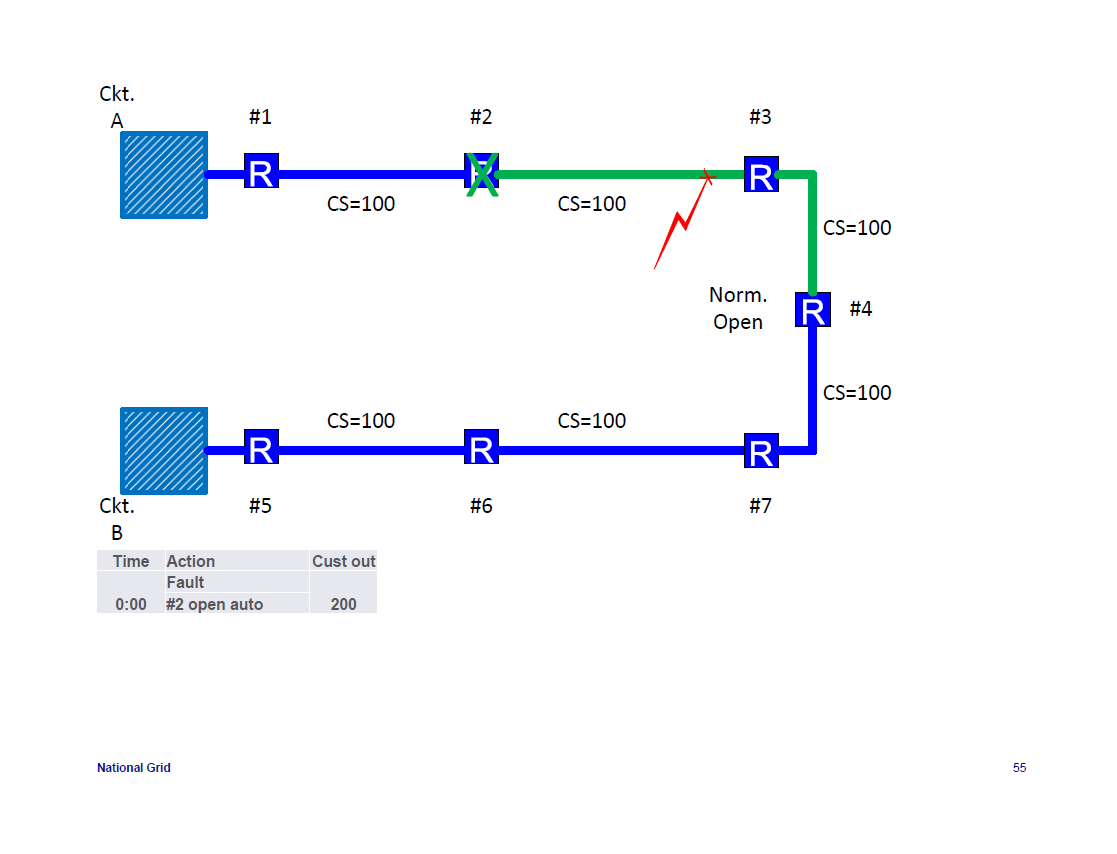
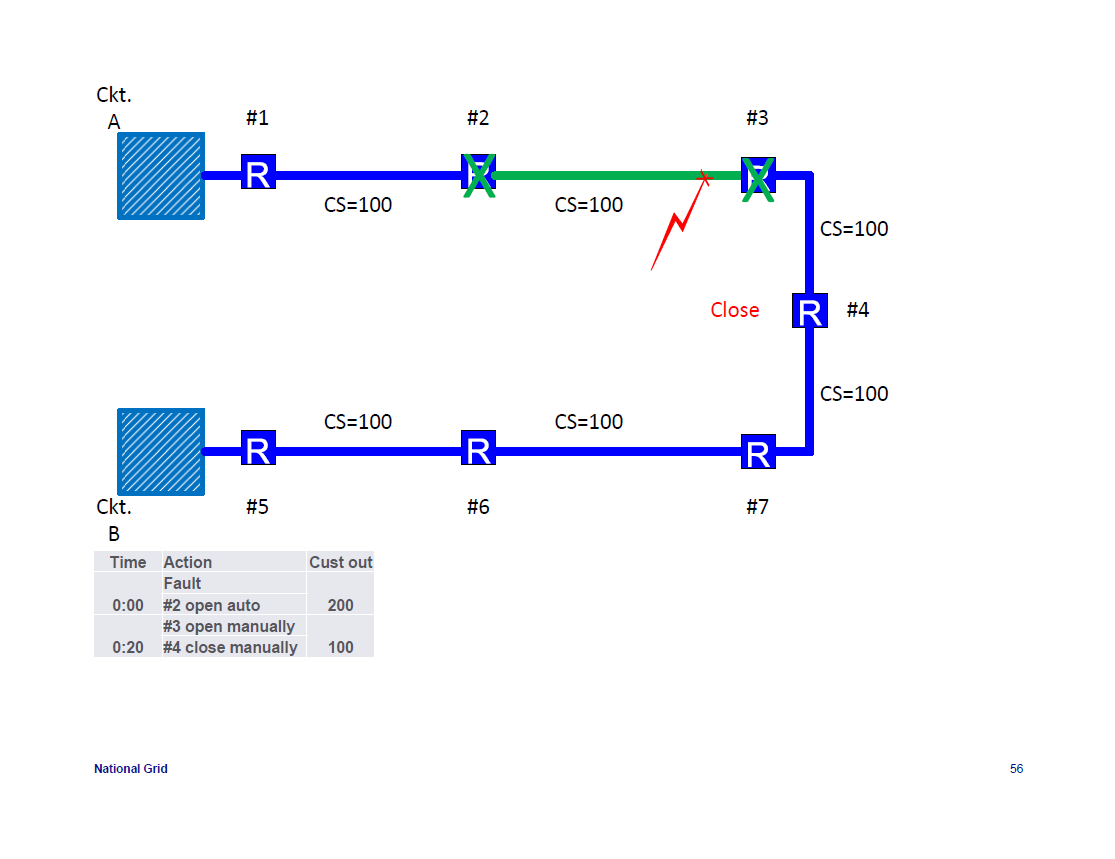
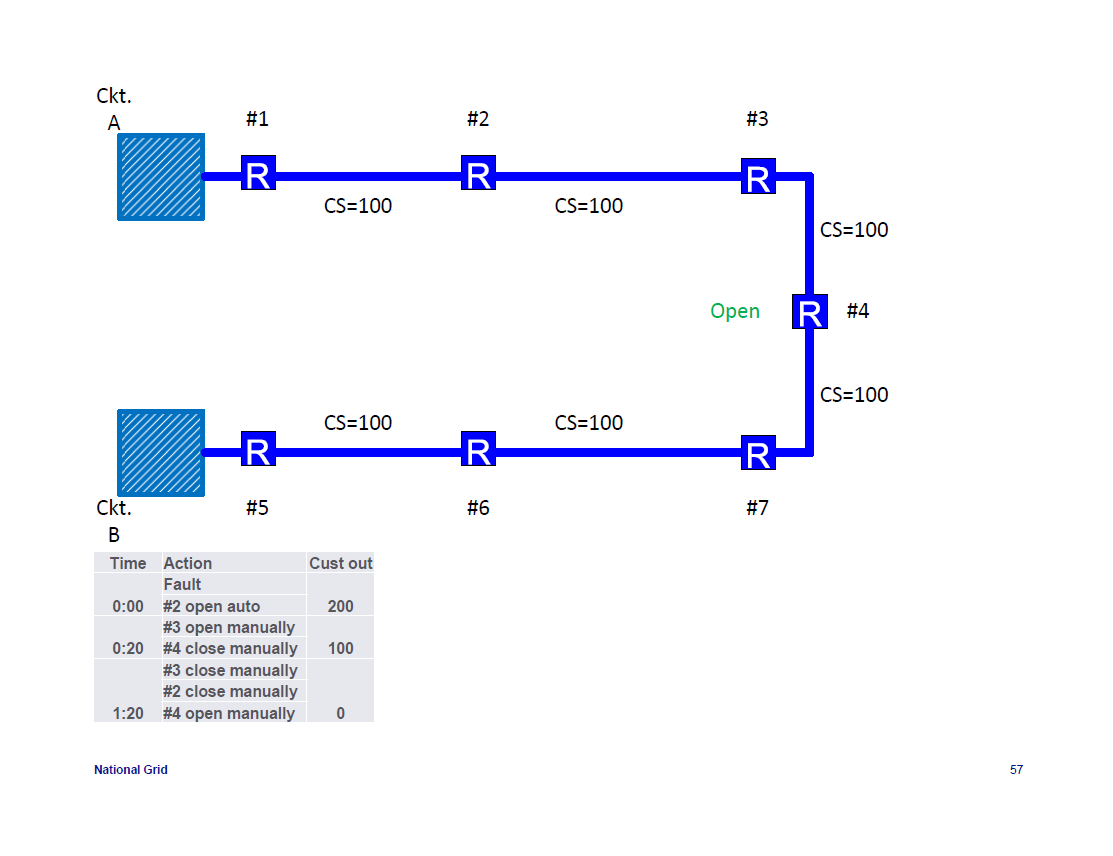

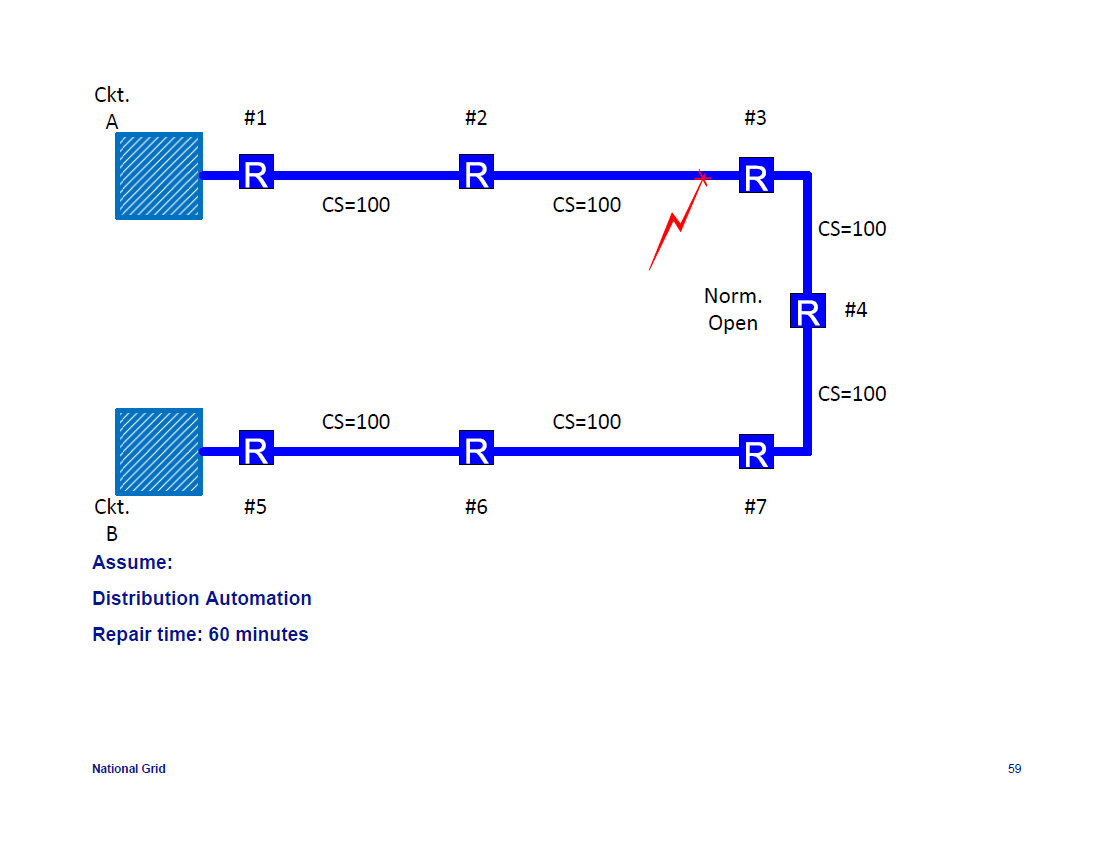
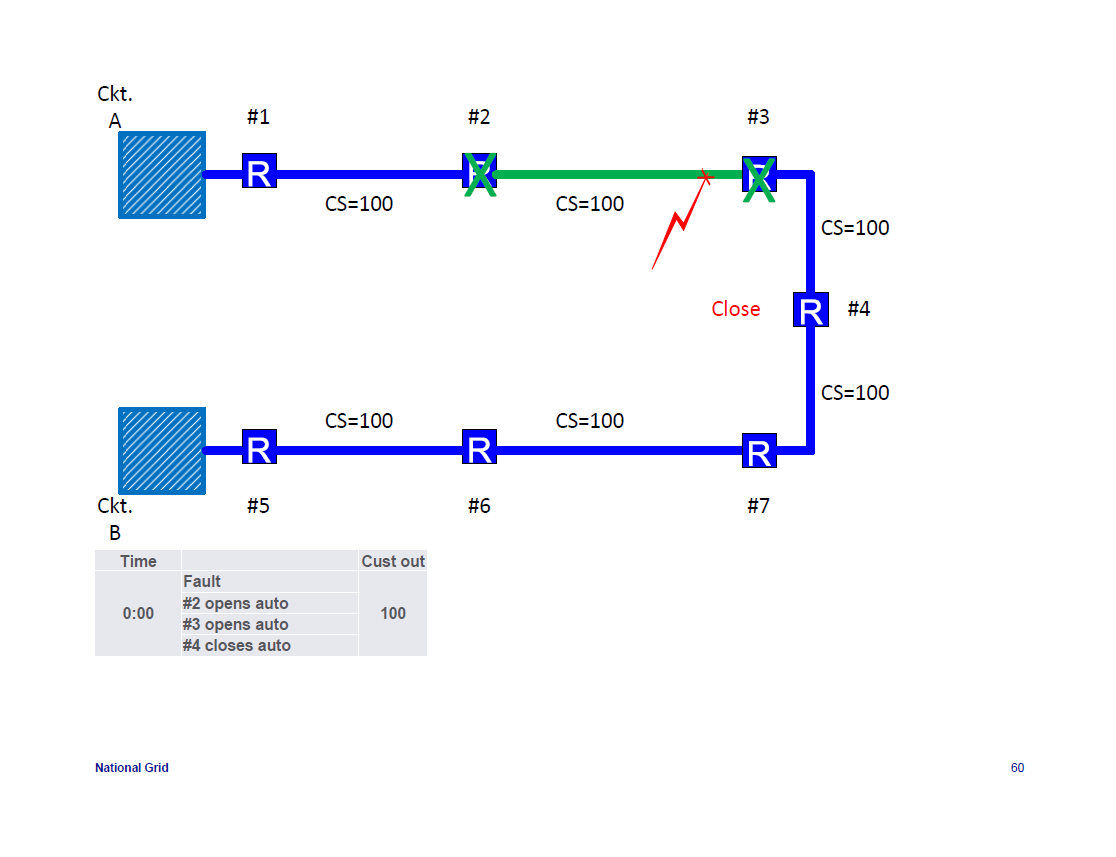
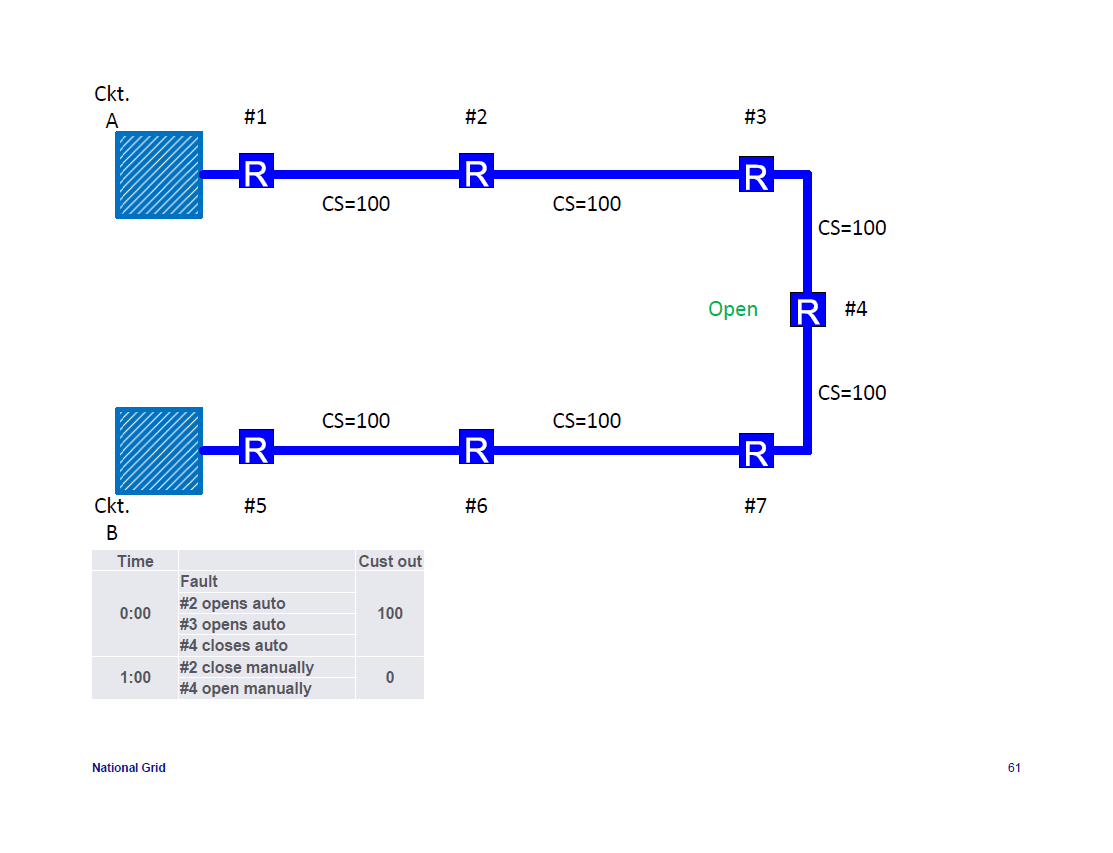
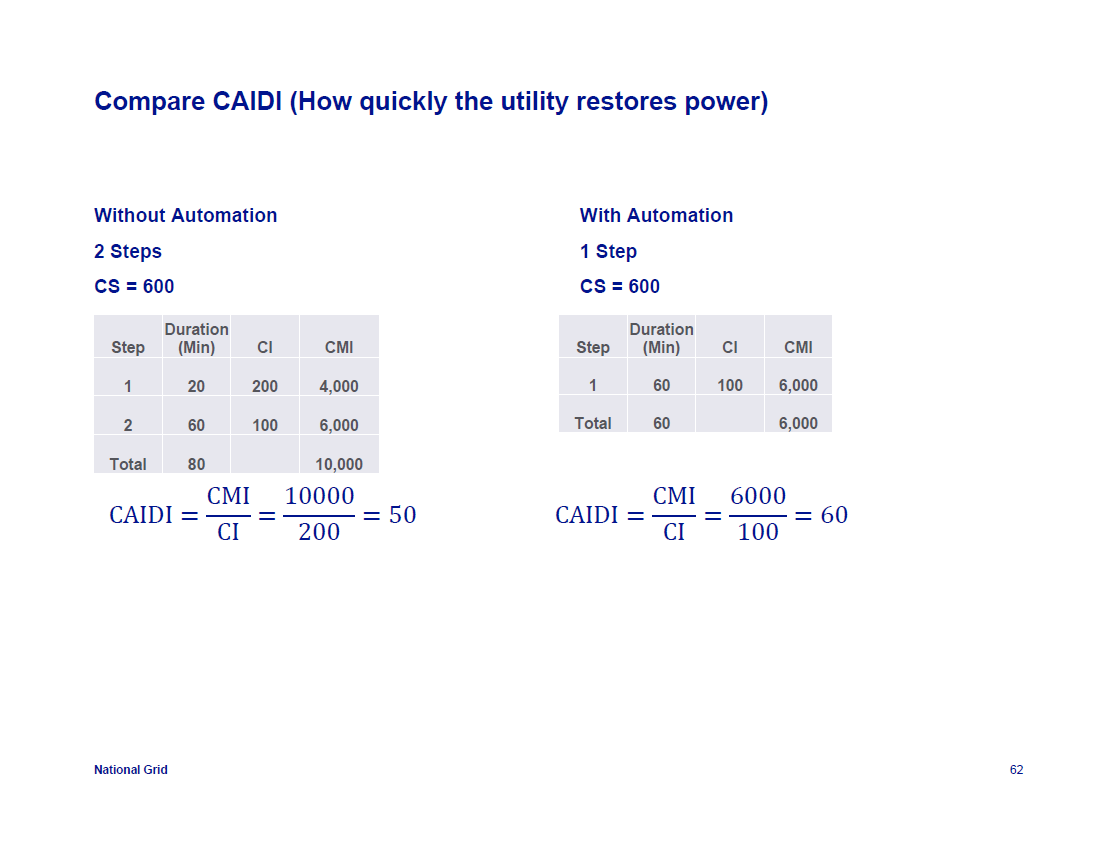
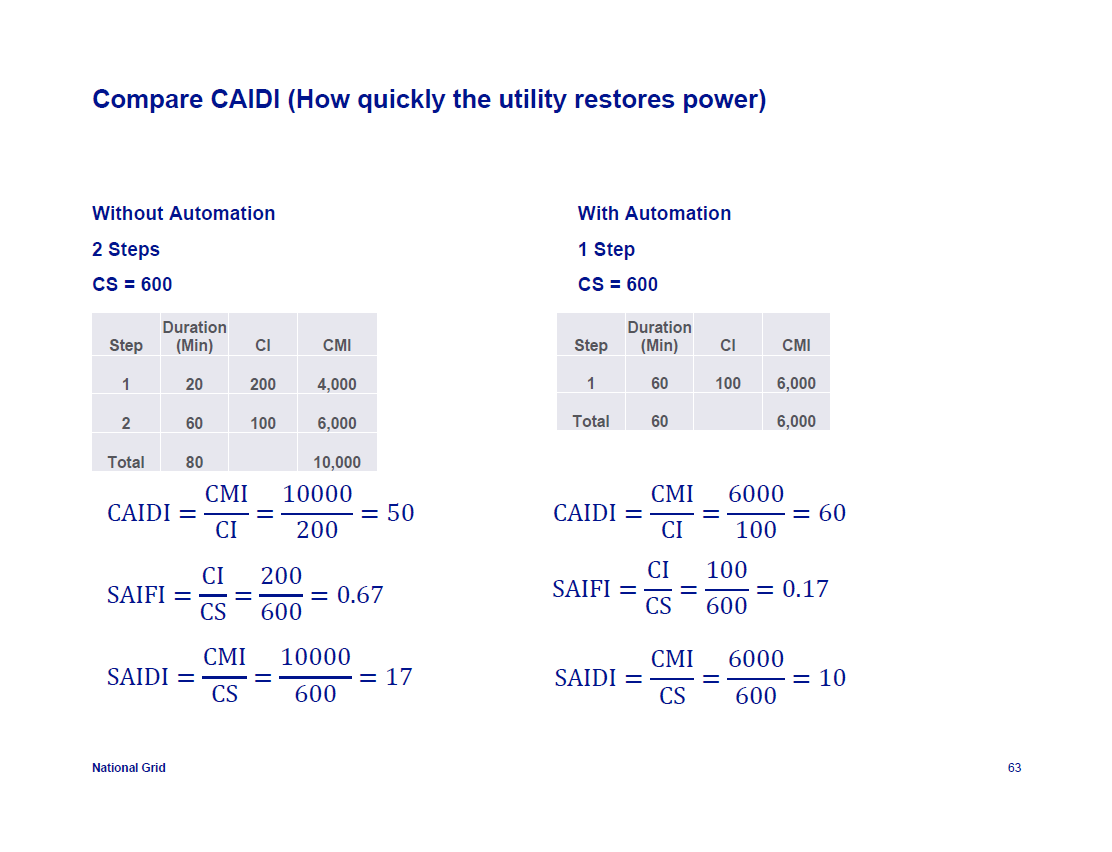
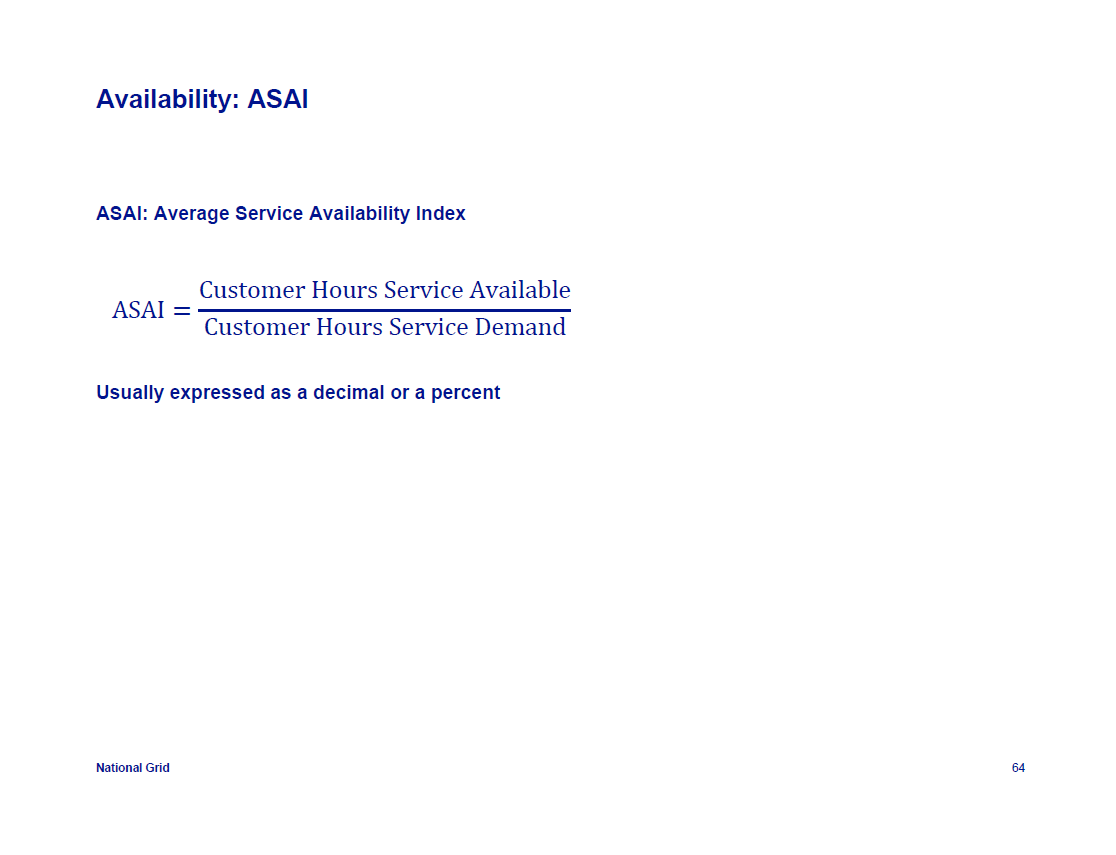

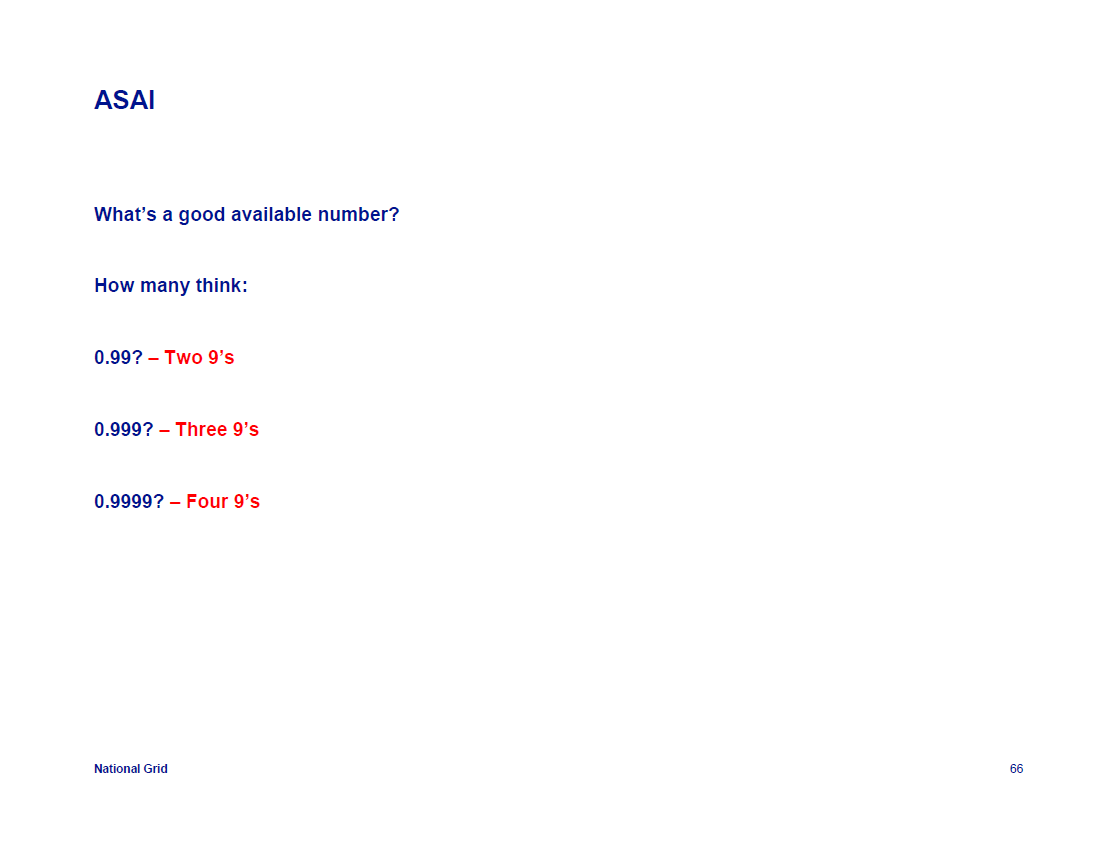
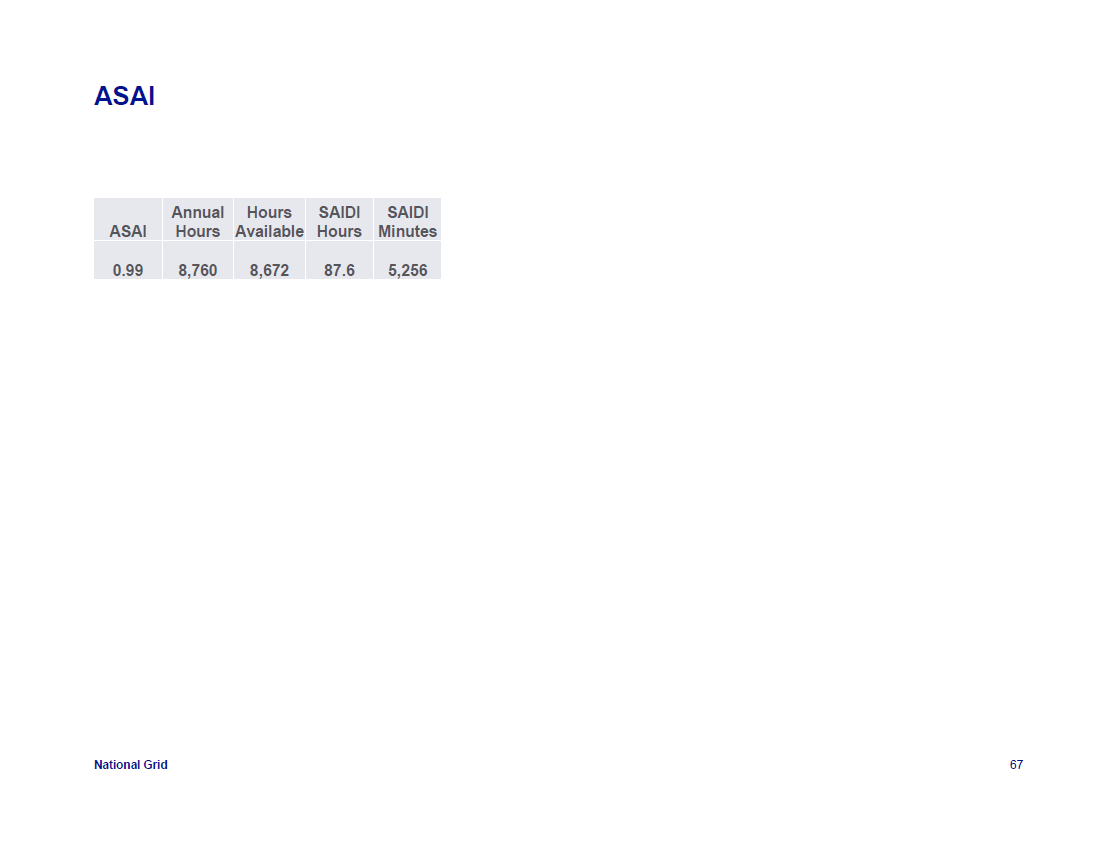
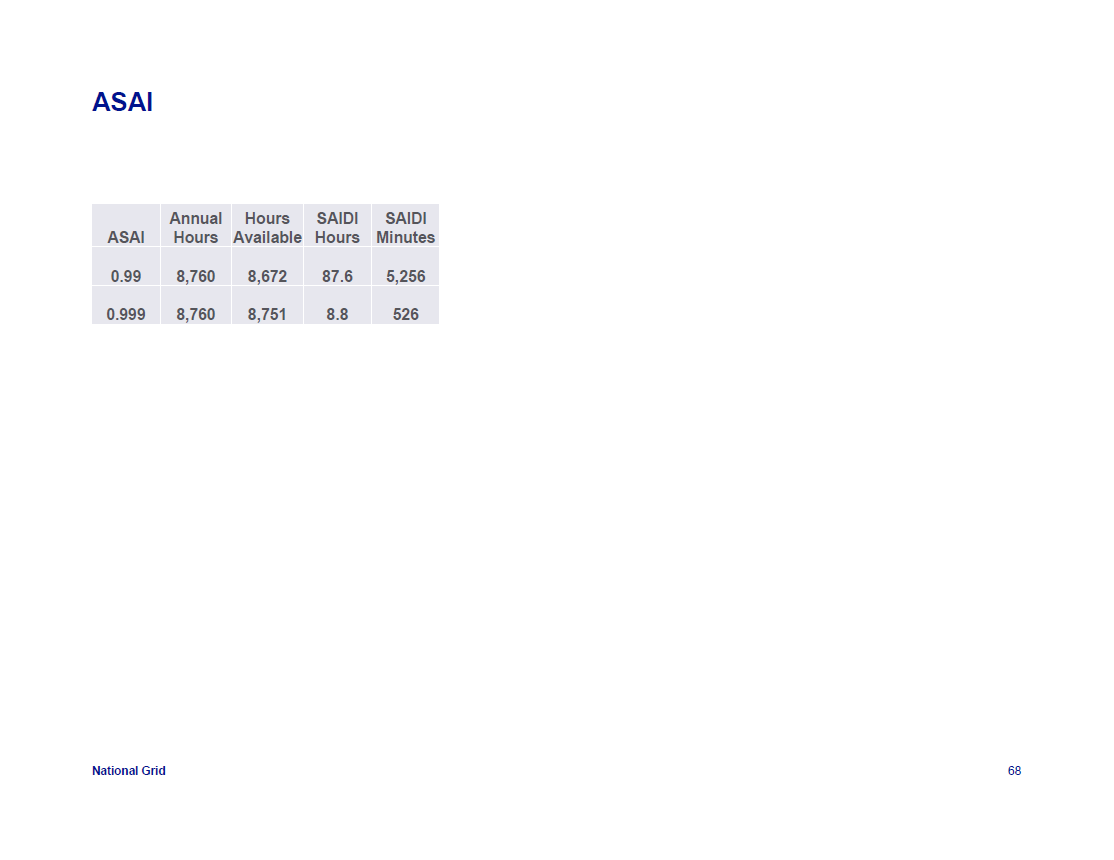
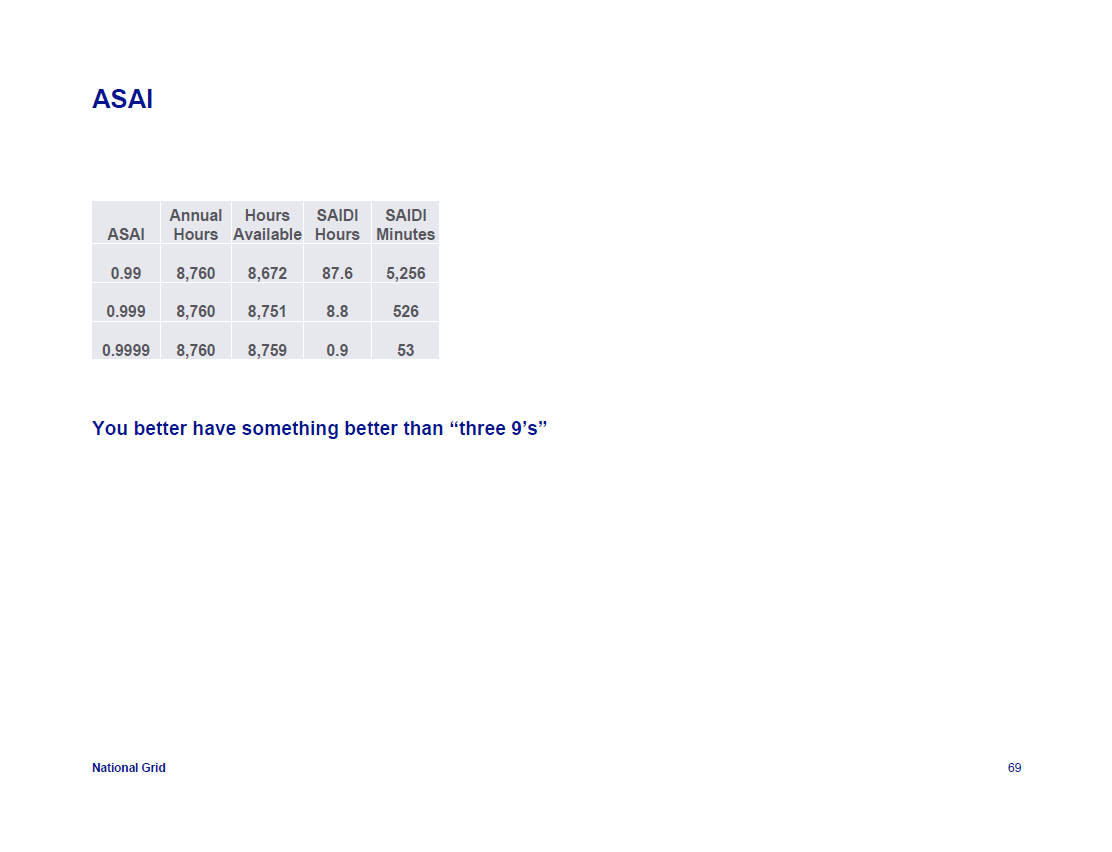


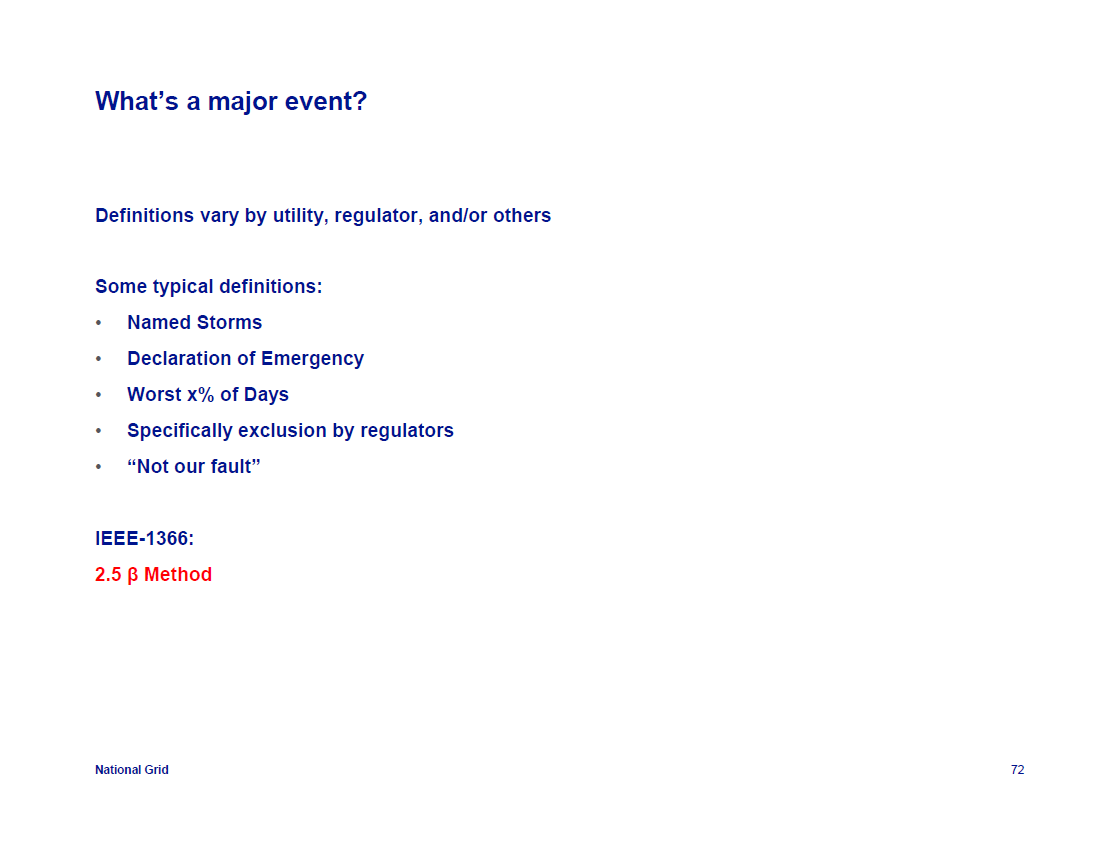
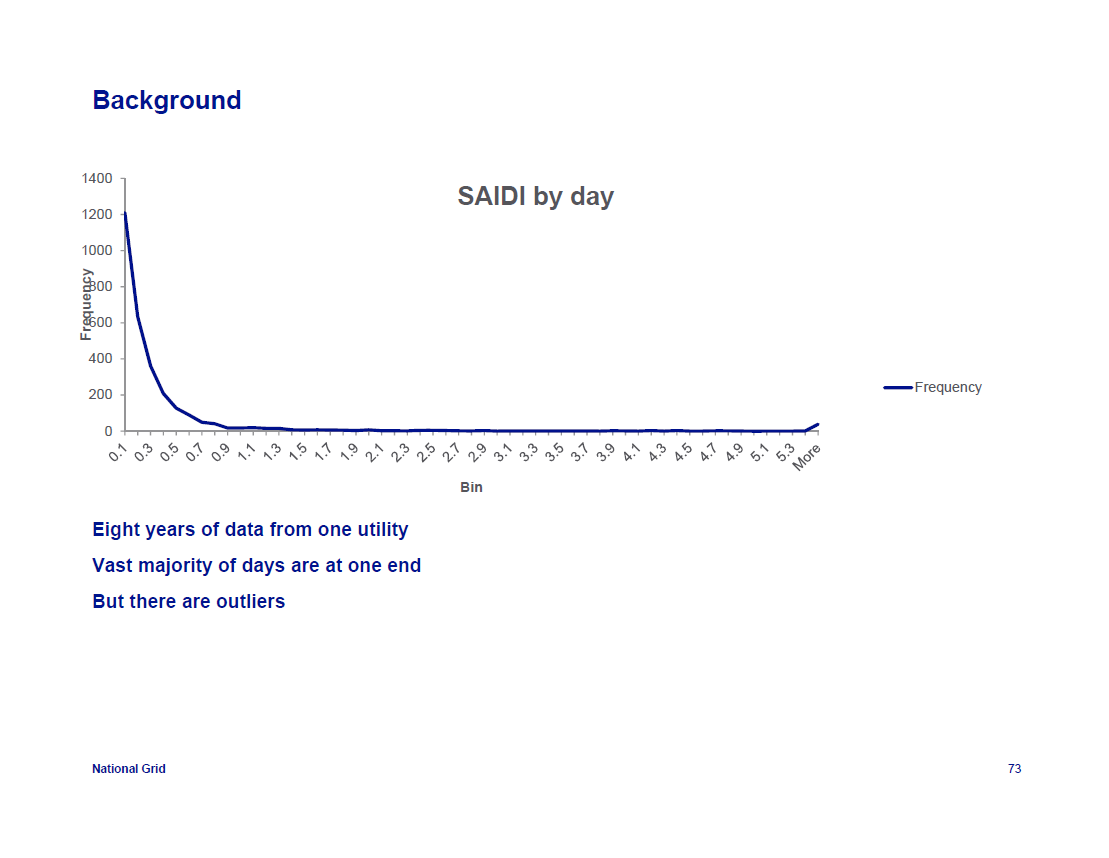
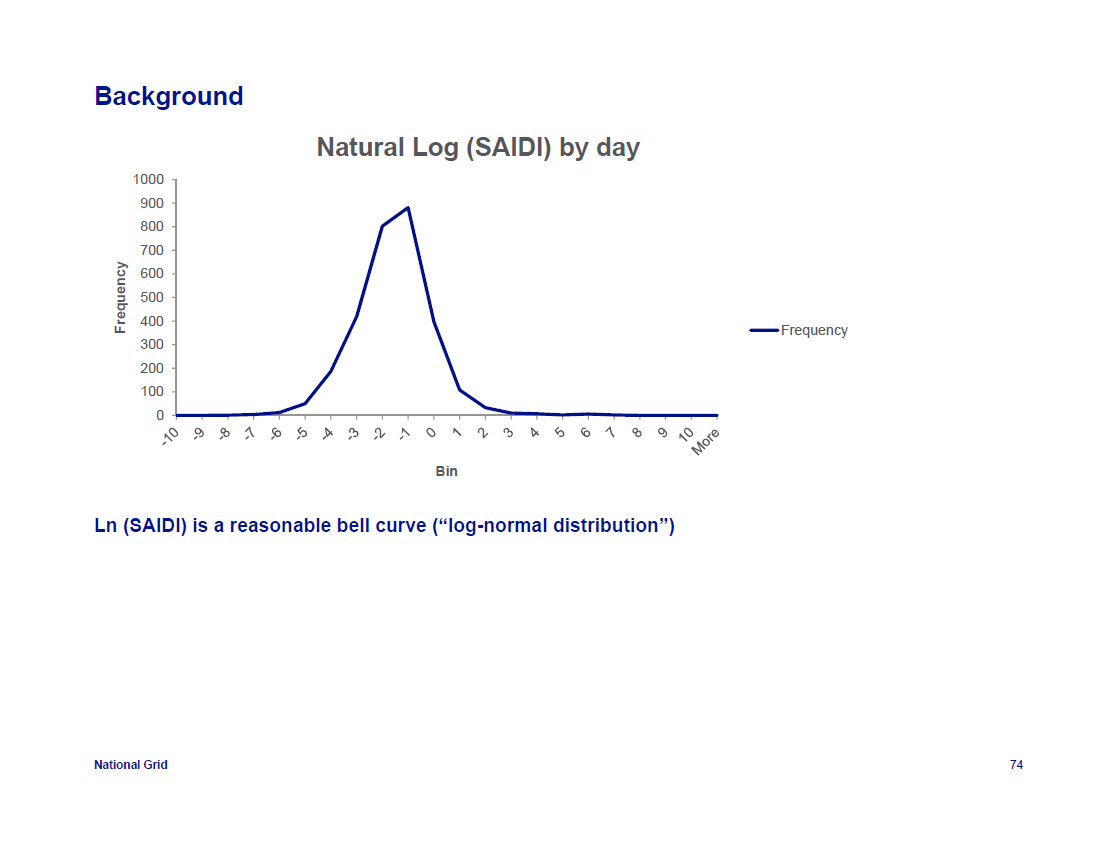
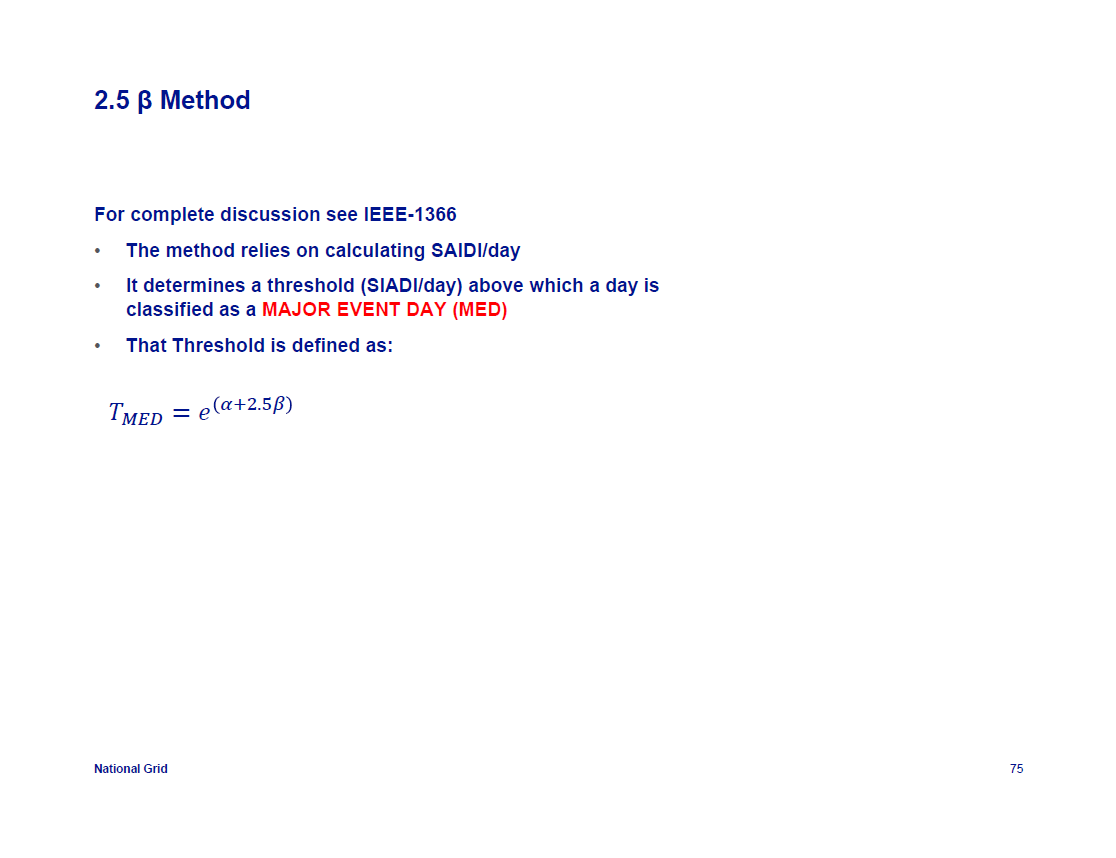
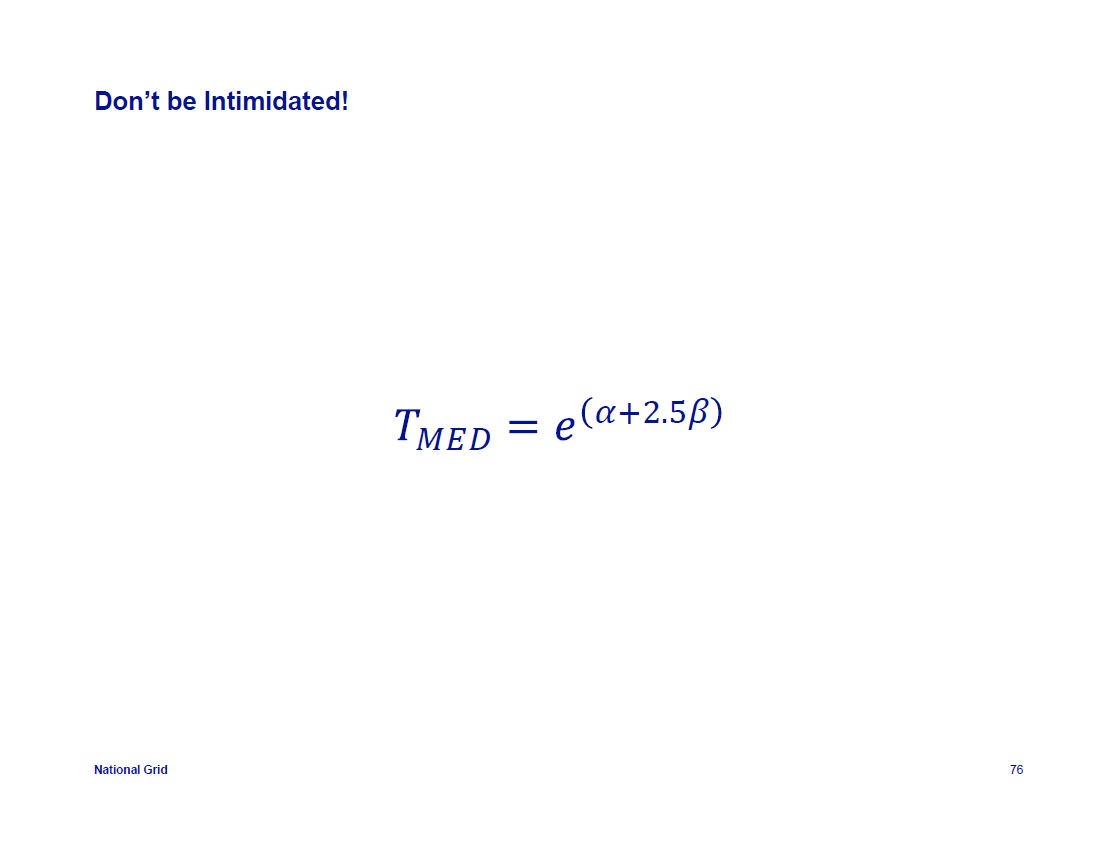
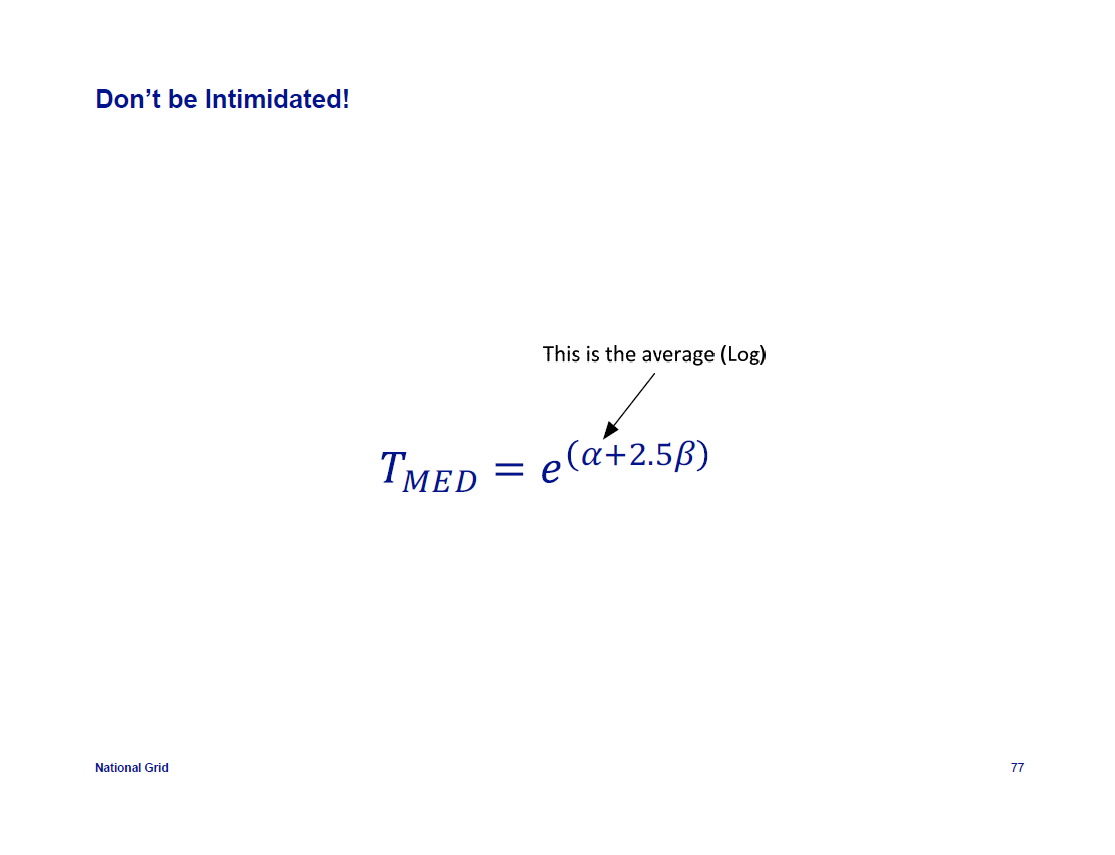

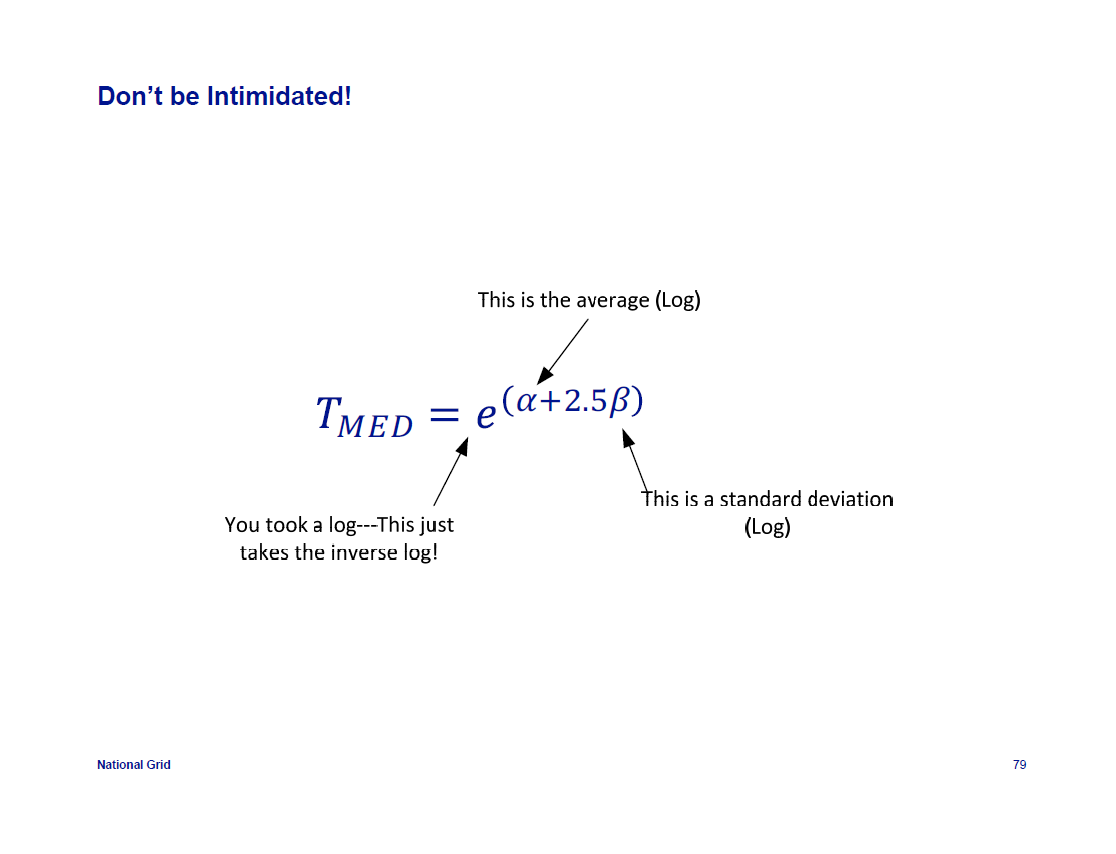
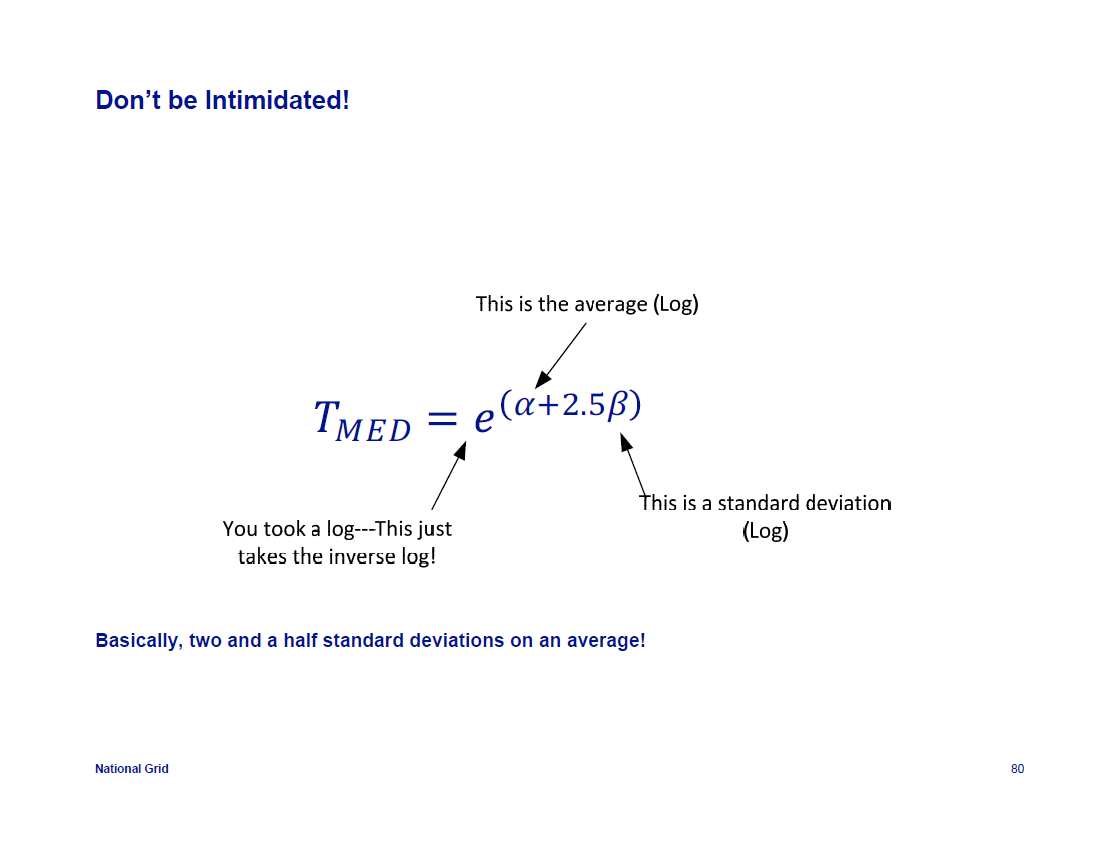

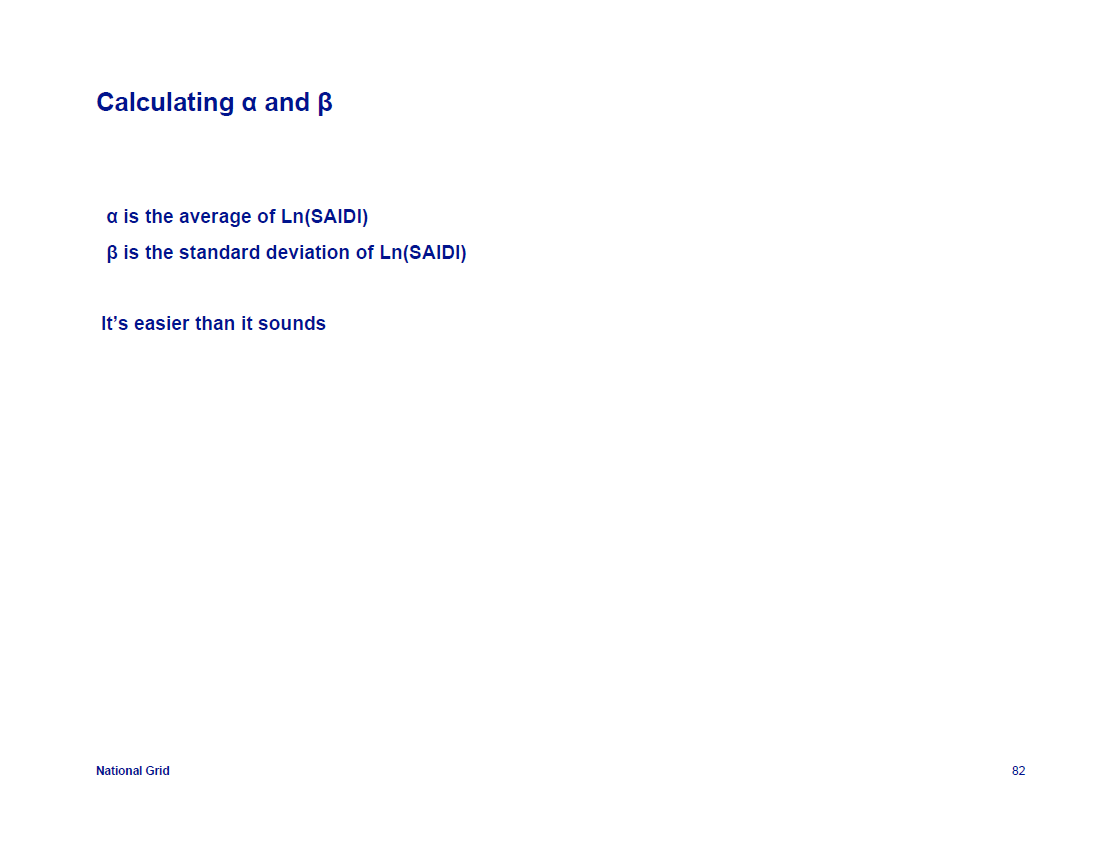
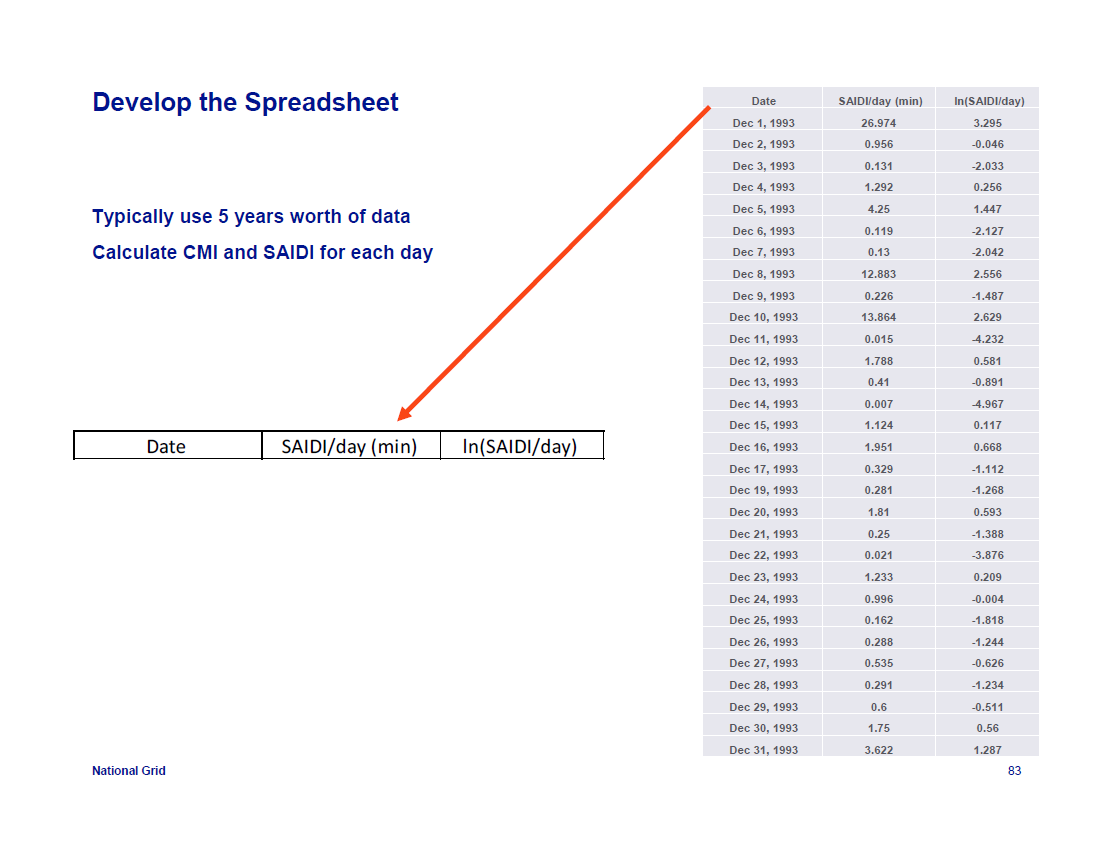
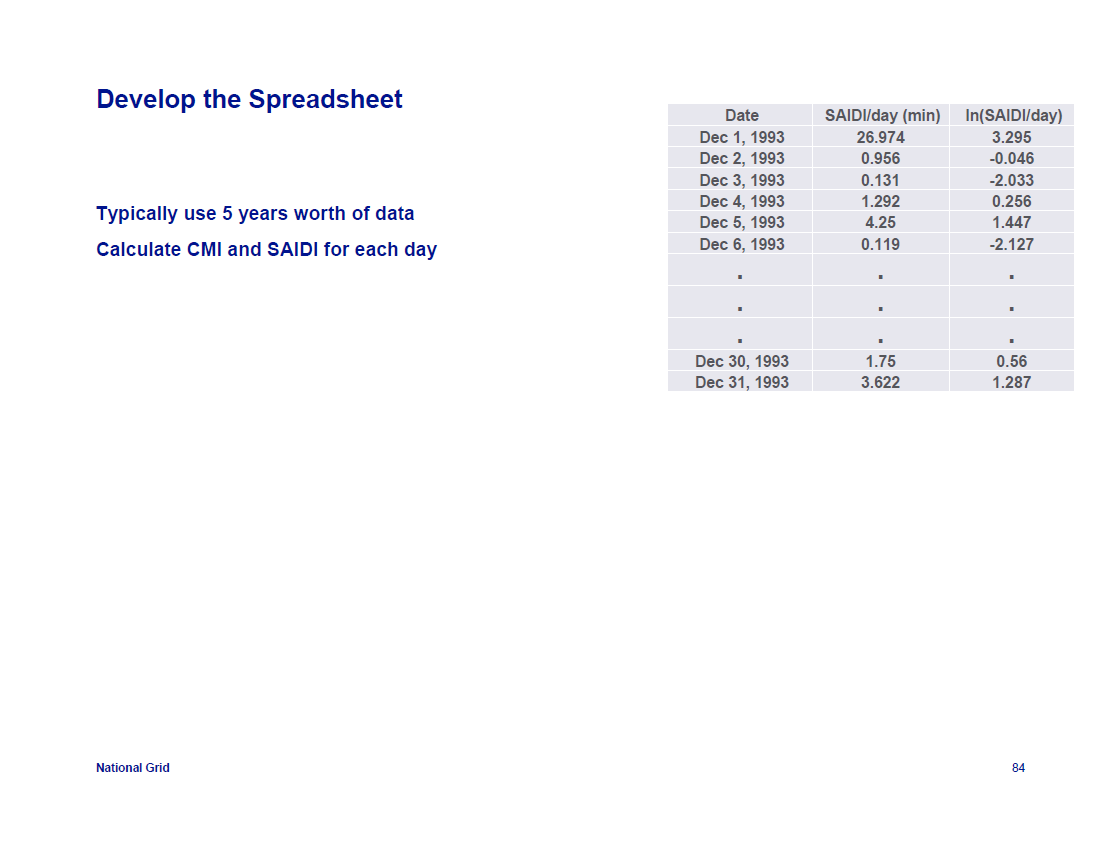
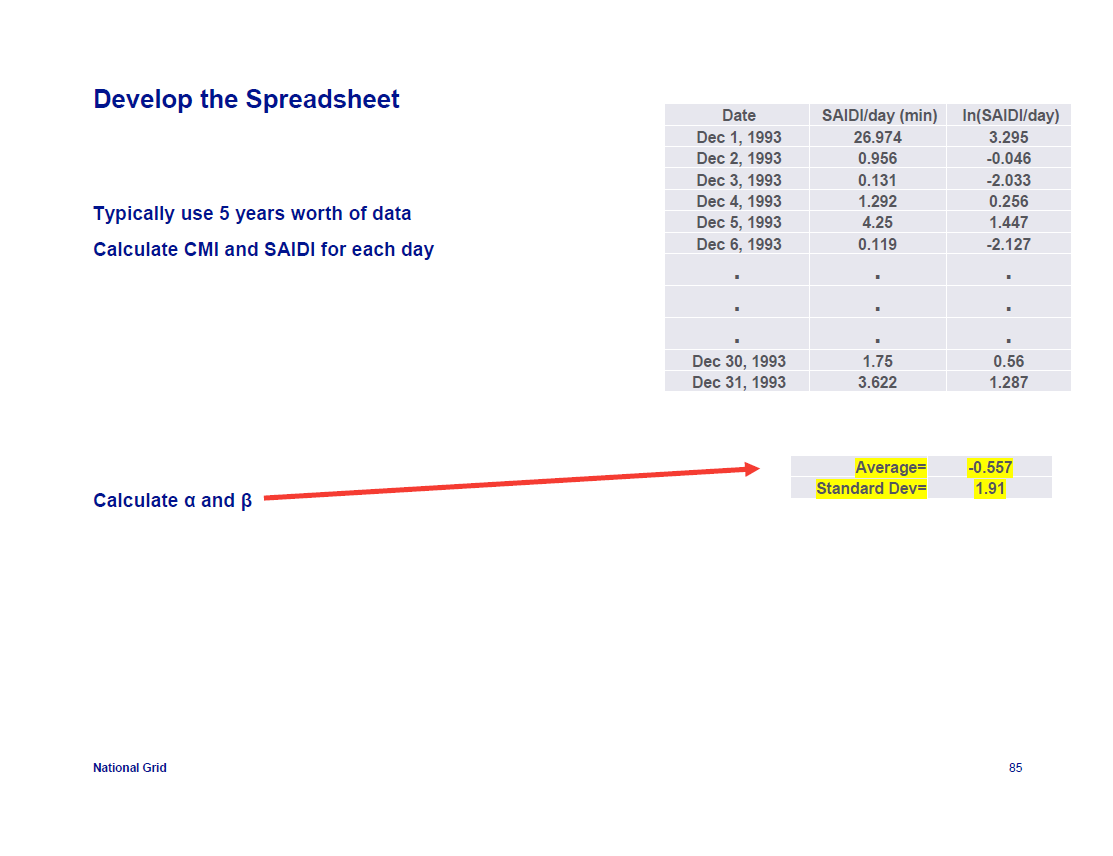

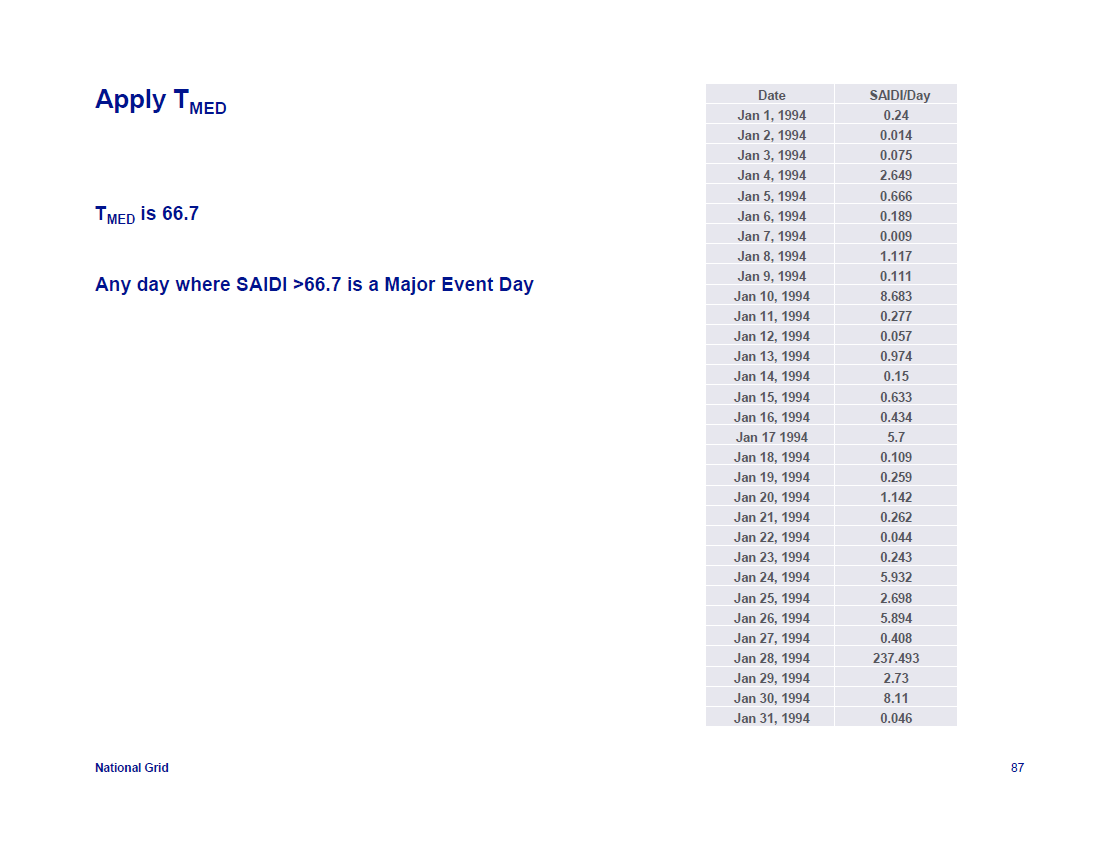
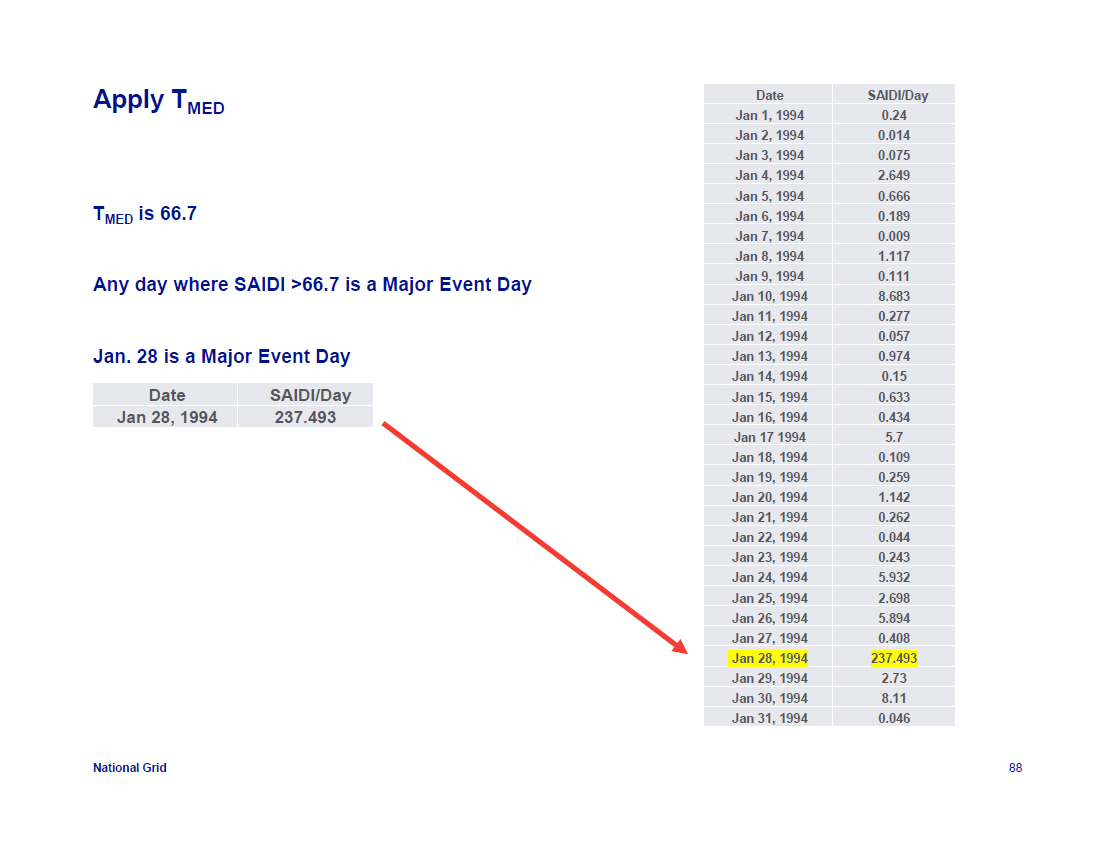
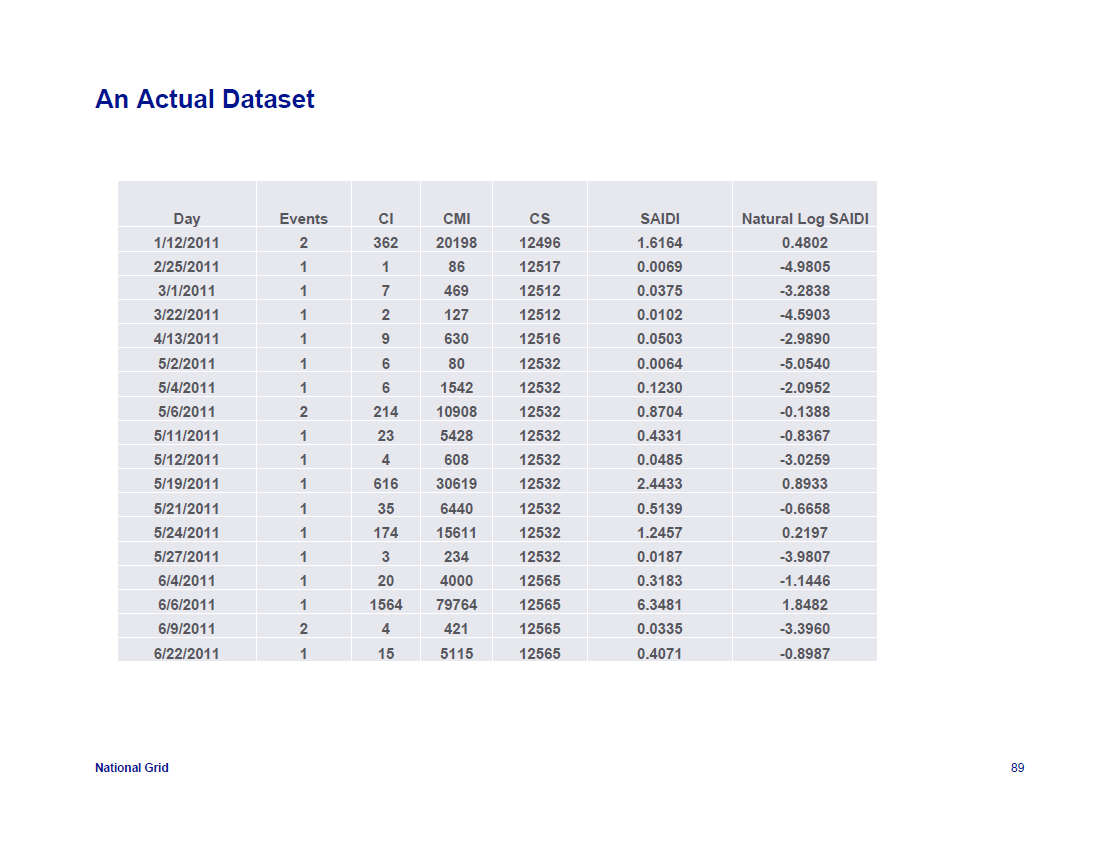
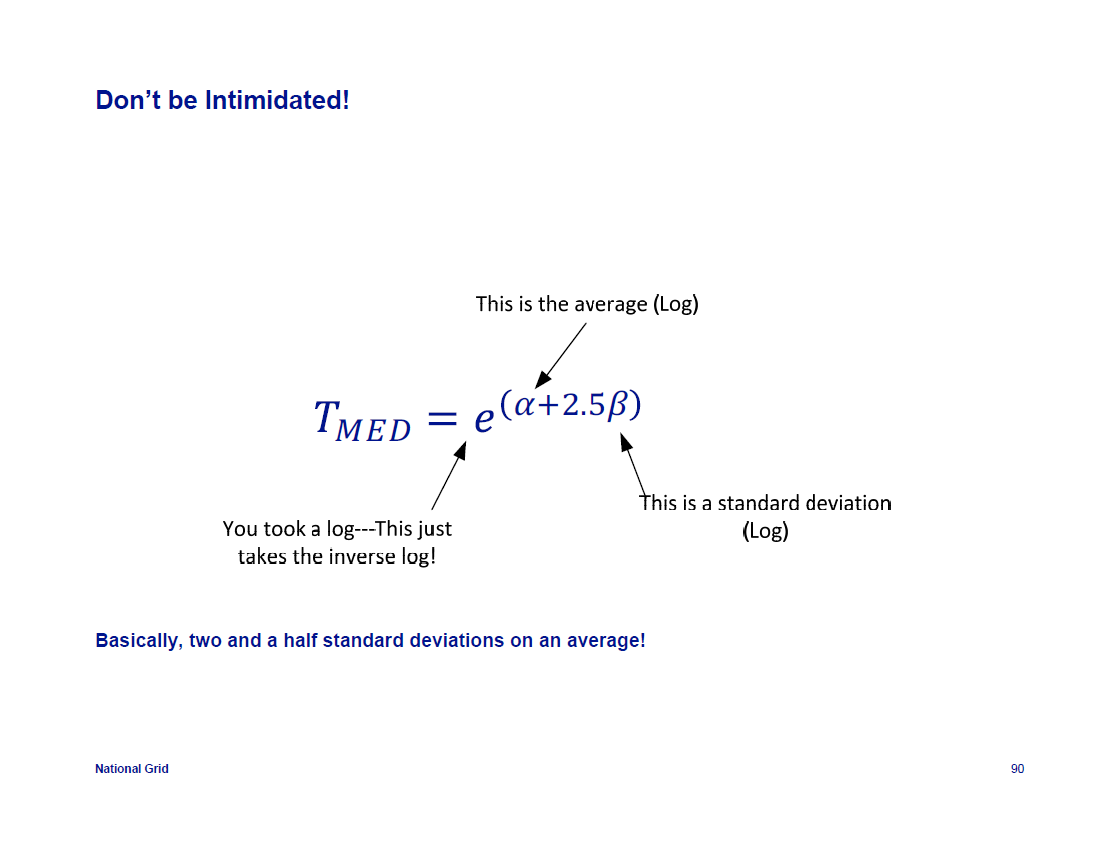
DESCRIPTION
There’s an age-old problem in the Power Quality (PQ) monitoring industry – measure the same circuit with instruments from different manufactures at the same time, and you could get different results! Which one do you believe? Do you trust any of them?
There have been electrical energy monitoring standards for many years that define the methods, accuracies, and other aspects to accurately measuring energy, especially when billing is involved. However, standards that define PQ monitoring methods have been slower to follow and have been inconsistent from region to region.
PQ monitoring standards have evolved significantly since they first arrived in the 1990’s. There have been some very important changes recently that could affect how you monitor for PQ, and the instrumentation that you should use. This TechTip will update you on the current PQ standards, which ones may apply to you, and also help you determine the appropriate monitoring tools needed going forward.
PQ STANDARDS BODIES
There are two major organizations that have published the PQ monitoring standards that we tend to follow:
There are others who have published related standards, but they are usually for national or regional use and tend to follow the major methods from the IEC or IEEE, and sometimes both.
PQ COMPLIANCE VS. MONITORING STANDARDS
Industry standards cover many topics. For PQ, there can be both compliance and monitoring standards. Sometimes both topics are covered in the same document. Below is a summary of each as they pertain to this TechTip:
There is an important distinction between compliance and monitoring standards. Simply stated, monitoring standards describe how to properly measure the parameters in order to determine if they are within the pass/fail limits defined in the compliance standards. Again, sometimes measurement and compliance are covered in the same document, such as in IEEE 519-2014 (below). In other cases they are separate, such as IEC 61000-4-30 (below) defining the measurements and other IEC/EN standards defining compliance limits.
WHICH PQ STANDARDS APPLY TO ME?
Generally speaking, geography usually determines the standards that you should follow.
If you’re monitoring in Europe, then the IEC standards, specifically IEC 61000-4-30 should be followed. See below for details
However, for other parts of the world, including the USA, it may not be as simple as geography. A main reason is that the IEC standards have advanced more quickly than the equivalent IEEE recommended practices. As a result, the IEC is ahead of the IEEE in many areas, and the IEEE has used some of the IEC’s measurement methods in some of its more recent revisions.
Further complicating matters are national and regional standards that adopt all, or part of these standards, and make their own requirements. These are mostly in regions outside of the USA.
IEEE RECOMMENDED PRACTICES
The IEEE has several recommended practices that apply to PQ monitoring:
The recommended practices listed above are all important, and are very relevant, and the IEEE adopted the IEC’s methods for harmonics and voltage flicker measurements. So what’s the concern? There is no top-down reference from the IEEE for the measurement of other common PQ issues, such as sags (dips), swells, and others. The IEEE is working on this, but an IEC standard called IEC 61000-4-30 addresses these concerns and has become the worldwide reference for PQ monitoring methods. IEC 61000-4-30 is quite applicable in the USA and other regions that typically follow the IEEE’s recommended practices.
IEC 61000-4-30 AND ITS IMPORTANCE
In 2003, the IEC release the first edition of an important standard called IEC 61000-4-30. This was an all-encompassing standard that defined measurement methods for most of the important PQ parameters, including sags/dips, interruptions, harmonics, flicker, frequency, etc. IEC 61000-4-30 defined several classes of monitoring devices, with Class A meeting the most stringent requirements. The intent of this standard was to define the methods for instruments to measure PQ parameters, accuracies, etc. The objective being to achieve consistent and repeatable measurements from all compliant manufacturers, addressing the age old problem referred to
above…
Since its introduction, there have been two subsequent revisions to IEC 61000-4-30, with the most recent being Edition 3 that was released in 2014. Edition 3 added the measurement of current and Rapid Voltage Changes (RVC). With the release of Edition 3, a parallel compliance testing standard called IEC 62586 was also introduced that defines the test procedures and requirements to certify compliance to IEC 61000-4-30 (see below).
In Europe and other regions, IEC 61000-4-30 Class A instruments are required for many types of PQ monitoring applications. Examples are in compliance monitoring applications and those where you are questioning the reliability of the utility or energy supplier. In such cases you must prove that the instrument is reliably measuring the parameters being questions.
IEC 62586 – IEC 61000-4-30 COMPLIANCE TESTING
IEC 62856 defines the testing methods and procedures to certify compliance of an instrument to IEC 61000-4-30 Edition 3. Prior to IEC 62586 there were no defined techniques to test to IEC 61000-4-30, and laboratories and instrument manufacturers created their own guidelines and certification processes. This resulted in inconstancies and the actual compliance of some products being questioned. IEC 62586 addresses this concern and puts everyone on equal footing by defining the requirements in advance for consistent testing and certification.
Below is a portion of the IEC 61000-4-30 Class A Edition 3 compliance test certificate for our Dranetz HDPQ Plus family showing the required tests that were performed.

HOW TO CHOOSE THE RIGHT PQ MONITORING INSTRUMENT
IEC 61000-4-30 has become the worldwide benchmark for PQ monitoring methods. It is appropriate for use in most parts of the world, and it can also be used in conjunction with local standards. Case in point is the USA where IEC 61000-4-30 fills in the areas missing in IEEE recommended practices.
By choosing an IEC 61000-4-30 Class A Edition 3 compliant instrument, you can be assured that it has reliable and repeatable measurements and comes from a reputable manufacturer.
Being a global leader in power quality monitoring instrumentation, Dranetz was the first manufacturer to conform to the requirements of IEC 61000-4-30 Class A. Most of our current PQ monitoring instruments, including our HDPQ Plus family, are fully compliant with the requirements of IEC 61000-4-30 Class A Edition 3, and compliance has been verified to IEC 62586. The HDPQ Plus family is also fully compliant with the latest IEEE standards, including IEEE 519- 2014 for harmonics measurements.
TO CONTACT DRANETZ
Call 1-800-372-6832 (US and Canada) or 1-732-287-3680for Technical or Sales support
To submit a support request online, please visit: https://www.dranetz.com/technical-support-request
Published by Pacific Gas and Electric Company (PG&E), January 1999.
The only national standard for utilization voltage regulation is ANSI C84.1. Its title is American National Standard for Electric Power Systems and Equipment – Voltage Ratings (60 Hertz). The first version in 1954 was a combination of two standards, one from the Edison Electric Institute that represents utilities and the second from NEMA that stands for National Electrical Manufacturers Association. It establishes nominal voltage ratings for utilities to regulate the service delivery and it establishes operating tolerances at the point of use. The design and operation of power systems and the design of equipment to be supplied from such systems should be coordinated with respect to these voltages. In doing so, the equipment will perform satisfactorily in conformance with product standards throughout the range of actual utilization voltages that will be encountered on the system. These limits shall apply to sustained voltage levels and not to momentary voltage excursions that may occur from such causes as switching operations, fault clearing, motor starting currents, and the like.
To further this objective, this standard establishes, for each nominal system voltage, two ranges for service voltage and utilization voltage variations, designated as Range A and Range B, the limits of which are illustrated in figure 1 based on a 120 volt nominal system.
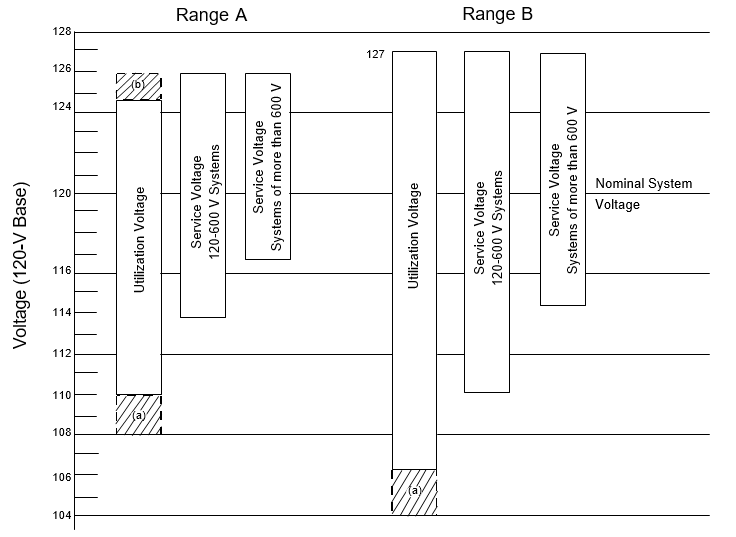 Figure 1. Voltage Ranges, ANSI C84.1
Notes:
Basically, the Range A service voltage range is plus or minus 5% of nominal. The Range B utilization voltage range is plus 6% to minus 13% of nominal.
For range A, the occurrence of service voltages outside of these limits should be infrequent. Utilization equipment shall be designed and rated to give fully satisfactory performance throughout this range (A). Range B includes voltages above and below Range A limits that necessarily result from practical design and operating conditions on supply or user systems, or both. Although such conditions are a part of practical operations, they shall be limited in extent, frequency, and duration. When they occur, on a sustained basis, corrective measures shall be undertaken within a reasonable time to improve voltages to meet Range A requirements.
Insofar as practicable, utilization equipment shall be designed to give acceptable performance in the extremes of the range of utilization voltages, although not necessarily as good performance as in Range A.
It should be recognized that because of conditions beyond the control of the supplier or user, or both, there will be infrequent and limited periods when sustained voltages outside Range B limits will occur. Utilization equipment may not operate satisfactorily under these conditions, and protective devices may operate to protect the equipment.
ANSI C84 does not explain that typically, the nameplate nominal voltage is not the same as the utility nominal voltage. Refer to table 1. ANSI C84 also does not explain that in general, NEMA, National Electrical Manufacturers Association recommends that all electrical appliances and motors should operate at nameplate plus or minus 10% satisfactorily, however not necessarily at an optimum condition. The reason that the nameplate nominal is lower than the service entrance voltage is the acknowledgment that there will be a voltage drop within the electrical distribution system of the end users premise. The National Electrical Code allows up to a 5% drop. There can be a <3% drop in a feeder and an additional <3% drop in individual branch circuits.
Table 1. National Steady State Voltage Regulation Standards
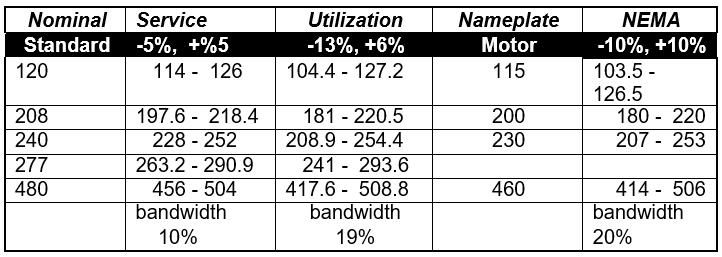
Utilities actively regulate distribution voltages slowly by means of tap changing regulators and by switching capacitors to follow changes in load. These voltage changes are small incremental steps necessary to keep the service delivery voltage within an acceptable range as customers add and subtract load during the day. This slow regulation maintains a sustained voltage range. Sustained usually means a period greater than two minutes.
The reason for the CBEMA curve is for changes in voltage shorter than two minutes. As described above, there will be excursions outside the acceptable ranges for short “momentary” periods.
NEW ITIC VALUES 1996 OLD CBEM A CURVE 1977
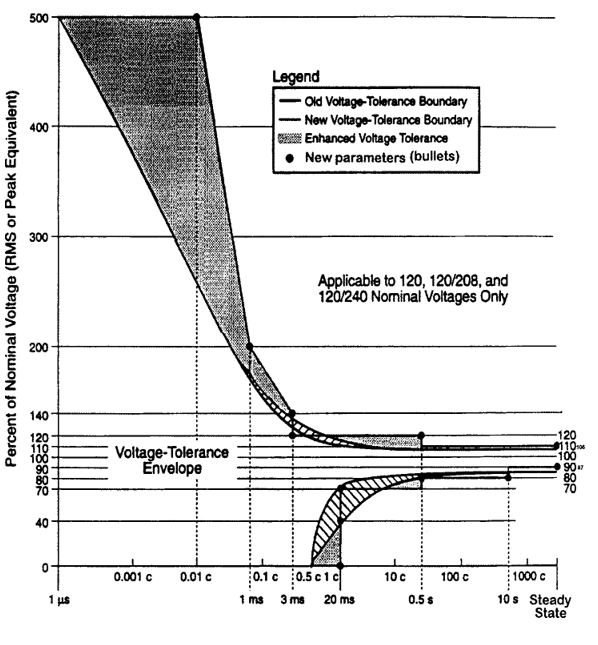
Duration of Disturbance in Cycles (c) and Seconds (s)
Footnote:
Computer and electronic equipment manufacturers usually specify maximum momentary voltage deviations within which their equipment can operate without sustaining errors or equipment damage. This curve shows an envelope of voltage tolerances that is representative of power-conscious computer and other electronic equipment manufacturers. The original CBEMA curve is referenced in ANSI/IEEE Std 446-1987, A Recommended Practice for Emergency and Standby Power Systems for Industrial and Commercial Applications. The CBEMA group has changed names to ITIC to represent a broader spectrum of the industry.
The wider tolerance curve was created in 1996 to indicate the improved ride through capability of power conscious manufacturers. The original CBEMA curve was established as a guideline for computers in data centers with extensive power quality mitigation measures in place such as motor-generator sets and isolation transformers. For equipment located outside this protected environment, there will be frequent events outside the curve.
Some power quality monitors now include the CBEMA/ITIC mask to provide a frame of reference when reviewing recorded events. The assumption is that events within the curve should not cause disruption or damage. Equipment experiencing problems will need some form of mitigation to isolate itself from the electrical distribution system. Before mitigating these disturbances, it is important to understand the equipment’s sensitivity level. There are no general equipment susceptibility standards for momentary voltage variations. For a general description of power quality issues and solutions there are three good publications. These are described at the end of this power note.
The microelectronics industry has produced two standards in view of the extremely high losses due to power variations in the manufacture of microelectronics; SEMI E10 Standard for Definition and Measurement of Equipment Reliability, Availability, and Maintainability; and SEMI F42 Test Method for Semiconductor Processing Equipment Voltage Sag Immunity. E10 defines the sag ride through capability. F42 defines the test methodology to confirm compliance to the standard.
These standards are available from Semiconductor Equipment and Materials International (SEMI), 805 East Middlefield Road, Mountain View, CA 94043. Their web address is www.semi.org. Basically, that industry has decided that if they properly define the problem and provide for a performance test procedure when purchasing new production equipment, they can reduce the number of nuisance tripping problems. An analysis of 30 monitor years of disturbance data collected at major semiconductor manufacturing sites revealed that 15.4% of the events were below the CBEMA 1996 tolerance curve. The average number of occurrences below the CBEMA 1996 curve per site per year was 5.4. The SEMI task force concluded that a higher standard was needed.
Duration of Voltage Sag in Seconds
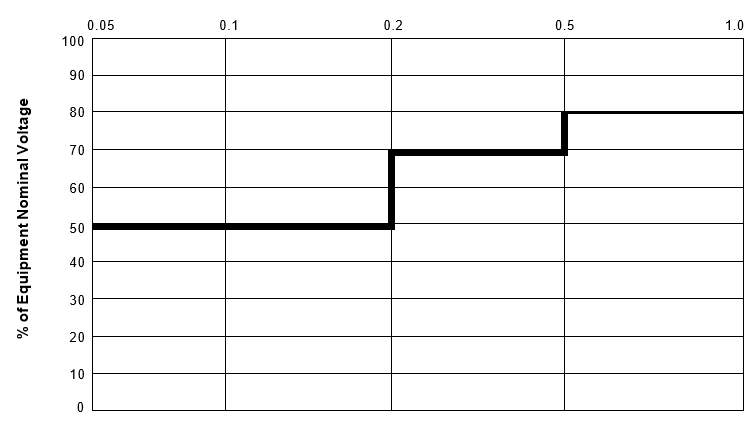
Figure 2. SEMI E10 Voltage Sag Ride-Through Curve
Figure two is the approved SEMI E10 Voltage Sag Ride-Through standard. This was determined by statistical data analysis of the frequency and duration of sags and the cost to incorporate ride through mitigation. If you are interested in the development of the SEMI standard, there is a web site where it is spelled out in a document available to the public. The document’s name is Guide for the Design of Semiconductor Equipment to Meet Voltage Sag Immunity Standards. The web site address is www.semitech.org. It is classified as a Technology Transfer document #99063760A-TR. Figure three is an overlay of the CBEMA curves and the SEMI E10 curve. The principal improvement in the SEMI curve is lowering the sag ride through curve down to 50% of nominal for the first 200 milliseconds or about 12 cycles. Beyond 12 cycles, the SEMI curve mimics the new CBEMA curve.
New/Old CBEMA Curve Compared to SEMI E10 Limits Duration of Voltage SAG in Milliseconds
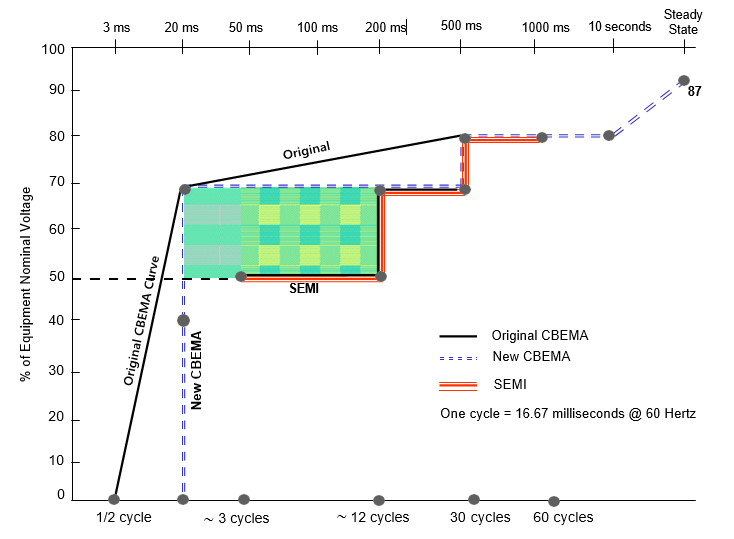
Figure 3. Overlay of CBEMA and SEMI curves
SEMI E10 sag ride through threshold only defined between 50 milliseconds and one second, (3 cycles–60 cycles). In practice, machine must ride through voltage sag down to 50% of nominal up to 12 cycles.
In a parallel development, an IEEE working group generally focusing on sag ride through issues, has produced a standard to analyze the economics of sag ride through mitigation, IEEE Standard 1346-1998, Recommended Practice for Evaluating Electric Power System Compatibility With Electronic Process Equipment. A standard methodology for the technical and financial analysis of voltage sag compatibility between process equipment and electric power systems is recommended. The methodology presented is intended to be used as a planning tool to quantify the voltage sag environment and process sensitivity. It shows how technical and financial alternatives can be evaluated. Unlike the SEMI standard above, this standard does not include performance standards.
General power quality references
IEEE 1250-1995. Guide for Service to Equipment Sensitive to Momentary Voltage Disturbances. This guide describes momentary voltage disturbances (short duration transients) occurring in AC power distribution and utilization systems, their potential effects on sensitive equipment, and guidance toward mitigation of these effects.
IEEE 1100-1999. Recommended Practice for Powering and Grounding Electronic Equipment. Incompatibilities between power system characteristics and equipment tolerances have caused operating problems and loss of productivity in all kinds of power systems – putting facility engineers and system designers in the spotlight to provide effective and efficient solutions. A key element to formulating any solution is the cooperative effort, among power system designers, equipment manufacturers, and the electric utilities, to provide and maintain an acceptable level of load/source compatibility. This is also known as the Emerald Book.
IEEE 446-1995. Recommended Practice for Emergency and Standby Power Systems for Industrial and Commercial Applications. The Orange Book presents the recommended engineering practices for the selection and application of emergency and standby power systems. It provides commercial/industrial facility designers, operators, and owners with guidelines for assuring uninterrupted power. Users in the areas of industrial process operations, medical facilities, and solid-state and computer installations will find the help they need in meeting the demand for uninterrupted power, virtually free of frequency excursions and voltage dips, surges, and transients.
Published by
ABSTRACT
This paper describes advances in power quality monitoring equipment and software tools for analyzing power quality measurement results. Power quality monitoring has advanced from strictly problem solving to ongoing monitoring of system performance. The increased amount of data being collected requires more advanced analysis tools. Types of power quality variations are described and the methods of characterizing each type with measurements are presented. Finally, methods for summarizing the information and presenting it in useful report format are described.
INTRODUCTION
Power quality has become an important concern for utility, facility, and consulting engineers in recent years. End use equipment is more sensitive to disturbances that arise both on the supplying power system and within the customer facilities. Also, this equipment is more interconnected in networks and industrial processes so that the impacts of a problem with any piece of equipment are much more severe.
The increased concern for power quality has resulted in significant advances in monitoring equipment that can be used to characterize disturbances and power quality variations. This paper discusses the types of information that can be obtained from different kinds of monitoring equipment and methods for analyzing and presenting the information in a useful form.
Important objectives for the paper include the following:
Analysis tools for processing measurement data will be described. These tools can present the information as individual events (disturbance waveforms), trends, or statistical summaries. By comparing events with libraries of typical power quality variation characteristics and correlating with system events (e.g. capacitor switching), causes of the variations can be determined. In the same manner, the measured data should be correlated with impacts to help characterize the sensitivity of end use equipment to power quality variations. This will help identify equipment that requires power conditioning and provide specifications for the protection that can be developed based on the power quality variation characteristics.
CATEGORIES OF POWER QUALITY VARIATIONS
It is important to first understand the kinds of power quality variations that can cause problems with sensitive loads. Categories for these variations must be developed with a consistent set of definitions so that measurement equipment can be designed in a consistent manner and so that information can be shared between different groups performing measurements and evaluations. An IEEE Working Group has been developing a consistent set of definitions that can be used for coordination of measurements.[1]
Power quality variations fall into two basic categories:
In the past, measurement equipment has been designed to handle either the disturbances (e.g. disturbance analyzers) or steady state variations (e.g. voltage recorders, harmonics monitors). With advances in processing capability, new instruments have become available that can characterize the full range of power quality variations. The new challenge involves characterizing all the data in a convenient form so that it can be used to help identify and solve problems.
Table 1 summarizes the different categories and lists possible causes and power conditioning equipment solutions for each category.
Table 1. Summary of Power Quality Variation Categories
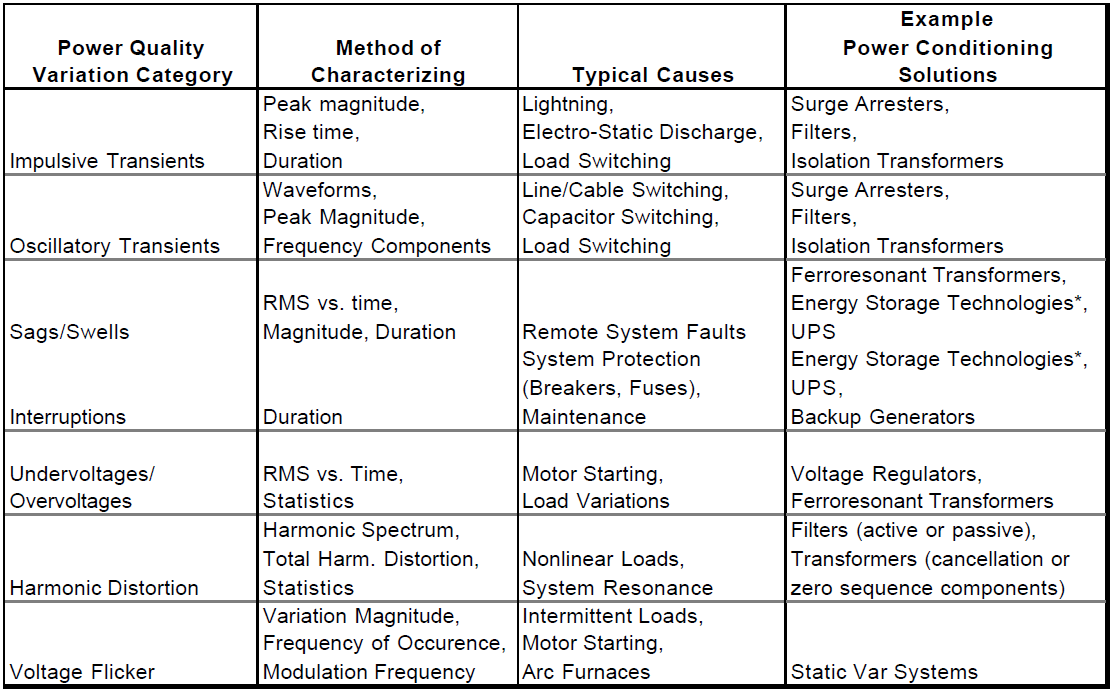
* Note: Energy Storage Technologies refers to a variety of alternative energy storage technologies that can be used for standby supply as part of power conditioning (e.g. superconducting magnetic energy storage, capacitors, flywheels, batteries)
Steady State Voltage Characteristics
There is no such thing as steady state on the power system. Loads are continually changing and the power system is continually adjusting to these changes. All of these changes and adjustments result in voltage variations that are referred to as long duration voltage variations. These can be undervoltages or overvoltages, depending on the specific circuit conditions. Characteristics of the steady state voltage are best expressed with long duration profiles and statistics. Important characteristics include the voltage magnitude and unbalance. Harmonic distortion is also a characteristic of the steady state voltage, but this characteristic is treated separately because it does not involve variations in the fundamental frequency component of the voltage. Most end use equipment is not very sensitive to these voltage variations, as long as they are within reasonable limits. ANSI C84.1 [7] specifies the steady state voltage tolerances for both magnitudes and unbalance expected on a power system. Long duration variations are considered to be present when the limits are exceeded for greater than 1 minute.
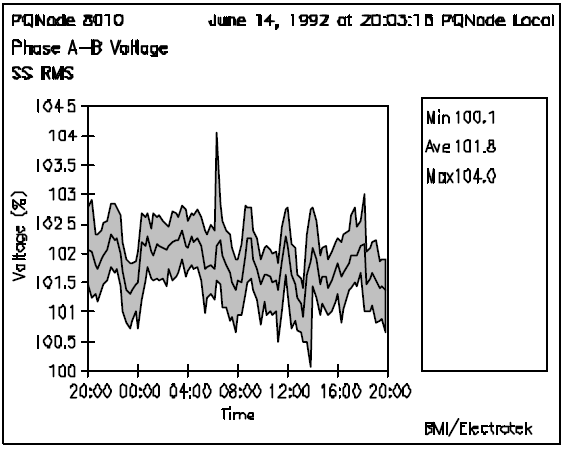
Figure 1. Example 24 hour voltage profile illustrating long duration voltage variations.
Harmonic Distortion
Harmonic distortion of the voltage and current results from the operation of nonlinear loads and devices on the power system. The nonlinear loads that cause harmonics can often be represented as current sources of harmonics. The system voltage appears stiff to individual loads and the loads draw distorted current waveforms. Table 2 illustrates some example current waveforms for different types of nonlinear loads. The weighting factors indicated in the table are being proposed in the Guide for Applying Harmonic Limits on the Power System (Draft 2)[2] for preliminary evaluation of harmonic producing loads in a facility.
Harmonic voltage distortion results from the interaction of these harmonic currents with the system impedance. The harmonic standard, IEEE 519-1992 [2], has proposed two-way responsibility for controlling harmonic levels on the power system.
Harmonic distortion levels can be characterized by the complete harmonic spectrum with magnitudes and phase angles of each individual harmonic component. It is also common to use a single quantity, the Total Harmonic Distortion, as a measure of the magnitude of harmonic distortion. For currents, the distortion values must be referred to a constant base (e.g. the rated load current or demand current) rather than the fundamental component. This provides a constant reference while the fundamental can vary over a wide range.
Table 2. Example current waveforms for various nonlinear loads.
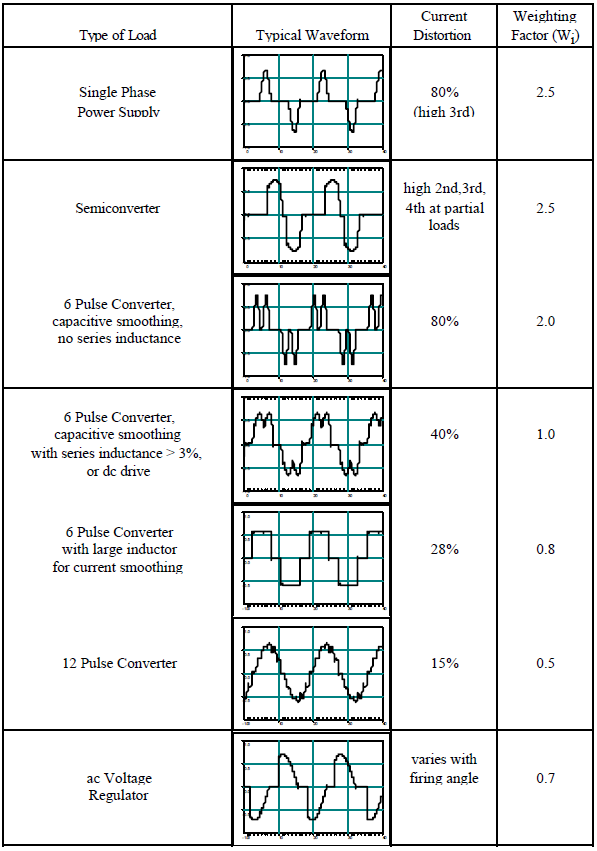
Harmonic distortion is a characteristic of the steady state voltage and current. It is not a disturbance. Therefore, characterizing harmonic distortion levels is accomplished with profiles of the harmonic distortion over time (e.g. 24 hours) and statistics. Figure 2 illustrates a typical profile of harmonic voltage distortion on a feeder circuit over a one month period.
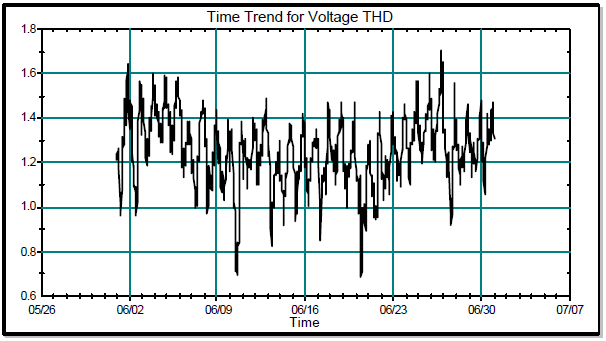
Figure 2. Example Profile of Harmonic Voltage Distortion on a Distribution Feeder Circuit.
Transients
The term transients is normally used to refer to fast changes in the system voltage or current. Transients are disturbances, rather than steady state variations such as harmonic distortion or voltage unbalance. Disturbances can be measured by triggering on the abnormality involved. For transients, this could be the peak magnitude, the rate of rise, or just the change in the waveform from one cycle to the next. Transients can be divided into two sub-categories, impulsive transients and oscillatory transients, depending on the characteristics.
Transients are normally characterized by the actual waveform, although summary descriptors can also be developed (peak magnitude, primary frequency, rate-ofrise, etc.). Figure 3 gives a capacitor switching transient waveform. This is one of the most important transients that is initiated on the utility supply system and can affect the operation of end user equipment.
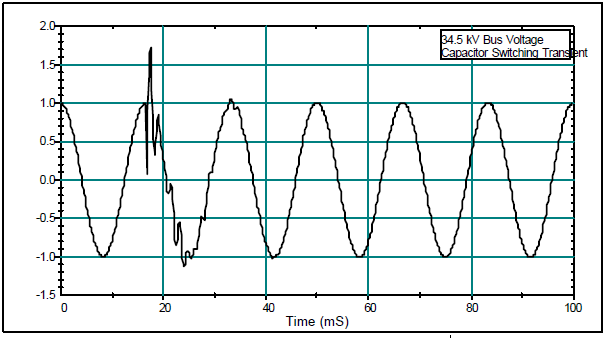
Figure 3. Capacitor Switching Transient.
Transient problems are solved by controlling the transient at the source, changing the characteristics of the system affecting the transient or by protecting equipment so that it is not impacted. For instance, capacitor switching transients can be controlled at the source by closing the breaker contacts close to a voltage zero crossing. Magnification of the transient can be avoided by not using low voltage capacitors within the end user facilities. The actual equipment can be protected with filters or surge arresters.
Short Duration Voltage Variations
Short duration voltage variations include variations in the fundamental frequency voltage that last less than one minute. These variations are best characterized by plots of the RMS voltage vs. time but it is often sufficient to describe them by a voltage magnitude and a duration that the voltage is outside of specified thresholds. It is usually not necessary to have detailed waveform plots since the RMS voltage magnitude is of primary interest.
The voltage variations can be a momentary low voltage (voltage sag), high voltage (voltage swell), or loss of voltage (interruption). Interruptions are the most severe in terms of their impacts on end users but voltage sags can be more important because they may occur much more frequently. A fault condition can cause a momentary voltage sag over a wide portion of the system even though no end users may experience an interruption. This is true for most transmission faults. Figure 4 is an example of this kind of event. Many end users have equipment that may be sensitive to these kinds of variations. Solving this problem on the utility system may be very expensive so manufacturers are developing ride through technologies with energy storage to handle these voltage variations on the end user side.
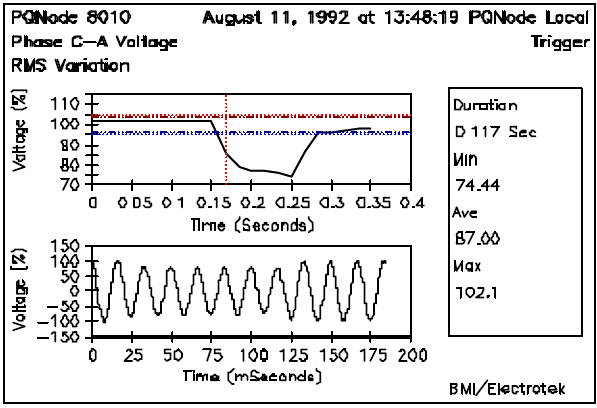
Figure 4. Voltage Sag Caused by a Remote Fault Condition.
TYPES OF EQUIPMENT FOR MONITORING POWER QUALITY Multimeters or DMMs
After initial tests of wiring integrity, it may also be necessary to make quick checks of the voltage and/or current levels within a facility. Overloading of circuits, under- and over-voltage problems, and unbalances between circuits can be detected in this manner. These measurements just require a simple multimeter. Signals to check include:
The most important factor to consider when selecting and using a multimeter is the method of calculation used in the meter. All of the commonly used meters are calibrated to give an RMS indication for the measured signal. However, a number of different methods are used to calculate the RMS value. The three most common methods are:
These different methods all give the same result for a clean, sinusoidal signal but can give significantly different answers for distorted signals. This is very important because significant distortion levels are quite common, especially for the phase and neutral currents within the facility. Table 3 can be used to better illustrate this point. Each waveform in Table 3 has an RMS value of 1.0 pu (100.0%). The corresponding measured value for each type of meter is displayed under the associated waveforms, per-unitized to the 1.0 pu RMS value.
Table 3. Methods for Measuring Voltages and Currents with Multi-Meters.
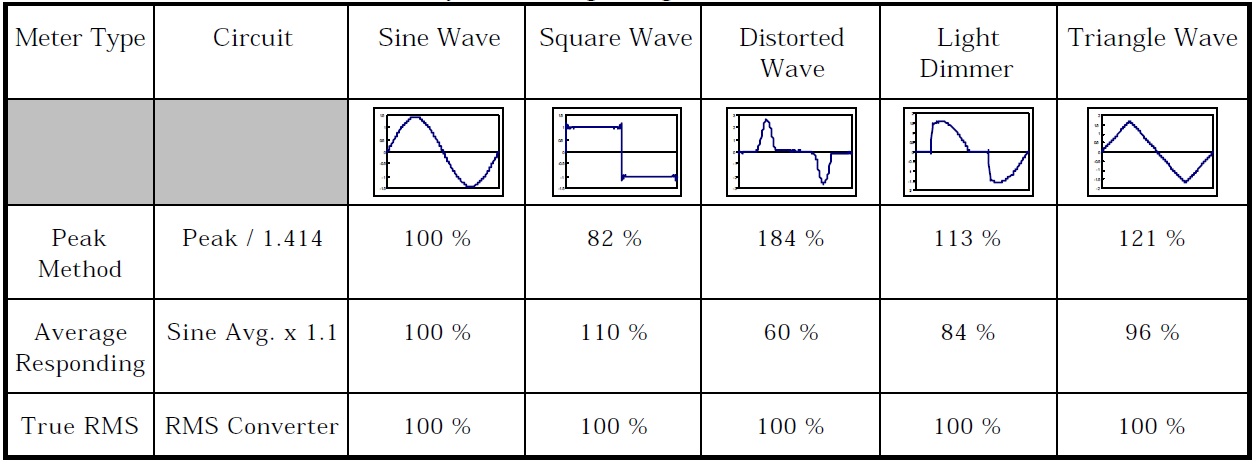
Oscilloscopes
An oscilloscope is valuable when performing real time tests. Looking at the voltage and current waveforms can tell a lot about what is going on, even without performing detailed harmonic analysis on the waveforms. You can get the magnitudes of the voltages and currents, look for obvious distortion, and detect any major variations in the signals.
There are numerous makes and models of oscilloscopes to choose from. A digital oscilloscope with data storage is valuable because the waveform can be saved and analyzed. Oscilloscopes in this category often have waveform analysis capability (energy calculation, spectrum analysis) also. In addition, the digital oscilloscopes can usually be obtained with communications so that waveform data can be uploaded to a PC for additional analysis with a software package.
Disturbance Analyzers
Disturbance analyzers and disturbance monitors form a category of instruments which have been developed specifically for power quality measurements. They typically can measure a wide variety of system disturbances from very short duration transient voltages to long duration outages or under-voltages. Thresholds can be set and the instruments left unattended to record disturbances over a period of time. The information is most commonly recorded on a paper tape but many devices have attachments so that it can be recorded on disk as well.
There are basically two categories of these devices:
Conventional analyzers that summarize events with specific information such as over/under voltage magnitudes, sags/surge magnitude and duration, transient magnitude, and duration, etc.
Graphics-Based analyzers that save and print the actual waveform along with the descriptive information which would be generated by one of the conventional analyzers.
It is often difficult to determine the characteristics of a disturbance or a transient from the summary information available from conventional disturbance analyzers. For instance, an oscillatory transient cannot be effectively described by a peak and a duration. Therefore, it is almost imperative to have the waveform capture capability in a disturbance analyzer for detailed analysis of a power quality problem (Figure 5). However, a simple conventional disturbance monitor can be valuable for initial checks at a problem location.
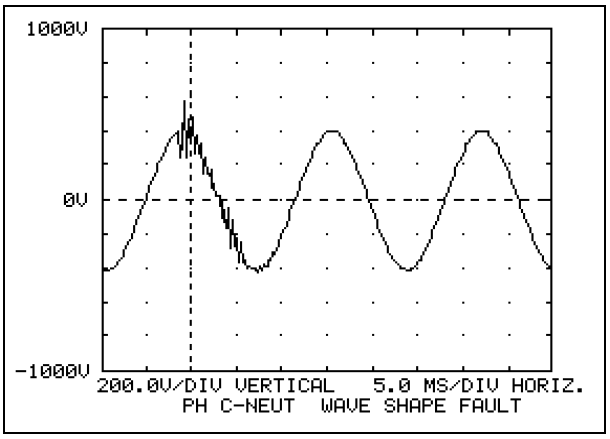
Figure 5. Graphics Based Analyzer Output
Spectrum Analyzers and Harmonic Analyzers
Many instruments and on line monitoring equipment now include the capability to sample waveforms and perform FFT calculations. The capabilities of these instruments vary widely and the user must be careful that the accuracy and information obtained is adequate for the investigation. The following are some basic requirements for harmonic measurements used to investigate a problem:
Harmonic distortion is a continuous phenomena. It can be characterized at a point in time by the frequency spectrums of the voltages and currents. However, for proper representation, measurements over a period of time must be made and the statistical characteristics of the harmonic components and the total distortion determined.
Combination Disturbance and Harmonic Analyzers
The most recent instruments combine limited harmonic sampling and energy monitoring functions with complete disturbance monitoring functions as well (Figure 6). The output is graphically based, and the data is remotely gathered over phone lines into a central database. Statistical analysis can then be performed on the data. The data is also available for input and manipulation into other programs such as spreadsheets and other graphical output processors.

Figure 6. Output from Combination Disturbance and Harmonic Analyzer.
ANALYZING POWER QUALITY MEASUREMENT DATA
Analyzing power quality measurements has become increasingly more sophisticated within the past few years. It is not enough to simply look at RMS quantities of the voltage and current. Disturbances that occur on the power system have durations in the milli-second time frame, equipment is more sensitive to these disturbances, and there is more equipment connected to the power systems that cause disturbances or power quality problems. For these reasons, it is often necessary to continuously monitor system performance and characterize possible impacts of disturbances. The data analysis system must be flexible enough to handle data from a variety of monitoring equipment and maintain a database that can be used by many different applications. The concept is illustrated in Figure 7.

Figure 7. Example Data Analysis System.
Different types of power quality variations require different types of analysis to characterize system performance. Some examples are given in the following sections. With a flexible system, these applications can be customized to individual user needs.
Transients
Transients are normally characterized by the actual waveform, although summary descriptors can also be developed for:
An example of this data in statistical form is presented in Figure 8.
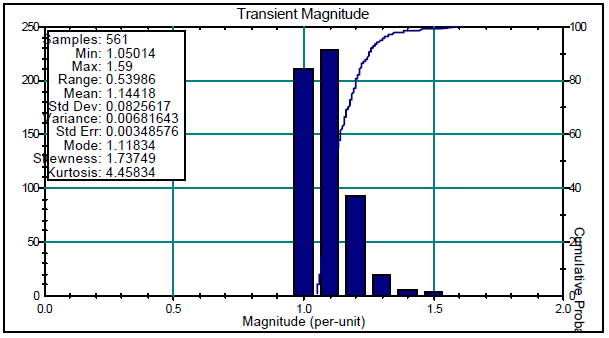
Figure 8. Bar Chart for Transient Peak Voltage.
RMS Variations
RMS variations are generally characterized by the RMS value vs. time or by the minimum magnitude of the voltage during the event vs. the duration of the event. Figure 1 was an illustration of a plot of magnitude vs. Time for a 24 hour period.
This method is fine for looking at single sites and single events. But when a whole system is involved, either customer or utility, it may be preferable to look at a range of events (e.g. one month, one year, etc.) for multiple sites. This would give an indication as to what type of RMS events are occurring on a given system. The magnitude duration plot in Figure 9 illustrates the minimum voltage (in percent) during the event and the duration of the event (time in cycles that voltage was out of the thresholds).
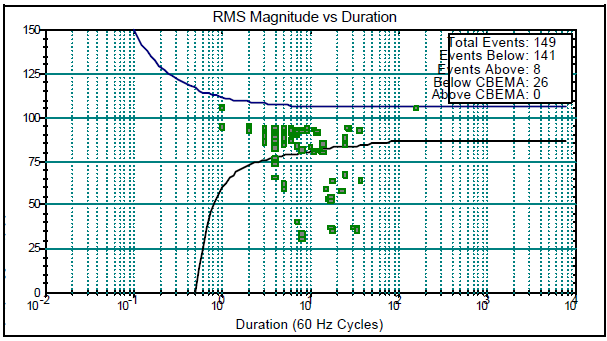
Figure 9. Example Magnitude Duration Plot.
Another method for displaying this type of data is a three-dimensional bar graph where the count, magnitude, and duration is shown. Figure 10 illustrates this type of plot.
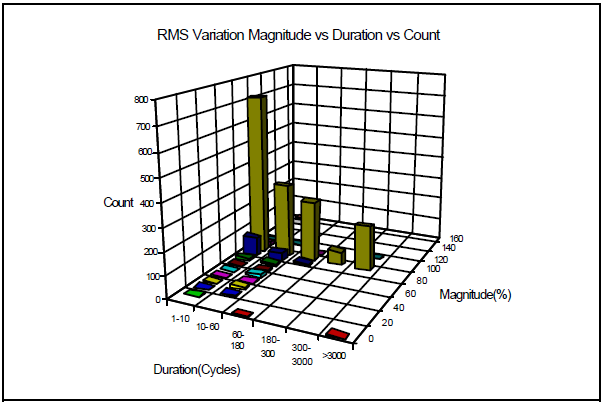
Figure 10. Three-Dimensional RMS Variation Bar Graph.
Harmonics
Harmonics are characterized by individual snapshots of voltage and current with the associated spectrums. It is important to understand that the harmonic distortion levels are always changing and these characteristics cannot be represented with a single snapshot. Therefore, time trends and statistics are needed. An example time trend plot for one month was included in Figure 2. Figure 11 shows the statistics of the harmonic current level. This would be good for comparison with IEEE-519 limits.
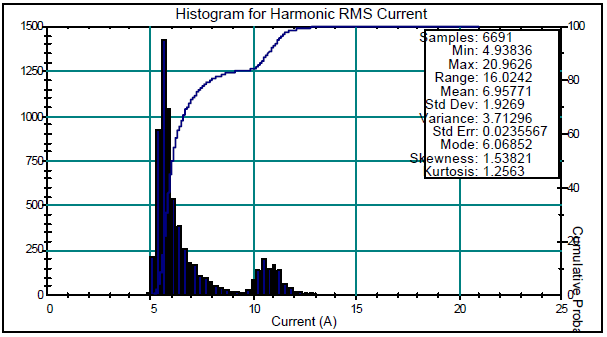
Figure 11. Histogram for Harmonic RMS Current for Approximately Four Months.
SUMMARY
Systematic procedures for evaluating power quality concerns can be developed but they must include all levels of the system, from the transmission system to the end user facilities. Power quality problems show up as impacts within the end user facility but may involve interaction between all levels of the system.
A consistent set of definitions for different types of power quality variations is the starting point for developing evaluation procedures. The definitions permit standardized measurements and evaluations across different systems.
A data analysis system for power quality measurements should be able to process data from a variety of instruments and support a range of applications for processing data. With continuous power quality monitoring, it is very important to be able to summarize variations with time trends and statistics, in addition to characterizing individual events.
Christopher J. Melhorn received an ASE from York College of Pennsylvania in 1986 and a BSEET from the Pennsylvania State University in 1989. Chris has been employed with Electrotek Concepts, Inc. since 1990. His experience at Electrotek includes working with EPRI and utilities on case studies involving power quality issues. He was also extensively involved in the EPRI DPQ project site selection phase. Chris is presently involved in developing new software for the power systems engineering environment and working to increase Electrotek’s industrial based clientele.
Mark F. McGranaghan received a BSEE and an MSEE from the University of Toledo and an MBA from the University of Pittsburgh. Mark serves as Manager of Power Systems Engineering at Electrotek Concepts, Inc., Mark is responsible for a wide range of studies, seminars, and products involving the analysis of power quality concerns. He has worked with electric utilities and end users throughout the country performing case studies to characterize power quality problems and solutions as part of an extensive Electric Power Research Institute (EPRI) project. He has also been involved in the EPRI Distribution Power Quality Monitoring Project which is establishing the baseline power quality characteristics of U.S. distribution systems through a multi-year monitoring effort. Mark was involved in the design and specification of the instrumentation and software for this project.
REFERENCES
Published by Richard P. Bingham, Dranetz Technologies, Inc., USA
Prepared for the Conference on Protecting Electrical Networks and Quality of Supply, Heathrow, UK, 22-23 January 1997
ABSTRACT
The typical power quality problem starts with a frantic call to the facility’s engineer or electric shop supervisor concerning some malfunction that has either shut down production or caused a computer-based system to reset. After the fact, forensic-type investigations are probably the most difficult way to track down the source of a problem related to the quality of power. Following several simple rules can allow persons charged with such responsibilities quickly to mitigate most of such problems. It requires only a basic knowledge of electricity and how the various parameters relate in the presence of changes caused by loads, utility-switching, and other sources of power quality phenomena. It also requires a power quality monitor capable of reliably capturing the necessary information.
BACKGROUND
The increase in power quality related problems are evident with such high visibility incidents as the recent disruptions at the stock exchanges and the air traffic control system in the United States. To those involved with power quality on a daily basis, this comes as no surprise. The increase dependence on computer-based and other electronic equipment with a lower tolerance to various types of power quality phenomena is a large factor.
This increased susceptibility is based on a number of factors, including the lower logic voltage levels, increased clock frequencies, interconnection of equipment through LANs, and escalating percentage of nonlinear loads. Just as important is the restructuring within industrial/commercial and electric utilities that have dispersed and sometimes eliminated the PQ experts within these organizations. The result is that there are more problems for less experienced people to handle.
There are two different approaches to solving power quality related problems: preventative/predictive maintenance and forensic-type investigations. Due to lack of understanding and increased workloads, the after-the-fact investigations still seem to dominate, though they are clearly the most difficult to solve. Both approaches can use simple rules that will help solve most power quality related problems. While the more complex causes will probably require the knowledge of the experienced person, fortunately, these are the minority of cases.
Before going into the simple rules and procedures, a common set of terms needs to be defined. In North America, the predominate source of these is the IEEE 1159 Recommended Practice on Power Quality Monitoring [1]. In Europe, EN50160 coupled with the UNIPEDE Voltage Characteristic documents are good sources. While both are very useful, the IEEE 1159 currently has a more thorough set of definitions for power quality phenomena, so it will be used here, as defined in Appendix A.
PREVENTIVE MAINTENANCE APPROACH
The preventive maintenance or pro-active approach has been used by many companies to prevent significant financial burdens from lost productivity. Whether it is monitoring the outputs of a UPS while off-line or harmonic levels of a transformer that needs to be derated to prevent shortening its life, this approach is clearly the preferred method. However, it often difficult to get implemented, as many do not see the benefits until after the disaster occurs.
Doing a preventive maintenance monitoring program usually involves the following steps: plan/prepare, inspect, monitor, analyze, and implement a solution. This is often an iterative process, as the first solution may only mitigate part of the problem. One of the more difficult tasks for the less experienced person is the analysis of the data. Numerous papers have been written on the other steps, so the following discussion will focus on the analysis step. The following preventive maintenance program concentrates on steady state conditions, though many rules apply to intermittent conditions as well.
It is assumed that a power quality monitor that can make an accurate survey is used. To do such, the monitor should have the ability to simultaneously capture RMS variations on a cycle-by-cycle basis, transients down to the microsecond level, and harmonic distortion at least to the fourthieth. The measuring voltage inputs should be high-impedance, differential inputs that can be used in both wye and delta circuits without assuming balanced conditions.
Current transformers should have an adequate bandwidth to capture both steady state and transient waveforms. This is often not so when CTs are clamped on the secondary of metering current transformers. Often today, voltage transients are clamped by surge suppression devices, so the way to reliably detect transients is through the triggering and monitoring of current transients.
The monitoring period should last at least one business cycle. A “business cycle” is how long it takes for the facility to repeat the pattern of operation. In industrial locations that run three identical shifts, seven days per week, monitoring may only take eight hours. Most facilities will find that a business cycle is one week. It may be necessary to repeat the survey several times per year due to seasonal changes, such as increases in ESD in the winter months in colder climates. Monitoring should also be done at various places throughout the facility. Typically, the survey begins at the point-of-common- coupling (PCC), which is where the electric utility service meets the building service. Next, monitoring is done at the distribution panels on each floor, followed by outlets at the end of each branch circuit. Data at critical loads in the facility should also be included. While this may seem like a lot of data, having this baseline and profile of the facility will be extremely helpful when future disturbances happen.
Once the data has been collected, it is typically transferred into desktop or laptop computers for analysis using PC software programs. Limits on what is acceptable values can be found in such publications as the FIPS PUB 94 – Guideline on Electrical Power for ADP Installations, shown in Appendix B. Local safety agencies or equipment manufacturer’s specification should be observed, especially if they are more restrictive.
What the effect of being outside these limits would depend on the susceptibility of the equipment, the “stiffness” of the power system, and what other factors are present at the same time. These are not absolute limits, but rather references to raise questions. The neutral-to-ground voltage in a 120V, single phase system, is recommended to be between 0.5 and 3 Vrms. [2] If the voltage is near zero volts, then the presence of an illegal neutral-to-ground bond should be suspected. If the voltage is very high, then the absence of a reliable neutral or ground connection should be looked for.
The presence of voltage modulation (or fluctuation) can result in light flicker, depending on the frequency of the modulation. Based on EN60868, a variation of less than 1% at 9Hz with incandescent lighting can be noticeable.[3] In NEMA MG-1 and IEEE Std 112, they recommend a 10% derating of an electric motor with just a 3% voltage imbalance [4,5]. With proliferation of nonlinear loads, such as PCS and printers, being placed throughout facilities often without regard for maintaining balanced loading, a 3% voltage unbalance is non uncommon.
Analysis of several other parameters is useful. The harmonic distortion for both current and voltage should be reviewed. IEEE 519 Recommended Practice on Harmonics in Power Systems and the IEC 1000-4-7 should be consulted for limits specified for individual harmonic amplitudes and total harmonic distortion value. Is the harmonic distortion severe enough that transformers and other inductive devices need to be derated?
A look at the harmonic spectrum from a FFT or DFT can give clues about what type of equipment is operating on the circuit and is it operating correctly. For example, if there is a high percentage of even harmonics, this would suggest the presence of half-wave rectification. If the equipment on the circuit utilizes such, then that may be an acceptable value. However, if the equipment only has full-wave rectifiers in the power supplies, this may indicate that part of the semiconductor bridge circuit is not operating properly.
The harmonics for multi-pole converters usually show up as harmonic pairs, h=p*n+/-1, where h is the harmonic number, p the number of poles, and n is an integer from one on. For example, a six-pole converter (three phase full wave bridge rectifier) would have harmonics at the 5th and 7th, 11th and 13th, 17th and 19th, and so on.
Two other parameters to look at are the source and load impedance. Source impedance is considered as the equivalent impedance of all of the wiring and transformer impedances (plus any loads) looking back toward the source. The load impedance is defined here as the equivalent impedance of all the loads and circuits looking away from the source.
A reasonable approximation of these values can be derived using the formula’s presented in the IEEE Std 1100, Recommended Practice for the Grounding and Powering of Sensitive Electronic Equipment, also known as the Emerald Book [6]. Based on Ohm’s Law, which states that Voltage = Current * Impedance, Load Impedance equals V line-to-neutral divided by I line-to-neutral. While the value is not an exact value unless signals from the entire frequency spectrum are present, it is useful for determining the effect of loads switching on and off.
Similarly, the source impedance is an approximation derived by taking the difference between two voltages at different times and dividing that value by the difference between two currents at the same time, or (V1-V2)/(I1-I2). This will give a value useful for determining how “stiff” the source is. It can also be used to calculate how severe a sag would result when various loads are turned on. For example, if the source impedance is 1 ohm on a 120Vrms circuit with 10A normal load, switching in a load that has an impedance of 11 ohms will result in a sag down to 100V. Source impedance values more than one ohm should be investigated.
If the power quality analyzer used records harmonic magnitudes and phase angles over time under various loading conditions, then harmonic impedances can also be calculated. This can be helpful in identifying potential resonances with system impedances, such as power factor correction capacitors.
During the preventive maintenance monitoring period, obtaining data is also possible as to the frequency of occurrence of power quality phenomena that are not steady-state conditions, such as sags, swells, transients and interruptions. This data can be either compared directly against the susceptibility specifications if supplied by the equipment manufacturer, or statistically compared against the various survey results that have been published in recent years. How to analyze the cause of the disturbance will be covered in the next section.
In North America, there are three recent studies that are useful in comparing against what is considered “normal”, as far as the frequency of different types of power quality phenomena. The National Power Laboratories (NPL) survey was done at the point-of-utilization, the Canadian Electric Association (CEA) study was done at the point-of-common-coupling, and the Electric Power Research Institute (EPRI) survey was done at the distribution voltage levels. [7] Most European countries have also done such surveys, such as the Enel study in Italy, the East Midlands study in England, and the IQF study in France.
In summary, the preventive maintenance program can identify parameters that are likely to result in long-term system degradation or make the system vulnerable to power quality phenomena, such as low nominal line voltage that can be corrected with a transformer tap change. With many power quality monitors and software available in today’s marketplace, such a program does not require much of the user’s time nor effort.
INVESTIGATIVE ANALYSIS
To cover the analysis of power quality data for all of the potential causes of all the various types of disturbances would be a very lengthy dissertation. The following discussion is limited to sags, (or dips) as they are normally the most common and “are the most important power quality problem facing many industrial customers.” [8]
The steps in undertaking an investigative analysis are similar to the preventive maintenance steps. At the analysis step, the first thing to do when determining the cause of sags is usually to determine if the cause was from the source side or the load side. This is also referred to as upstream or downstream, respectively, from the monitoring point. The source side would usually be the electric utility, if monitoring at the PCC. If monitoring at the end of a branch circuit, the source could be other branches off the same feeder, other feeders within the facility, or the electrical supply from the utility or back-up system.
SOURCE GENERATED SAGS
If one considers just source-generated sags recorded at the PCC, they can be the result of problems at the transmission, distribution, or even the generation level. From a study done in Northern Virginia, which experiences 40 thunderstorms in a typical year, the causes of distribution system sags are shown in Table 3.[10]
Other studies have shown similar results of lightning being the predominate cause of sags on distribution systems. Obviously, these percentages are different based on geographic location and the frequency of lightning-caused events. While the industrial/commercial facility manager usually has little recourse in preventing the occurrence of such, it is normally not very difficult to determine that the fault occurred on the utility side with proper monitoring equipment. Appropriate mitigation actions can then be implemented to minimize the impact on the facility, such as installing UPS systems on critical loads.
To determine that the sag is the result of a utility system operation, knowledge of the fault-clearing scheme used the utility, along with an accurate monitoring of the voltage and current waveforms is needed. In the United States, most distribution breakers operate in 3-10 cycles with a high-current fault. They will also attempt to reclose 4-6 times before locking out. An example of such can be seen in Figure 1.
By determining if the current amplitude stayed constant, increased slightly, or decreased during the voltage sag, it can usually be determined that it was a source-generated sag, not a load-generated sag. With most switch mode power supplies that are not heavily loaded, the voltage sag will reduce in input voltage to the power supply to a value less than the voltage level on the filter capacitor after the rectifying circuit.
While this condition remains, no current will be drawn. When the voltage on the capacitor is depleted below the voltage of the sag, then current will again be drawn. With a linear load, the current draw will go down proportionally to the decrease in the voltage. Constant power devices will increase the current drawn slightly, to maintain a constant power with the decreased voltage of the sag.
Knowing the transformer configuration at the service entrance (or any secondary transformer in series back toward the source), can also provide useful information in determining if it was a source generated sag. Single line-to-ground faults (SLTG) on the utility system are much more common than phase-to-phase or three-phase faults. [11] During such SLTG faults, for wye-wye and delta-delta connections, two phase-phase voltages will drop to 58% of nominal, while the other phase-to-phase voltage is unaffected. For delta-wye and wye-delta connections, one phase-to-phase voltage will be as low as 33% of nominal, while the other two voltages will be 88% of nominal. It is the circulating current in the delta secondary windings that results in a voltage on each winding. [12] Figure 2 illustrates this point, with Phase C-A sagging to about 33%, while phases A-B and B-C sag to about 88% of nominal.
If the monitoring point is downstream from the breaker that is attempting to clear the fault on a radial distribution system, than an interruption will be seen while the breaker is open, which is also illustrated in Figure 2. If the fault occurred on a parallel feeder, then the sag will end when the breaker opens.
If current is not monitored, there are some other clues that point to the source of the sag being a utility protection scheme operation. Since the contacts do not open or close cleanly, there will often be some voltage transients observed during the cycle at each end of the fault. Another clue is that the voltage usually drops abruptly and recovers abruptly. Since most industrial loads do not cycle on for 3-10 cycles only, and a motor start results in a voltage sag that recovers gradually, this type of fault is often readily discernible.
LOAD GENERATED SAGS
Though the electric utilities are frequently blamed for the source of sags, several studies, including the NPL study, have shown that “50% or more of the low/high RMS events are caused by load equipment in the building”.[10] “Sags found in industrial environments are generally due to the start-up of a load or a faulted circuit.” [13] Here is where Ohm’s and Kirchoff’s Laws are very useful in determining the cause the sag and the effects of loads starting up.
When loads normally start, there is an increase in current (I load) based on the load’s impedance (Zload) and line voltage (Vsource). As mentioned before, the source and load impedances can easily be calculated if voltage and current are monitored on a cycle-by-cycle basis. Kirchoff’s Laws states that the sum of the voltages around a closed loop must equal zero. An increase in current caused by a load change will result in an increased voltage drop across the source impedance(Vz = Iload * Zsource). Refer to Figure 3.
If the source voltage remains constant (which is a reasonable assumption if the source is considered as the electric utility generator), then the voltage across the load will decrease by the amount of the voltage drop across the source impedance. Figures 4 and 5 show an example of a sag caused the periodic cycling of the heating element in a laser printer. The top waveform is the Line-to-Neutral Voltage, the middle is the current, and lower is the Neutral-to-Ground voltage. Observe how the N-G voltage and current waveforms are very similar. If the source impedance is split between both legs feeding the load, then it can be easily seen how an increase in line current would develop a voltage drop in the neutral leg, which would result in the neutral-to-ground swell seen here.
SUMMARY
Using a power quality monitor to do preventive maintenance surveys and/or after-the-fact investigations requires the knowledge of Ohm’s and Kirchoff’s Laws. The data gathered from the survey is compared against acceptable limits to determine what parameters could be affecting the proper operation of equipment. For the forensic investigation, the direction of the power quality phenomena is determined first (source or load generated). Then, by analyzing the characteristics of the voltage and current waveforms and comparing them against those produced by different types of loads or system operations, the source in many cases can be quickly tracked down.
APPENDICES
Appendix A – IEEE 1159 Power Quality Phenomena [1].

Appendix B – Some Representative Power Quality Attributes from FIPS PUB 94, pg 90.[13]
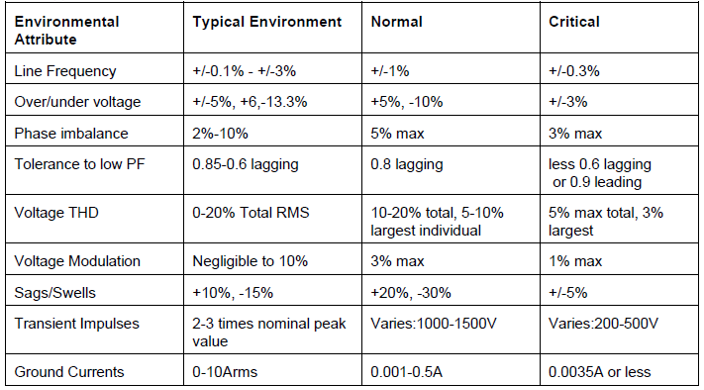
Appendix C – Table 3. Cause of Utility Distribution Sags
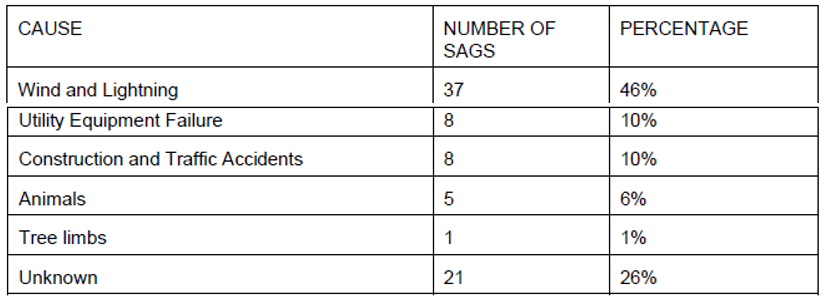
Appendix D – Figures
Figure 1. Sag Caused by Utility Distribution Breaker Operation
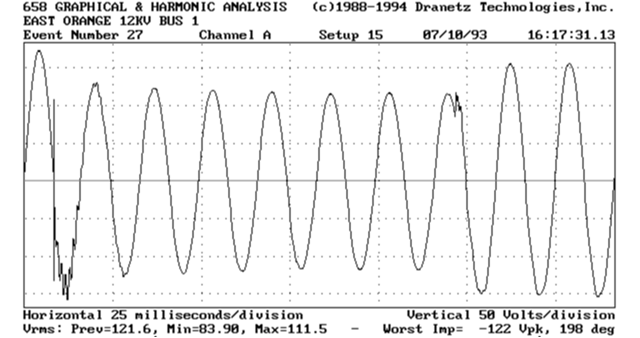
Figure 2. Single-Line-to-Ground Fault Sag then Interruption
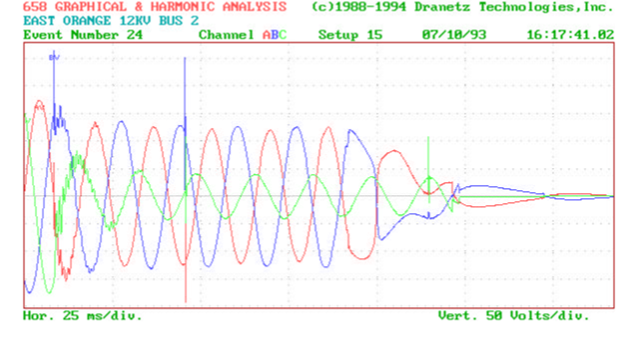
Figure 3. Equivalent Impedance Diagram

Figure 4 and 5. Laser Printer Heating Element Cycling – On and Off
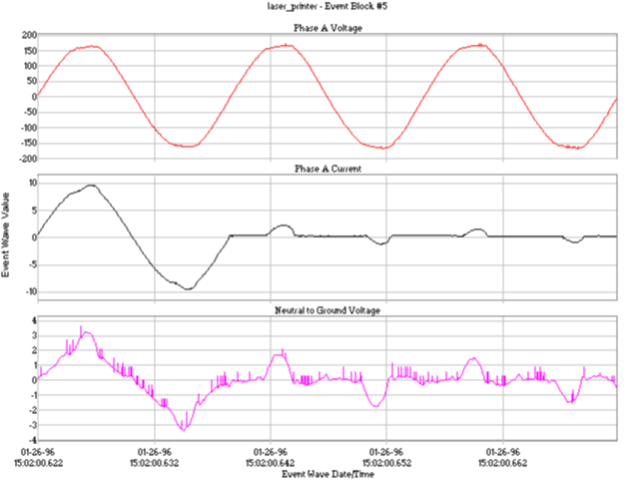
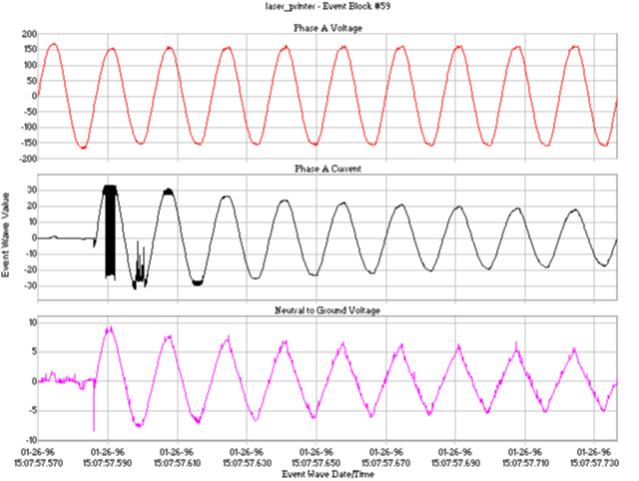
REFERENCES
1. IEEE Std 1159-1995 – Recommended Practice on Monitoring Electric Power Quality.
2. Dranetz Field Handbook for Power Quality, Dranetz Technologies, 1989.
3. EN60868, Flickermeter, CEI, 1986.
4. NEMA Stds Pub MG-1, National Electrial Manufacturers Association, 1987.
5. IEEE Std 112 – Standard Test Procedure For Polyphase Induction Motors.
6. IEEE Std 1100-1992, Recommended Practice for the Grounding and Powering of Sensitive Electronic Equipment, also known as the Emerald Book.
7. Dorr, Douglas, et.al, Interpreting Recent PQ Surveys to Define the Electrical Environment, IEEE IAS Conference, October 1996.
8,11. McGrahaghan et al, Voltage Sags in Industrial Systems, IEEE Transaction on Industry Applications, Vol 29, No 2, March/April 1993.
9. Dorr, Douglas S. National Power Laboratory Power Quality Study, “Point of Utilization Power Quality Study Results,” October 1994.
10. Berutti, Al, And R.M.Waggoner, Practical Guide to Quality Power for Sensitive Electronic Equipment, EC&M, Based on materials originally written by John A. DeDad and editors of EC&M, Intertec Publishing Corp, 1993.
12. Smith, Charles J. Jeff Lamoree, et al, “The Impact of Voltage Sags on Industrial Plant Loads, IEEE paper.
13. D.Kreiss, Determining the Severity and Cause of Voltage Sags Using Artificial Intelligence, 1994 ASHRAE Conference
14. US Dept of Commerce/National Bureau of Standards, FIPS PUB 94 – Guideline on Electrical Power for ADP Installations, September, 1983.
15. Lonie, Bruce and Tom Shaughnessy, Power Grounding & Protection for Electronic Equipment, PowerCET, Santa Clara, CA, 1990.
Have a WordPress.com account? Log in now.

